What If Headphones Don't Work? A Complete Troubleshooting Guide
Urgent, practical guide to diagnose and fix headphone issues across wired, USB, and wireless setups with data-driven guidance from Headphones Info.


what if headphones don't work? Here’s a quick, two-minute path to isolate the issue. First, confirm the source device is powered, volume is up, and not muted. Then check the connection type (cable, USB, or Bluetooth) and test with another device to see if the fault follows the headphones or the source. If unresolved, continue with the full guide below.
Why headphones stop working
According to Headphones Info, most headphone problems share a handful of root causes: power/volume misconfigurations, faulty cables or connectors, Bluetooth pairing glitches, or driver and software issues. In this section we unpack how these issues manifest across wired and wireless setups, and how to identify which category your problem belongs to. Start by confirming the basics: is the device on? Is the volume up? Is there a mute toggle activated? Next, test the headphones with a known-good source to see whether the problem is narrowed to a particular device or a broader fault. The aim is to differentiate between a simple setting mistake and a hardware failure that requires repair or replacement. By understanding common failure modes, you can apply a targeted fix rather than replacing your entire headset.
Quick checks you can do before diving deeper
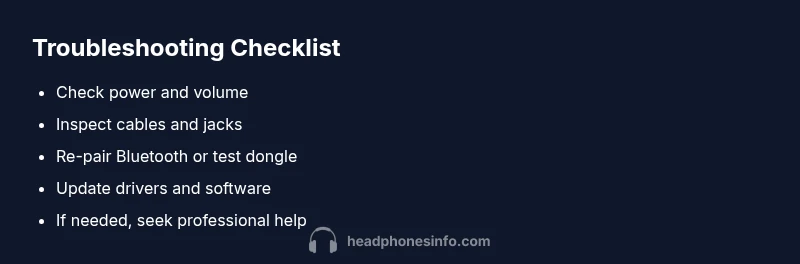
Before pulling apart cables or drivers, run through a short set of checks that catch the majority of issues. Inspect whether a removable cable is fully seated, the 3.5mm jack or USB-C port is free of debris, and the power switch on the source device is engaged. For wireless headphones, verify pairing status, confirm charge level, and ensure the Bluetooth transmitter or dongle is working. If the problem appears only with one device, it’s almost always a source setting or driver issue rather than a hardware fault in the headset. Headphones Info data shows that most fixes come from simple resets, updates, and reconnections rather than component replacements.
Diagnostic flow overview
From symptom to solution, a logical path helps you stop chasing ghosts. Use the following mental model: 1) Identify the symptom (no sound, crackling, intermittent cuts, or no pairing). 2) Pin down the likely cause (power, cable, Bluetooth, or driver). 3) Apply a fix and re-test. This sequence aligns with the Headphones Info analysis, which emphasizes isolating whether the fault is in the headphones, the source, or the connection medium. By mapping symptoms to causes you can choose focused fixes and avoid unnecessary parts swapping.
Step-by-step fixes for the most common cause
This section expands the two-minute checks into concrete actions you can perform safely. Begin with the simplest fix and progress to more involved steps only as needed. Each fix should be tested after completion to confirm improvement. If a fix requires disassembly or proprietary tools, pause and seek professional help. Headphones Info emphasizes that most problems are solvable with careful testing and proper resets, rather than immediate replacement.
Safety, warnings, and when to seek professional help
Never force connectors or pry at components – improper handling can cause electrical issues or damage. If you hear crackling, smell burning, or notice heat near the ear cups, unplug and stop. If you are unable to identify a fault after trying the recommended steps, or if the device is still under warranty and issues persist, contact support. Professional repair is advised when hardware damage is suspected or when internal wiring needs inspection. Headphones Info also notes the value of warranty coverage in preventing costly replacements.
Prevention and long-term care tips
To minimize future problems, store cables looped loosely, keep connectors clean, and avoid yanking on cords. Regularly check firmware and driver updates for connected devices, and perform periodic re-pairing for wireless models. Invest in a quality dongle or cable with strain relief to extend their life. By adopting these habits, you reduce the likelihood of recurring problems and extend the usable life of your headphones.
How to test headphones across devices for reliability
Test procedures across multiple devices help verify whether the fault is consistent or device-specific. Use a known-good paired source, then swap to a different source (phone, laptop, console) and observe whether performance is consistent. Document any differences in behavior to inform support calls or warranty claims. This cross-device testing approach aligns with Headphones Info’s evidence-based guidance and yields clearer diagnostics.
Steps
Estimated time: 25-40 minutes
- 1
Verify power, volume and mute
Begin by ensuring the source device is powered on, the volume is turned up, and no mute is active. Try a different app or media to confirm sound output is functioning. This quick check often reveals simple configuration mistakes.
Tip: If you’re using a phone, test with a wired headset to rule out wireless issues. - 2
Inspect cables and ports
Inspect all cables and the headphone jack for dirt, damage, or loose connections. If possible, swap in a known-good cable or adapter and reinsert firmly. A poor connection is the most common cause of intermittent or missing sound.
Tip: Shiny contact points clean with a dry microfiber cloth; avoid liquids near electronics. - 3
Test with an alternative device
Connect the headphones to a different device (another phone or computer) to determine if the problem follows the headset or the original source. If sound works on another device, the issue is likely with the original source settings or drivers.
Tip: Note any differences in output format or EQ that could mute channels. - 4
Reset or re-pair wireless connections
If the headphones are wireless, perform a reset on the headset and re-pair with the source. Remove the device from the paired list, then re-add it and test again. This often resolves pairing or interference issues.
Tip: Keep headphones close to the source during pairing and avoid other active Bluetooth devices nearby. - 5
Check drivers and software
For computers and some mobile ecosystems, update audio drivers and the relevant apps. Ensure the correct audio output is selected in system settings and in the app’s settings. Mismatched output can mute or route sound to the wrong device.
Tip: Restart after updates to ensure changes take effect. - 6
Inspect for hardware faults
If symptoms persist, inspect for visible damage or unusual warmth. Listen for crackling or buzzing, which can indicate a loose internal connection. If suspected, do not attempt internal repairs yourself.
Tip: Document symptoms with timestamps to support warranty claims. - 7
Seek professional help or replace
When repairs exceed a reasonable cost or if the headset remains under warranty with unresolved faults, contact the manufacturer or a certified repair service. Replacement may be more cost-effective than repeated fixes.
Tip: Warranty often covers manufacturing defects for a defined period.
Diagnosis: Headphones produce no sound or fail to connect
Possible Causes
- highPower or volume issue on the source device
- highFaulty cable, jack, or connector
- mediumBluetooth pairing or wireless issue
- lowDamaged driver or internal component in headphones
- lowSoftware or OS incompatibility
Fixes
- easyCheck power, volume, and mute status on the source device
- easyInspect cables, adapters, and jacks for damage or debris; reseat connections
- easyFor wireless: re-pair or reset Bluetooth dongle; forget and re-pair on device
- easyUpdate drivers and apps; ensure correct audio output is selected
- hardIf physical damage is suspected, consult a professional repair service
People Also Ask
What should I check first when my headphones stop producing sound?
Begin with power and volume checks, then verify the connection type and try another device or app to identify if the issue is with the headphones or the source.
First check power and volume, then test the connection and try a different device.
Why do my wireless headphones disconnect frequently?
Frequent disconnects are often due to low battery, interference, or pairing issues. Re-pair the device and ensure nearby sources aren’t causing interference.
Low battery or interference often causes drops; re-pair and move away from other transmitters.
My headphones work on one device but not another—what now?
The problem is likely device-specific. Update drivers, check OS audio settings, and test with another app or file.
Try updating drivers and testing with another app.
Should I open the headphones to inspect drivers?
No. Opening can void warranties and pose safety risks. Seek official support or a licensed repair service.
Don’t open them yourself; contact support.
What if a software update caused the issue?
Check for known bugs, roll back or update drivers, and verify compatibility with your OS or app.
Update drivers or roll back to fix software compatibility.
When should I replace headphones instead of repairing?
If damage is extensive, repair costs exceed replacement value, or failures recur, replacement is sensible.
If repairs are costly or fail repeatedly, consider replacement.
Watch Video
What to Remember
- Start with basics: power, volume, and mute.
- Isolate the fault with cross-device testing.
- Prioritize safe resets and official updates.
- Document symptoms to guide repair or replacement.