Can You Plug in Headphones to a PS5 Controller? A Step-by-Step Guide
Learn how to connect wired headphones to the PS5 DualSense controller, adjust audio settings, troubleshoot common issues, and explore wireless alternatives for gaming and chat.


Yes, you can plug in headphones to ps5 controller via the DualSense's 3.5mm jack. This wired connection supports audio output and microphone input for chat, using a single TRRS plug. If you’re asking can you plug in headphones to ps5 controller, aim for a headset with a combined mic and audio plug and verify the settings for optimal sound and mic levels.
Understanding the DualSense 3.5mm Jack
The PS5 DualSense controller includes a 3.5mm audio jack at the bottom, designed to accommodate wired headsets. This jack is compatible with TRRS plugs, which combine microphone and audio into a single connector. For many players, the simplest path to immediate in-game sound and voice chat is to connect a wired headset directly to the controller rather than routing everything through the TV or console. According to Headphones Info, most common gaming headsets with a single 3.5mm plug work reliably with the DualSense, providing low-latency audio and a responsive microphone when configured correctly. This setup is especially popular for players who want a compact, portable solution without extra adapters. Understanding this hardware baseline helps you decide on the right headset and avoids common misconfigurations. The fundamental takeaway is that the hardware does support wiring through the controller, but your headset must match the connector type and be compatible with the mic and audio standards used by the PS5.
Wired headset compatibility and mic behavior
Wired headsets that use a 3.5mm TRRS plug are designed to deliver both game audio and mic input through a single jack. If your headset uses separate plugs (one for mic, one for audio), you’ll need an adapter or a headset that is explicitly TRRS-compatible. Some low-cost or older headsets may not negotiate correctly with the DualSense, leading to audio one-way or mic silence. In practice, a TRRS-compatible headset should work out of the box, but you may need to confirm mic activity with a quick test in a PS5 party or in-game voice chat. Headphones Info’s analysis indicates that impedance and mic configuration can influence how loud or clear you sound, so it’s worth selecting a headset with a reasonable impedance (often 16–32 ohms for gaming headsets) and a built-in microphone that is designed for gaming use. This section emphasizes that wired compatibility hinges on connector shape, mic integration, and headset quality rather than the PS5’s willingness to accept the signal.
How to connect and configure on PS5
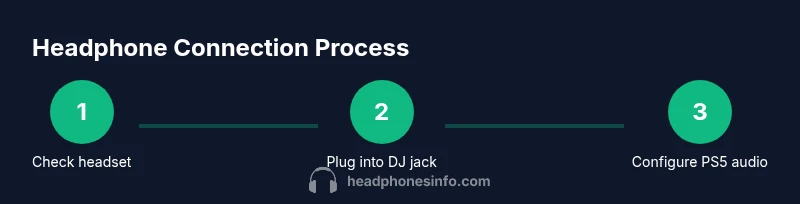
First, power on your PS5 and locate the DualSense controller’s 3.5mm jack. Plug the headset firmly into the jack until you feel a slight click. Navigate to Settings > Sound > Audio Output and set Output to Headphones or All Audio, depending on whether you want game audio only or both game audio and chat to route through the headset. Then, go to Audio Input and select Microphone as the input source to ensure your voice travels through the headset mic. In the same menu, adjust the Headphone Volume and Microphone Level to comfortable levels. If your headset includes inline controls, test them to confirm mute and volume functions work as expected. The Headphones Info team notes that keeping the mic closer to your mouth will typically improve voice clarity, especially in noisy environments. Finally, test in a party or game voice chat to verify that both sides hear you clearly.
Troubleshooting common issues
If you don’t hear game audio in the headset, double-check that the Output Device is set to Headphones and that the Headphone Volume is not muted or at an inaudible level. A loose connection can mimic a lack of sound, so reseat the plug firmly. If the microphone isn’t picking up your voice, confirm the microphone is enabled in Settings and that the Mic Monitoring setting isn’t muting your voice due to a misadjusted sensitivity. Some headsets require you to disable “Chat Audio” in favor of “All Audio” to hear in-game sounds and communicate with teammates properly. Finally, verify that the headset’s inline controls are not muting both microphone and audio accidentally.
Wireless options and caveats
Wireless headsets can be paired to the PS5 console via Bluetooth or USB dongles, but this path is not the same as plugging headphones into the controller. The DualSense itself does not pair Bluetooth headphones directly for audio through the controller, and latency can be an issue with Bluetooth gaming audio. If you want a wireless route with minimal latency, consider a USB wireless headset or a dedicated PS5-compatible dongle that connects through the console’s USB ports. This section explains the difference between using the controller’s 3.5mm jack and wireless options, helping you choose the right approach for your setup and playing style. Headphones Info recommends prioritizing wired connections when possible for consistency and lower latency, especially in fast-paced games.
Maintenance and best practices
Keep the 3.5mm jack clean with a soft brush to prevent dirt from accumulating in the contact points. When not in use, coil or loosely route the headset cable to avoid stress on the jack. If you notice crackling or intermittent sound, try a different headset to determine whether the issue lies with the cable, plug, or the PS5’s audio settings. Regularly check for PS5 firmware updates which sometimes include audio improvements. For mic quality, position the microphone close to your mouth, speak clearly, and avoid covering the mic with clothing or hair. Regular testing in voice chat ensures you stay audible and avoid surprises during multiplayer sessions. Headphones Info emphasizes that consistent practice with your chosen headset will yield the best long-term results.”],
toolsMaterialsNoteAdded
toolsMaterialsAdded
Tools & Materials
- Wired headset with 3.5mm TRRS plug(Ensure the plug is TRRS (4-pole) for combined audio and mic support in one jack.)
- PS5 DualSense controller(Standard controller included with PS5 for wired audio passthrough.)
- Adapter for non-TRRS headsets (optional)(Use only if your headset uses separate mic and audio plugs.)
- Soft cloth or microfiber for cleaning jack(Keeps the jack clean for reliable connections.)
Steps
Estimated time: 6-12 minutes
- 1
Check headset compatibility
Inspect your headset to confirm it uses a 3.5mm TRRS plug and has a built-in microphone. If your headset uses separate mic and audio plugs, consider an adapter or choose a TRRS headset for a smoother setup.
Tip: Testing with a smartphone headset first helps verify whether the mic and audio functions work together. - 2
Plug headset into DualSense 3.5mm jack
Insert the headset firmly into the bottom of the DualSense until you feel a small resistance and the plug seats completely. A loose fit may cause intermittent audio or mic dropouts.
Tip: Don’t force the plug; if it won’t fit, reassess compatibility or use an adapter. - 3
Power on PS5 and access Sound settings
Turn on your PS5, then go to Settings > Sound > Audio Output to choose your output device. Selecting Headphones routes audio to the headset; choose All Audio to send both game and chat sound to the headset.
Tip: You can adjust the overall volume and balance in this menu for comfort. - 4
Configure microphone input
In Settings > Sound > Microphone, set the input device to Microphone (headset). Ensure the mic is not muted and adjust the Microphone Level to a comfortable sensitivity.
Tip: Test your mic in a party or in-game voice chat to verify clarity. - 5
Test and calibrate in a game
Launch a friendly game or a party to verify both game audio and microphone work as expected. If there’s echo or feedback, check mic distance and headset volume.
Tip: Use a short in-game test to avoid disrupting matches. - 6
Fine-tune and save your settings
Return to Settings to tweak Output to Headphones, Volume, and Microphone Level based on your listening environment and speaking style. Save these preferences so they persist across sessions.
Tip: Keep a quick test routine to ensure nothing has reset after updates.
People Also Ask
Can I use Bluetooth headphones directly with the PS5 controller?
Bluetooth audio is supported on the PS5, but the DualSense controller itself does not support direct Bluetooth pairing for headsets. For reliable gaming audio and chat, use a wired headset plugged into the controller or pair a Bluetooth headset to the PS5 console.
Bluetooth headsets can work with the PS5, but not directly through the DualSense jack. For best results, use wired audio through the controller or connect Bluetooth to the PS5 console.
Will my mic work if I use a wired headset with the 3.5mm jack?
Yes. A headset with a 3.5mm TRRS plug should provide both audio output and microphone input when plugged into the DualSense. If the mic isn’t detected, check the PS5 microphone settings and ensure the mic isn’t muted.
Yes, wired mics on TRRS headsets usually work through the controller. If it’s not heard, check settings and mute switches.
What should I do if there’s no sound from the headset?
Verify the Output Device in PS5 Settings is set to Headphones or All Audio, and confirm the headset volume is raised. Test with another device to rule out headset hardware failure and consider a different headset if necessary.
Check Output to Headphones, raise volume, and test with another device if needed.
Are there latency concerns with wired headsets?
Wired headsets generally have lower latency than Bluetooth and are preferred for competitive play. If latency feels high, ensure the headset is properly plugged and test with in-game audio settings or a party chat test.
Wired headsets usually have very low latency, which is good for timing in games.
Can I connect a USB headset instead of using the 3.5mm jack?
Yes, you can connect a USB headset or dongle to the PS5 console for audio and mic input. This approach bypasses the controller entirely and can offer different mic quality or controls.
USB headsets work through the PS5 console and can offer features not available on the controller.
What if my headset uses separate mic and audio plugs?
Use a TRRS adapter or purchase a headset that combines mic and audio into a single 3.5mm plug. Some non-TRRS headsets won’t work properly with the DualSense without an adapter.
If you have separate plugs, get a TRRS adapter or a headset designed for gaming with a single plug.
Watch Video
What to Remember
- Use the DualSense 3.5mm jack for wired audio with a TRRS headset
- Configure PS5 audio output and microphone settings for optimal sound
- Wired headsets offer lower latency than most Bluetooth options for gaming
- Bluetooth headsets have potential latency; wired is often preferable for competitive play
- Test mic and audio in a party or game to ensure everything works before a match