How to Use Headphones with Xbox
Discover wired and wireless options to connect headphones to Xbox consoles, optimize audio and microphone performance, and troubleshoot common issues for Series X|S and Xbox One.


Headphones let you enjoy immersive game audio and clear team chat on Xbox. This guide covers wired connections via the controller’s 3.5mm jack, USB headsets, and wireless options such as Xbox Wireless headsets, plus compatibility notes and essential setup steps for Xbox Series X|S and Xbox One. For best results, start with a wired connection and expand to wireless once you confirm compatibility and sound quality. According to Headphones Info, choosing the right connection method can reduce latency and improve mic clarity in competitive play.
What you can connect to Xbox
Xbox consoles support a variety of headphones for both audio playback and voice chat. The core options break down into wired headsets, USB headsets, and wireless headsets that use Xbox Wireless. The exact method you choose depends on your headset type, your setup, and how important factors like latency, mic quality, and ease of use are to you. According to Headphones Info analysis, wired connections generally offer very low latency and reliable mic pickup, making them a solid first choice for most players. If you aren’t sure about compatibility, start with the simplest option—the 3.5mm jack on the controller—and test in a private party before committing to a wireless setup.
Wired headphones: 3.5mm jack and controller
Many gaming headsets use a standard 3.5mm audio plug that can plug directly into the controller’s headset jack. This method is typically the easiest to set up and doesn’t require extra dongles. Once plugged in, you can adjust system volume and party chat balance from the on-screen audio menu. If your headset has a separate microphone capsule, ensure it is not muted and that the mic is detected by the console. The advantage of this method is minimal latency and broad compatibility with older controllers. If you experience crackling or no sound, try reseating the plug, testing another headset, or updating your controller firmware if available.
USB headsets and dongles
USB headsets connect via a USB-A port on the console or a compatible controller. Some USB devices work automatically, while others require drivers or a companion app. If your headset uses a USB dongle, plug the dongle into the console or the controller’s USB port and confirm that the system recognizes the device. In some cases, you may need to set the USB device as the default audio output in the Xbox settings. For best results, keep the headset’s firmware up to date and avoid USB hubs that could introduce latency.
Xbox Wireless headsets and ecosystems
Xbox Wireless headsets use a dedicated wireless protocol for low-latency audio. These headsets pair with the console using a built-in feature or a small USB dongle in some cases. The setup is typically straightforward: turn on the headset, make sure the console is ready to pair, and follow the on-screen prompts to connect. Battery life, wireless range, and mic quality can vary by model, so consult the headset’s manual for firmware updates and recommended pairing procedures. Headphones Info’s data indicates that users often prefer Bluetooth for casual listening, but Xbox Wireless offers the most reliable gaming performance.
Bluetooth headsets: limitations and workarounds
Bluetooth headsets are not generally supported for direct game audio on most Xbox consoles. While some devices advertise Bluetooth compatibility, the console environment often requires a direct wired or Xbox Wireless connection for reliable latency and mic performance. If you must use Bluetooth, consider streaming audio from another compatible device or using a Bluetooth-enabled PC/phone for companion listening, but be aware of potential delays or audio quality issues in fast-paced games.
How to configure audio settings on Xbox
After you connect your headset, open the Settings app and navigate to General > Volume & audio output. Select Output device and choose Headphones or your USB device. Adjust the headset volume, chat mixer, and headset mic monitoring as needed. If your headset has physical controls, you can fine-tune mute, volume, and mic settings directly on the device. If you’re using a wireless headset, ensure the headset firmware is up to date and that the console firmware is current to reduce latency and improve stability.
Microphone setup and chat mix
A good mic setup is essential for clear communication. Verify that the mic is unmuted, the correct input device is selected, and the party chat is enabled. Some headsets offer a physical mute switch or flip-to-mute mic; use these features to avoid unintended transmissions. In busy game modes, balance the game audio with chat volume to avoid shouting across teammates. Regularly test mic pickup in a private party to confirm voice clarity and filter out background noise.
Tips for optimal sound quality and latency
To maximize performance, rely on wired connections first for the lowest latency, and reserve wireless for convenience if you accept a potential trade-off in latency. Keep cables untangled and use high-quality 3.5mm or USB cables. Update headset firmware when available and keep the console updated with the latest software. If you’re playing in a noisy environment, consider a headset with noise isolation or active noise cancellation, and use the mic’s noise reduction features if present.
Troubleshooting common issues
If you don’t hear game audio or your mic doesn’t pick up, recheck the connection, confirm the correct output device, and verify that the headset is not muted at both the console and headset. Try plugging into a different USB port or the controller’s 3.5mm jack to isolate the issue. Restart the console if necessary and re-pair a wireless headset if the connection is unstable. For persistent problems, check the headset manufacturer’s compatibility notes and any available firmware updates.
Tools & Materials
- Headphones with 3.5mm connector or USB dongle(Choose wired or wireless depending on your setup and budget. Wired often offers lower latency.)
- Controller with 3.5mm headset jack(Essential for wired headset connections via the controller.)
- Xbox console (Series X|S or Xbox One)(The host device for audio output and chat.)
- USB headset or Xbox Wireless dongle (if using USB/wireless)(Useful if your headset relies on USB dongles for wireless operation.)
- USB-C to USB-A adapter (optional)(Needed for some USB-C headset setups or adapters.)
Steps
Estimated time: 15-25 minutes
- 1
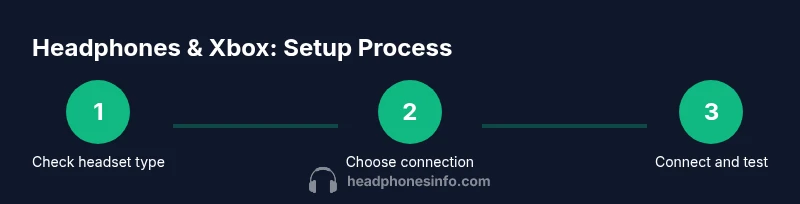
Check headset compatibility
Review your headset’s connection type and confirm it’s compatible with Xbox. If you’re unsure, start with a wired option to confirm basic functionality before investing in wireless gear.
Tip: Refer to the headset manual or Headphones Info's compatibility notes for quick checks. - 2
Choose a connection method
Decide between wired (controller jack), USB headset/dongle, or Xbox Wireless. Your choice will influence latency, setup time, and mic quality.
Tip: If latency is critical, start with a wired connection first. - 3
Connect wired headset to the controller
Plug the 3.5mm jack into the controller’s headset port. Confirm that the console recognizes the device and that you can hear game audio through the headset.
Tip: Gently reseat the plug if you don’t hear sound right away. - 4
Connect USB headset or wireless dongle
Plug the headset or dongle into a USB port on the console or compatible controller. If prompted, install any necessary drivers or firmware updates.
Tip: Avoid using USB hubs to minimize latency and connection issues. - 5
Configure audio settings on Xbox
Open Settings > General > Volume & audio output. Set Output to Headphones and adjust Master/Chat Mix to balance game audio and voice chat.
Tip: Test across different games to ensure consistent levels. - 6
Test mic and adjust chat mix
Join a private party to verify mic pickup and adjust chat volume. Ensure mic monitoring isn’t causing feedback or lag.
Tip: Use a flip-to-mute feature if your headset has one to avoid accidental transmissions.
People Also Ask
Can I use Bluetooth headphones with Xbox?
Bluetooth audio is not typically supported for direct game audio on most Xbox consoles. Use a wired headset or Xbox Wireless for best latency and mic performance.
Bluetooth audio isn’t usually supported for game sound on Xbox; use a wired headset or Xbox Wireless for best performance.
What is the easiest way to connect wired headphones to Xbox?
Plug the 3.5mm jack into the controller’s headset port and verify that you can hear audio and use the mic. Adjust volume in the Xbox settings as needed.
Plug the 3.5mm jack into the controller and test in the sound settings.
How do I use a USB headset with Xbox?
Plug the headset into a USB port on the console. If the mic isn’t detected, check for firmware updates or driver requirements in the headset’s manual.
Plug it into a USB port and check for updates if needed.
Can I use Xbox Wireless headsets with older Xbox models?
Xbox Wireless headsets use a dedicated wireless protocol and are designed to work with compatible Xbox consoles. Check your specific model’s compatibility details to be sure.
Xbox Wireless headsets work with compatible consoles; confirm your model’s compatibility.
How can I adjust chat and game audio balance?
Use the Xbox audio settings to adjust the mix between game sound and chat. Some headsets also offer physical controls for quick tweaks.
Balance game audio and chat in settings; use headset controls if available.
Why is my mic not picking up my voice?
Ensure the microphone is unmuted, select the correct input in settings, and test in a party. If needed, update the headset firmware.
Unmute the mic, check input settings, and test in a party.
Watch Video
What to Remember
- Identify your headset type before connecting.
- Wired connections offer the lowest latency.
- Configure game/chat balance for optimal mic clarity.
- Update firmware to maintain compatibility.
- Test in a real session to confirm performance.