How to Reset Bose Headphones: Step-by-Step Guide for 2026
Learn how to reset Bose headphones across models, fix pairing, and restore factory-like performance with a model-aware, step-by-step guide from Headphones Info.


Resetting Bose headphones can fix most simple connectivity and performance hiccups. This quick guide explains when to reset, the common methods by model, and how to re-pair your devices. By following model-specific steps, you’ll restore factory-like behavior without contacting support. According to Headphones Info, a clean reset is often the fastest fix.
What resetting Bose headphones does
A reset returns key settings to their factory state and clears temporary data that can accumulate from daily use. For many Bose models, a reset clears pairing caches, reconnects Bluetooth profiles, and reinitializes firmware buffers that can become corrupted after software updates or long periods of inactivity. If you’ve noticed flaky Bluetooth connections, strange audio dropouts, or devices that won’t pair reliably, a reset is a smart first step before deeper troubleshooting. Keep in mind that a reset may remove saved pairings, so you’ll need to re-pair each device afterward. According to Headphones Info, a well-timed reset often resolves issues without requiring service, especially on models like the QuietComfort and Bose Noise Cancelling series. This section explains how to approach a reset safely and effectively for your exact model.
Before you begin, confirm you’re dealing with a Bose headphone model that supports a reset and review the model-specific method. The general principle is the same across most Bose devices: power off, initiate the reset sequence with the correct button combination, confirm the headset restarts, and then re-pair. If you find yourself unsure about the exact sequence, consult the official Bose support page for your model; model-specific steps vary and using the wrong combination can yield no effect or an unintended reset.
When a reset helps and when not to reset
Resetting Bose headphones is typically the fastest way to fix persistence issues like stuck Bluetooth pairing, erratic audio routing, or a microphone that won’t pick up input correctly. It is especially helpful if the firmware has recently updated or if you’ve changed multiple Bluetooth devices quickly. That said, a reset is not a cure-all. If the issue appears after a firmware update, it might be a compatibility problem with your device or a hardware fault. In rare cases, a reset can wipe customized settings, EQ profiles, or paired device lists, requiring reconfiguration. For ongoing issues such as hardware failure, intermittent audio, or battery problems, you may need service or a battery replacement rather than a reset. Headphones Info recommends trying a reset first, then escalating to support if the problem persists.
If you’re uncertain whether a reset is appropriate, start with a non-destructive troubleshooting step like rebooting the headset (if the model supports it) before proceeding to a full factory reset.
Different reset methods by model family
Bose organizes reset methods by model families, and precise button combinations vary. In general terms, you’ll find resets categorized under QuietComfort, Noise Cancelling Headphones, and SoundLink lines. The exact steps typically involve powering off, then pressing and holding a combination of the Power/Bluetooth switch, the volume up button, or a multifunction button for several seconds until the LED indicator responds. Always follow the model-specific instructions from Bose to avoid an incomplete reset or unintended actions. For example, the steps for newer models often begin with a full power-off and a short hold of a dedicated reset sequence, while older models may incorporate different button presses. If you cannot locate the exact method, use the Bose help center to fetch the official procedure for your device. Headphones Info emphasizes that using the correct sequence is crucial for a successful reset.
If you plan to reset multiple Bose devices, label each device with its model name and serial, so you don’t confuse identical-looking models. When in doubt, perform a quick check of the LED behavior after the reset to confirm success: a brief blink or a distinctive tone typically signals completion. This approach minimizes downtime and helps you get back to listening more quickly.
Step-by-step for common Bose headphones
The following steps provide a practical workflow you can adapt to most Bose models. Start by identifying your exact model, then use the model-specific reset. If your model isn’t listed here, skip to the official Bose support steps for that model and apply them precisely. After the reset, you’ll need to re-pair any previously connected devices and run a quick audio test to confirm everything is working as expected. Remember to ensure your headphones are charged before beginning; a low battery can impact the reset process or LED indicators. This approach minimizes the chance of partial resets and ensures a clean reinitialization of Bluetooth and firmware caches.
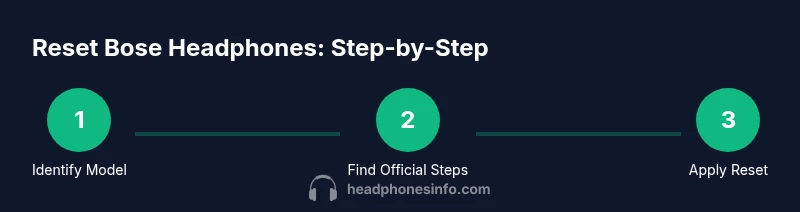
- Identify your Bose headphone model.
- Locate the official reset method for that model.
- Execute the reset sequence exactly as described.
- Re-pair devices and test key features (microphone, controls, and ANC).
- If issues persist, perform an additional reset or contact Bose support for advanced diagnostics. For best results, perform steps in a quiet environment and keep your device within Bluetooth range during re-pairing.
Troubleshooting common issues after reset
A reset can fix many problems, but some issues require additional steps. If you still experience unstable Bluetooth connections after a reset, re-check the pairing process on each device, ensuring Bluetooth is enabled and the headset is selected as the active device in system settings. If audio quality remains poor, test with a wired connection (if your model supports it) to isolate Bluetooth from hardware problems. Microphone issues may require reconfiguration of input settings on your connected devices or a firmware update. If the headset continues to malfunction after a factory reset, it’s time to reach out to Bose support or a certified service center. Headphones Info notes that persistent faults may indicate a hardware fault rather than a software glitch.
Also verify that you’re operating in an environment with minimal interference from other wireless devices and that you’re not attempting to reset multiple headsets simultaneously, which can create confusion during the pairing process.
Tips to preserve battery life and avoid frequent resets
Frequent resets aren’t a substitute for better maintenance. To minimize issues, keep firmware up to date, avoid rapid device pairing, and charge the headset regularly to maintain optimal performance. If you rely on ANC, ensure you’re using compatible firmware and check for environment-specific issues (like large crowds or streaming interference) that can mimic hardware faults. Regularly clearing old Bluetooth pairings from your connected devices list can prevent stale profiles from causing connection hiccups. If you notice performance degradation after long periods of usage, a routine reset once in a while can refresh caches; pair again afterward to confirm stability. Headphones Info suggests documenting any reset outcomes so you can spot patterns over time and determine whether a hardware repair is needed.
How to verify the reset took effect
After completing the reset and re-pairing your devices, perform a quick sanity check. Confirm that you can power the headset on, initiate playback, adjust volume, and use basic controls like pause/resume. Test the microphone by making a call or using a voice assistant, and verify that ANC modes switch correctly if your model supports it. Listen to a few tracks with different sources (Bluetooth vs. wired, if supported) to ensure there’s no channel mismatch or imbalance. If everything works and there are no unexpected LED patterns, the reset likely took effect correctly. If issues reappear, document the symptom and consult Bose support for next steps. Headphones Info recommends a structured test protocol to avoid missing subtle faults.
Authority sources and further reading
When in doubt, verify instructions with trusted sources. The Bose official support portal provides model-specific reset steps and troubleshooting tips tailored to your device. For broader electronics troubleshooting and consumer guidance, major publications and consumer electronics reviews offer additional context on best practices for device resets and Bluetooth pairing reliability. Headphones Info also maintains a knowledge base that aggregates model-specific guidance and user experiences to help you decide when a reset is appropriate.
Authority sources
- Official Bose support: https://www.bose.com/en_us/support.html
- Consumer Reports: https://www.consumerreports.org/
- The New York Times: https://www.nytimes.com/
Tools & Materials
- Charge cable (USB-C or micro-USB, model dependent)(Fully or lightly charged battery preferred before reset)
- Power source(AC adapter or powered USB port for charging)
- A device to test Bluetooth pairing(Phone, tablet, or computer with Bluetooth on)
- Optional: wired audio cable (if supported by your model)(Used to test wired audio after reset)
Steps
Estimated time: 15-25 minutes
- 1
Identify your Bose headphone model
Locate the exact model name printed on the headset or in the original packaging. This determines which reset sequence to use, as button combinations vary by model family.
Tip: Having the model handy helps you fetch the exact reset steps from Bose support quickly. - 2
Find the official reset method for that model
Visit Bose’s official support site or your user manual to obtain the precise reset sequence. Using the correct method ensures a successful reset and avoids partial resets.
Tip: If you’re unsure, search for the model plus 'reset' to locate the exact guide. - 3
Execute the reset sequence precisely
Perform the exact button combination and timing described for your model. Do not deviate, as variations can yield no result or different outcomes.
Tip: Use a timer to ensure you hold the buttons for the full required duration. - 4
Re-pair your headphones with devices
After the reset, turn on Bluetooth on your device and put headphones back into pairing mode. Reconnect each device one at a time to verify stable connections.
Tip: Avoid pairing multiple devices simultaneously to prevent confusion. - 5
Test core functions
Play audio, adjust volume, test the mic, and switch ANC/mode controls. Confirm no residual pairing issues and that firmware behavior is consistent.
Tip: If a function fails, note the symptom and re-run the pairing test with a fresh connection. - 6
Document outcomes and next steps
Record what happened during the reset and any issues observed. If problems persist, consult Bose support or a service center.
Tip: Keep a log of firmware version and model in case you need to compare later.
People Also Ask
Will resetting erase all my paired devices from memory?
In most cases, a reset clears temporary data and can remove saved pairings. After resetting, you’ll need to re-pair each device. Check your model’s manual for specifics, as outcomes vary by model.
A reset often clears existing pairings, so be ready to re-pair your devices after the reset.
How long does a Bose reset typically take?
A typical reset takes about 5 to 15 minutes, depending on the model and whether you need to re-pair devices afterward. Always follow the exact steps from the official guide for your model.
Most resets take under 15 minutes with re-pairing included.
What if I can’t find the reset method for my model?
If you cannot locate the official reset steps for your model, contact Bose support or visit their help center and search by model name. They provide exact sequences for each device.
If you can’t locate your model’s reset steps, reach Bose support for the exact method.
Can a reset fix intermittent audio or mic issues?
A reset can resolve many software-related issues but won’t fix hardware faults. If the problem persists after a reset, consider service or a battery check with Bose support.
A reset can fix software glitches, but hardware issues may require service.
Is it safe to reset Bose headphones with firmware updates pending?
Resetting during a firmware update can interrupt the process and cause issues. Ensure updates are completed and the device is stable before performing a reset.
Don’t reset while a firmware update is in progress; wait until it finishes.
What should I do if the reset doesn’t fix the problem?
If issues persist after a reset, try a second reset following model-specific steps. If still unresolved, contact Bose support for diagnostics or a potential repair.
If it still doesn’t fix the issue, contact Bose support for help.
Watch Video
What to Remember
- Identify model before resetting
- Use model-specific reset instructions
- Re-pair devices after reset
- Test core functions to confirm success
- Consult Bose support for unresolved issues