Why Are My Headphones So Quiet? A Troubleshooting Guide
Urgent troubleshooting guide to fix quiet headphones. Discover quick checks, common causes, step-by-step fixes, and prevention tips for wired and wireless setups.


Most quiet headphones come from volume limiters, a muted EQ, or a loose connection. Start by raising device volume, checking any built in limiter or EQ, and test with a wired connection. If the issue persists, reset Bluetooth pairing and try another source. If nothing changes, the drivers may be failing and require repair.
Why are my headphones quiet and what it means for your listening
If you are asking why are my headphones so quiet, know that several factors influence how loud they sound. The most common culprits sit in three buckets: device settings, the headset or cable, and the wireless link. By systematically checking each area, you can often restore loud, clear sound without buying new hardware. This guide from Headphones Info explains what to check first and how to fix it fast, so you stay in control of your listening experience.
The Headphones Info team emphasizes starting with simple fixes and verifying results at every step. Quick wins include confirming you are not in a device level mute state, turning off any ambient sound modes, and testing across multiple sources to locate the fault. This approach saves time and money and reduces guesswork for audiophiles and casual listeners alike.
Quick checks you can do right now
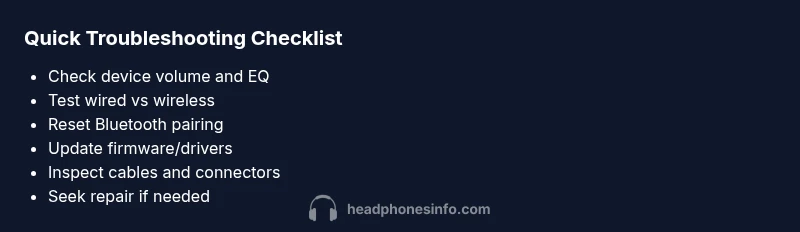
Start with the simplest actions and work your way up. First, verify that the volume on the playback device and the headset are both turned up. Disable any EQ, loudness boost, or dynamic range compression that could constrict sound. Try a wired connection if you are currently using Bluetooth to see if the problem is wireless latency or codec related. Finally, test the headphones with another device to see if the issue follows the headset or stays with a single source.
If you observe normal volume on one device and not on another, the issue is likely with the original device settings, the app, or the wireless link rather than the headphones themselves.
Software and device settings that reduce volume
Software controls and apps can quietly cap output. Check each device for global accessibility options like mono audio, volume normalization, or speech settings that reduce loudness. On computers, inspect both system volume and application volume in your media players. On phones, inspect the app specific volume and any game or media mode that lowers audio. Disable any effect that claims to enhance voices or mute background sounds, then re-test with and without the app running.
Some apps have their own headroom limits for privacy or licensing reasons. If you suspect an app is the cause, try playing sound from a different app or browser and compare results. Updating the OS and apps can also remove hidden volume caps introduced by older software.
Hardware and connections that can sap loudness
A loose or damaged cable can dramatically reduce volume, even when the headset is fine. Inspect the 3.5 mm or USB-C connector for greenish or bent pins, and try a known good cable. If you use wireless headphones, ensure USB or Bluetooth dongles are properly seated and not loose. Re-pairing the device can clear codec negotiation issues that reduce loudness.
If you have multiple devices, test the headphones in both wired and wireless modes to distinguish between a cable issue and a wireless codec problem. Damaged drivers or voice coils can also fade output; in that case, professional repair may be required.
Bluetooth and codec considerations that influence loudness
Bluetooth codecs can affect perceived loudness and clarity. If your headphones support multiple codecs, ensure you are using the highest quality codec your device and headphones both support. Pair the headset again, and in some cases forget the device and then re-pair to reset codec negotiation. Be mindful of remote microphone and hands-free profiles that may impose lower volume.
If you frequently switch between devices, set your headphones as a trusted device on those sources to streamline codec selection. For older headphones, consider upgrading to newer models that support high bitrate codecs for more consistent loudness.
Common hardware fixes for the most frequent culprits
Replace or reseat the battery if your wireless model has low power health. Some models reduce audio output when the battery is running low to preserve essential functions. Clean the headphone drivers with approved methods if you notice rattling or crackling that accompanies low volume. If dents or pressure points are present on the housing, seek professional evaluation.
For a quick sanity check, try the headphones with a different audio source and a different cable. If loudness remains inconsistent, you may be dealing with aging drivers or a degraded internal path that warrants service.
When to replace or repair and how to decide
If you have exhausted quick fixes and the sound remains objectionably quiet, assess the cost of repair versus replacement. Firmware updates or driver recalibration can restore performance in some cases, but hardware damage may require replacement. Headphones with removable cables, easily replaceable drivers, or serviceable parts deserve a repair estimate before replacing the entire unit.
Pro tip: document the symptoms, test results, and any error codes before contacting support; this helps technicians diagnose the issue faster and can reduce repair time.
Practical prevention: keeping headphones loud and healthy
To prevent quiet headphones in the future, store devices properly charged, avoid extreme temperatures that can affect drivers, and use reputable cables and adapters. Regularly update firmware and drivers, clean connectors safely, and avoid yanking cables. Protect your ears by maintaining a comfortable, consistent listening level and using volume limiters on portable devices when needed.
Quick wrap up and next steps
By following the steps above, you should be able to pinpoint whether the issue is software, hardware, or a wireless codec problem. If the problem persists after trying the fixes, consider professional service or a warranty claim. Remember that quiet sound can be a symptom of larger issues, so act promptly to restore optimal listening quality.
Steps
Estimated time: 60-90 minutes
- 1
Verify basic volume and app EQ
Ensure the playback device and the headphones are both set to maximum reasonable volume. Check any EQ or loudness boost settings and turn them off to restore natural loudness. Retest with several sources to confirm if the issue follows the device or stays with the headphones.
Tip: Do a baseline test with a known good track and a simple mono test to hear apparent changes. - 2
Test wired vs wireless mode
Connect the headphones with a cable if supported, or try a different Bluetooth source. If wired output is louder, the problem likely lies with the wireless link or codec negotiation. If wired remains quiet, focus on drivers or internal components.
Tip: If you lack a spare cable, borrow one from a friend to rule out cable faults. - 3
Re-pair and reset headphones
Remove the device from Bluetooth paired lists on all sources, then re-pair following the manufacturer guidelines. If available, perform a factory reset to clear stubborn settings that reduce output.
Tip: Note down any personalized EQ or settings before resetting so you can restore them later. - 4
Update firmware and drivers
Check for available firmware updates for the headphones and the audio driver updates on the source device. Install any pending updates and reboot both ends before testing again.
Tip: Firmware updates can fix codec negotiation issues that cause quiet output. - 5
Inspect cables and connectors
Look for bent or dirty pins, loose jacks, or frayed cables. Clean connectors with a dry microfiber cloth and, if possible, replace the cable or adapter with a known-good spare.
Tip: Avoid forcing connectors and never use excessive cleaning liquids. - 6
Evaluate driver health and consider repair
If signs of distortion, rattling, or intermittent output appear, the driver or voice coil may be failing. Seek professional repair or consult the warranty to determine replacement options.
Tip: Document symptoms and test results to speed up the warranty claim.
Diagnosis: Headphones are quiet or have reduced output across devices
Possible Causes
- highVolume limiter or app-specific EQ reducing output
- mediumLoose or damaged cable/connector or poor wireless pairing
- lowOutdated firmware or drivers affecting audio path
- lowHardware damage to drivers or internal components
Fixes
- easyCheck device volume and disable any built in limiters or EQ that cap output
- easyTest with wired connection to isolate Bluetooth issues
- easyReset headphones and re-pair with the source device
- easyUpdate headphone firmware and source device drivers
- easyInspect and replace cables or loose connectors
- hardProfessional repair or replacement if drivers are degraded
People Also Ask
Why are my headphones quiet on all devices, not just one?
If your headphones are quiet across devices, the issue is likely with the headphones themselves, such as a failing driver or internal path. Check for firmware updates and test with a wired connection to isolate wireless codec problems. If the problem persists, professional repair may be required.
Quiet on all devices usually points to the headphones themselves. Try firmware updates and a wired test, then consider repair if nothing helps.
Why is there sound in one ear but not the other?
Imbalance often indicates a damaged driver, a loose internal connector, or a mono setting affecting one channel. Inspect the headphone drivers, try a different source, and verify that balance settings are centered on all devices.
One ear loudness issue can come from a damaged driver or improper balance; check drivers and settings across devices.
Can a USB dongle cause quiet sound?
Yes, a faulty or mismatched USB dongle can limit codec quality and reduce output. Try a different dongle, update its firmware, or switch to wired if possible. If the problem follows the dongle, the issue is codec negotiation.
A bad USB dongle can dampen audio quality, so test with another dongle or go wired to confirm.
Should I replace my headphones if they are quiet after a few months?
Not necessarily. If the issue appeared suddenly, investigate software, cables, and firmware first. If you cannot restore loud output after exhaustive troubleshooting, check for warranty or consider replacement.
If it started recently, troubleshoot first; if unresolved, check warranty before replacing.
Is volume limiting always active on mobile devices?
Many mobile devices have volume limiters to protect hearing. Check accessibility or sound settings and disable any limiters temporarily to test loudness. Re-enable after testing if needed for safety.
Mobile devices often cap loudness; disable limiters to test and re-enable later if needed.
When should I seek professional repair?
If there are signs of physical damage, distortion, or persistent quiet output after all fixes, professional repair or replacement may be the best option. Check the warranty and get a repair estimate.
If you still hear issues after testing and there’s potential hardware damage, a pro repair could be the right move.
Watch Video
What to Remember
- Identify if the issue is software-related before hardware.
- Test wired vs wireless to isolate the cause.
- Update firmware and drivers to fix codec issues.
- Reset and re-pair to clear faulty settings.
- Seek professional help if drivers are degraded.