Why Are Sony Headphones Not Charging? Quick Troubleshooting Guide
Urgent troubleshooting guide to fix charging issues with Sony headphones, covering cables, charging cases, firmware, and power sources. Learn quick fixes and when to seek service.


If your Sony headphones aren’t charging, the most likely causes are a bad cable, dirty contacts, or a faulty charging case. Start with a known-good USB-C cable and adapter, inspect the contacts for debris, and try charging in a different power source. If it still won’t charge, proceed through the diagnostic flow below.
Why is Sony Headphones Not Charging: Quick Overview
The question "why is sony headphones not charging" is more common than you might think, and the answer often lies in simple, fixable steps. According to Headphones Info, most charging failures start with the cable, the charging case, or surface debris in the contacts. Before you consider more involved repairs, work through these checks to rule out the basics. The urgency here is real: a charging issue can render otherwise excellent headphones useless until you restore power. If you follow these steps, you’ll likely recover charging in minutes rather than hours. The Headphones Info team emphasizes starting with the simplest fixes and moving toward firmware updates or professional service only if needed.
Quick Checks You Can Do Right Now
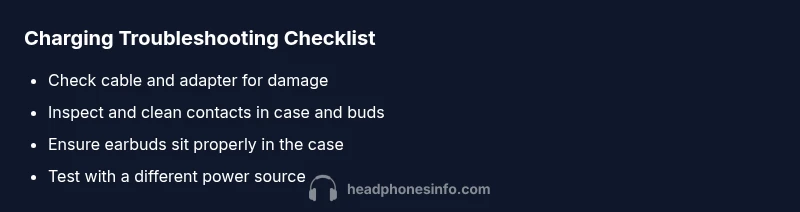
- Inspect the USB-C or charging cable for any visible wear, kinks, or frayed insulation. A damaged cable is a common culprit.
- Test with a different power adapter or USB port to rule out a weak power source. Try both a computer port and a wall charger.
- Ensure the charging case is fully closed and seated correctly around the earbuds. A misaligned cradle can prevent charging contacts from meeting properly.
- Look for dirt, dust, or corrosion on the contacts inside the case and on the earbuds. Debris can block power transfer even when the hardware seems fine.
- If the model supports it, try a soft reset or factory reset via the official app or button combo. A reset can clear charging state glitches.
If you’re seeing an indicator light that stays off or a case that refuses to acknowledge power, move to the diagnostic flow below.
Hardware Factors: Cables, Case, and Contacts
Your charging experience hinges on three hardware areas: the cable, the charging case, and the contact points between them. Faulty cables greet you with intermittent charging or no charging at all. A damaged or loose connector can prevent proper current flow, while a worn case battery or port might fail to take a charge after repeated use. The contacts inside the case and on the earbuds should be clean and aligned; any bend, corrosion, or debris will disrupt power transfer. If you notice greenish corrosion or a metallic sheen on metal contacts, do not rub hard—clean gently or seek service. For some Sony models, using a USB-C cable with a higher current rating (e.g., 2A or more) improves charging stability, but always use recommended accessories to avoid harm to the device.
- Check each contact point for flat, undamaged surfaces and no bending.
- Clean contacts with a dry microfiber cloth or a soft brush; avoid liquids that could seep into the case.
- Ensure cable and port fit snugly and aren’t loose or wobbly when plugged in.
- Consider trying a different charging cradle or case if available to isolate whether the issue is the case or the earbuds.
Firmware and Software Considerations
Charging problems can sometimes be tied to software or firmware that fails to acknowledge a charge or misreports battery status. Check the official Sony support site or app for any firmware updates specific to your headphone model. If an update is available, follow the manufacturer’s instructions to install it, then reboot both the headphones and the source device. In some cases, performing a reset after a firmware update helps the system reinitialize charging routines and improve power management. If you use a companion app, review any battery-related settings that might influence charging behavior.
- Look for a firmware update notification in the official Sony Headphones app or product support page.
- Perform the update according to Sony’s instructions and reboot the headphones afterward.
- If the app shows battery stats that don’t align with charging behavior, trust the hardware test and recheck after updates.
Charging Environment and Power Sources
Environment and power quality can impact charging reliability. Extremely cold or hot temperatures can temporarily reduce battery acceptance, while unstable or low-current power sources can prevent proper charging. For best results, charge in a stable environment between moderate temperatures, away from direct sunlight. If you’re charging via a USB hub or extension cord, test with a direct wall charger or a different USB port to ensure sufficient current supply. Additionally, avoid charging on soft surfaces that could trap heat around the case. These steps help prevent “no charge” scenarios during long listening sessions or travel.
- Use a dedicated wall charger with a stable output rather than a USB hub.
- Avoid charging in freezing or overheating conditions (ideal range is room temperature).
- Keep the charging area free of liquids or moisture that could affect electronics.
- If traveling, carry a tested spare cable and adapter in your bag.
Cleaning and Maintenance to Restore Contact
Regular maintenance helps prevent charging failures. Build-up of dust, sweat, or pocket debris can accumulate on the charging contacts and reduce efficiency. Use a soft brush and a microfiber cloth to gently wipe the contacts and the inside of the case. Ensure the device is completely powered off before cleaning and dry any moisture thoroughly. Do not use metal tools or solvents as they can scratch or corrode contacts. After cleaning, reassemble and attempt a full charge. If problems persist, move to the professional service section.
- Power off devices before cleaning to avoid short circuits.
- Clean both the case contacts and corresponding earbud contacts gently.
- Inspect for any signs of wear or corrosion and seek service if you notice damage.
- Re-test charging after a short delay to confirm improvement.
When to Seek Professional Help
If you have tried all the steps above and the headphones still won’t charge, it’s time to consult Sony support or an authorized service center. Battery packs and charging circuitry may degrade with age or defect, and DIY remedies may not fully restore function. When seeking help, provide your model number, purchase date, and a brief description of the charging symptom. Professional technicians can diagnose hidden faults, replace aging batteries, or repair failed charging ports. Early professional intervention can prevent further damage and save you from repeated troubleshooting.
- Contact Sony support or an authorized service center for your model.
- Have proof of purchase and model number ready when you call.
- Do not attempt invasive repairs that could void warranty.
- If under warranty, request a service authorization to minimize costs.
Steps
Estimated time: 25-45 minutes
- 1
Verify power source and cable
Confirm the charging cable and power adapter are in good condition. Try a different outlet or USB port to ensure the source supplies adequate current. Re-seat the cable firmly in both the headphones and the charging case.
Tip: If a different charger works, your original charger is likely faulty. - 2
Inspect charging contacts
Look for debris, lint, or corrosion on the contacts inside the case and on the earbuds. Wipe gently with a dry microfiber cloth. Avoid liquids and metal tools.
Tip: Even small particles can block charging; a quick cleaning can save a replacement. - 3
Clean and reseat
After cleaning, reinsert the earbuds into the case, ensuring they sit flush and align with contacts. Close the lid securely and look for charging indicators.
Tip: A subtle click usually means proper seating. - 4
Test with alternative power source
Charge from a known-good wall charger rather than a USB hub. Leave it plugged in for 20–30 minutes and check for indicator lights.
Tip: USB hubs can limit current and cause slow charging. - 5
Reset or update firmware
If supported, perform a reset or factory restore via the official app or button combo. Check for firmware updates from Sony and install if available.
Tip: Resetting can clear charging state glitches that block power transfer. - 6
Test after firmware/reset
Power the headphones off, reconnect, and attempt a full charge. Note if the indicator shows charging now.
Tip: If charging starts, monitor for recurrence over the next few days. - 7
Isolate the issue
If charging remains inconsistent, try another set of Sony headphones to see if the problem is device-specific or a broader issue with the charging setup.
Tip: Device swap helps determine whether it’s a model-specific fault. - 8
Seek professional service
If all else fails, contact Sony support or an authorized service center for diagnosis and potential battery/port replacement.
Tip: Warranty coverage may apply; don’t attempt risky repairs yourself.
Diagnosis: Sony headphones won't charge or the charging case shows no charge
Possible Causes
- highFaulty or worn charging cable/adapter
- highDirty or oxidized charging contacts on headphones or case
- mediumDefective charging case battery or port
- mediumFirmware glitch preventing charging state update
- lowPower source issue (dead outlet, USB hub, or insufficient power)
Fixes
- easyTry a known-good cable and power adapter, and test with a different USB port or power source
- easyClean the charging contacts with a soft brush or microfiber cloth; remove debris from the case and earbuds' contacts
- easyReset or re-pair the headphones if the model supports it; perform a firmware update if available
- mediumIf the problem persists, contact Sony support or authorized service center for battery/service
People Also Ask
What is the most common cause of Sony headphones not charging?
The most common cause is a faulty or dirty charging cable and dirty contacts in the case or earbuds. Start by swapping the cable, then clean the contacts and reseat the earbuds.
Most charging problems start with a bad cable or dirty contacts. Swap cables, clean the contacts, and re-seat the buds to fix it.
How do I reset Sony wireless headphones to fix charging issues?
Many Sony models support a reset via a button sequence or app. Check your model’s manual, perform the reset, then try charging again and re-pair if necessary.
Reset the headphones according to your model’s instructions, then try charging again.
Can a faulty charging case battery cause charging problems?
Yes. If the charging case’s battery or port is defective, it may fail to provide power to the earbuds. Seek professional testing if cleaning or cable swaps don’t help.
A bad case battery can prevent charging; professional testing may be needed.
Is firmware update necessary to resolve charging problems?
Firmware updates can fix charging state glitches and improve power management. Check Sony’s official site or app for updates and install if available.
Firmware updates can fix charging issues; check for updates and install.
Is cleaning the charging contacts safe?
Yes, cleaning with a soft brush or microfiber cloth is safe. Avoid liquids and metal tools to prevent damage.
Cleaning contacts is safe if you’re gentle and avoid liquids or metal tools.
When should I contact support or seek service?
If charging remains inconsistent after steps, contact Sony support or an authorized service center for diagnosis and possible component replacement.
If it still won’t charge after trying these steps, consult Sony support.
Watch Video
What to Remember
- Check cables and adapters first
- Clean contacts to restore power transfer
- Firmware updates can fix charging glitches
- Seek official service if issues persist
- Maintain a clean, dry charging environment