Why Sony Headphones Won't Connect to iPhone: Quick Troubleshooting Guide
Urgent, step-by-step troubleshooting for Sony headphones that won't pair with iPhone. Learn quick fixes, diagnostic flow, and prevention tips from Headphones Info.


Bluetooth pairing issues are the most common reason Sony headphones fail to connect to iPhone. Quick fix steps: 1) toggle Bluetooth off/on on the iPhone and power cycle the headphones; 2) forget the headphones in Bluetooth settings and re-pair; 3) ensure iPhone is on the latest iOS, and check for headphone firmware updates; 4) reset headphones to factory settings if available. If still failing, contact Sony support.
Why Connection Issues Happen
If you’re wondering why are sony headphones not connecting to iphone, the short answer is that most problems come from Bluetooth pairing hiccups, firmware mismatch, or iPhone settings. According to Headphones Info, wireless pairing relies on a clean Bluetooth handshake and up-to-date firmware. When either side lags, the devices fail to establish a stable link. Many Sony models use different codecs depending on firmware and hardware, and the iPhone supports several codecs, which can complicate compatibility in rare cases. In practice, the most common culprits are simple: Bluetooth interference from nearby devices, outdated headphone or iPhone firmware, or a corrupted pairing record on the iPhone. Before you dive into deeper fixes, confirm that both devices show as connected on the Bluetooth menu and that the headphones are selected as the audio output device in the iPhone’s Control Center. This tends to clear most quick-connect issues without specialized tools. Headphones Info's guidance focuses on practical, device-wide checks you can perform in minutes.
Quick Checks You Can Do Now
Start with the easiest fixes before diving deeper. These checks often resolve the problem without special tools.
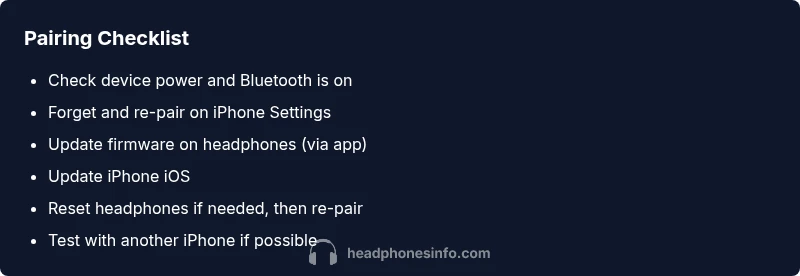
- Make sure Bluetooth is enabled on the iPhone and that the Sony headphones are charged or connected to power.
- Power off both devices, wait a few seconds, then turn them back on to reset transient Bluetooth states.
- On the iPhone, go to Settings > Bluetooth, locate your Sony device, select Forget This Device, and then re-pair by putting the headphones in pairing mode.
- Update the iPhone to the latest iOS version and check for firmware updates for the headphones via the Sony Headphones Connect app if your model supports it.
- Move away from other Bluetooth devices, Wi‑Fi routers, and microwaves that can cause interference.
- If possible, test pairing with another iPhone or iPad to determine whether the issue is device-specific or headset-related.
If the simple steps don’t help, proceed to targeted troubleshooting and use the diagnostic flow to pinpoint the cause.
Common Causes for Sony Headphones Not Connecting to iPhone
Several plausible causes can block a clean Bluetooth handshake between Sony headphones and an iPhone. Headphones Info Analysis, 2026 notes that firmware mismatches and pairing record corruption are frequent culprits. The most common issues include:
- Bluetooth interference: Other wireless devices, dense networks, or USB-C hubs with power delivery can disrupt the link.
- Outdated firmware: If either the headphones or the iPhone runs an old software version, compatibility gaps may appear.
- Incorrect or stale pairing data: A previously saved, broken pairing record on the iPhone can prevent new connections.
- Codec or profile mismatch: In rare cases, certain Sony models may request a codec the iPhone won’t negotiate, leading to no audio path.
- Battery level or sleep modes: A headphone battery below a threshold or automatic sleep can interrupt pairing attempts.
The goal is to reset the pairing state and ensure both sides are up to date. Where possible, use the official app to inspect firmware status and run a firmware check. These steps fix the majority of cases without professional help.
When to Update or Reset
If simple fixes fail, focus on firmware, reset, and proper pairing records. The typical path is:
- Check for firmware updates on the Sony Headphones Connect app (for supported models) and install any available updates.
- Update iPhone to the latest iOS version, as Apple often improves Bluetooth stability with newer software.
- Perform a headset factory reset via the model-specific method (often accessible through the app or the physical button sequence described in the manual). Note that resets erase pairing data, so you’ll need to re-pair.
- After the reset, re-pair from scratch: turn on Bluetooth, put the headphones in pairing mode, and select them on the iPhone.
If you can’t locate the reset procedure, consult the user manual or Sony support. Regular firmware updates after pairing establish a reliable baseline.
Preventive Tips to Keep Pairing Smooth
To minimize future disconnects, adopt these habits:
- Keep both devices updated: iPhone iOS and Sony headphone firmware.
- Use the official pairing method through the Sony Connect app or Bluetooth settings rather than third-party apps.
- Avoid leaving multiple Bluetooth devices around when you’re trying to pair.
- Periodically reset the headset to refresh its pairing cache if you notice intermittent connection issues.
- Charge headphones before long listening sessions to avoid power-saving modes that disrupt connections.
Following these best practices reduces repeat issues and improves overall reliability.
What to Do If Nothing Works
If you’ve exhausted the standard steps and the headphones still won’t connect, you likely need professional help. Start with Sony support or your retailer to verify warranty status and potential repairs. Document the steps you’ve taken, include your iPhone model and iOS version, and share the model name of your Sony headphones. In some cases, a firmware regression or hardware fault requires a replacement unit. The Headphones Info team recommends staying within the Sony ecosystem for troubleshooting, and to consider testing the headphones with another iPhone to confirm where the fault lies.
Steps
Estimated time: Estimated total time: 15-25 minutes
- 1
Check prerequisites
Verify both devices are powered, charged, and nearby. Enable Bluetooth on the iPhone and ensure the headphones are in pairing mode if required. This step sets a clean baseline before making changes.
Tip: A quick battery check can reveal why pairing stalls. - 2
Put headphones in pairing mode
Activate pairing mode on your Sony headphones following the model’s manual or app guidance. The status light should indicate pairing readiness.
Tip: If in doubt, a brief power cycle can help re-enter pairing mode. - 3
Re-pair from iPhone Settings
On the iPhone, go to Settings > Bluetooth, tap the Sony device, and choose Forget This Device. Then re-initiate pairing from the headphones.
Tip: Avoid pairing from multiple devices at once to reduce confusion. - 4
Power cycle and test again
Restart both devices, re-enable Bluetooth, and attempt the pairing once more. This clears transient Bluetooth issues.
Tip: Keep devices close together during the attempt. - 5
Check for firmware updates
Open the Sony Headphones Connect app (if supported) and install any available firmware updates. Firmware updates often fix Bluetooth bugs.
Tip: Enable auto-update if available to stay current. - 6
Factory reset if necessary
If pairing still fails, perform a factory reset per model instructions and re-pair from scratch. This clears all saved data that could block new connections.
Tip: Note: resets erase pairing records, so you’ll need to re-pair all devices.
Diagnosis: Sony headphones fail to pair with iPhone
Possible Causes
- highBluetooth interference from nearby devices and networks
- mediumOutdated headphone or iPhone firmware
- lowCorrupted pairing history on the iPhone
Fixes
- easyTurn Bluetooth off on both devices, then back on and retry pairing
- easyForget the headphones on the iPhone and re-pair from scratch
- easyUpdate iPhone iOS and headphone firmware via the official app or settings
- mediumReset the headphones to factory settings (model-specific) and re-pair
People Also Ask
Why won't my Sony headphones pair with iPhone after an iOS update?
Software updates can change Bluetooth behavior. Restarting pairing and updating both devices often fixes the issue; if it persists, check for firmware updates for the headphones.
Software updates can change Bluetooth behavior. Restart pairing and update both devices to fix it.
My headphones pair with another device but not iPhone—what should I do?
Forget the device on the iPhone, reboot both devices, and re-pair from scratch. Ensure the iPhone has the latest iOS and the headphones firmware is up to date.
Forget and re-pair; make sure iPhone and headphones firmware are current.
Is resetting the headphones safe?
Factory reset clears pairing data and settings, so you’ll need to re-pair. It’s safe but should be used as a last resort when other fixes fail.
Reset is safe but erases paired devices; you’ll need to re-pair afterward.
Can battery life affect Bluetooth pairing?
Yes. Low battery can cause Bluetooth to behave unpredictably or power-saving modes to kick in. Charge headphones and retry pairing.
Low battery can disrupt pairing—charge and retry.
Do all Sony headphones work with iPhone?
Most do, but features vary by model and codec support. Keep both devices updated and use the official pairing method.
Most Sony headphones work with iPhone; keep devices updated.
What if sound plays on the wrong device after pairing?
Check the audio output selection on iPhone (Control Center or Settings) and ensure the Sony headphones are chosen as the audio device.
Select the Sony headphones as the audio output in iPhone settings.
Will a hardware fault prevent pairing?
Possible. If pairing fails after all fixes, contact Sony support to check warranty or consider a repair/replacement.
A hardware fault could be the cause; contact Sony for warranty options.
Watch Video
What to Remember
- Re-pair and update to fix most issues.
- Factory reset clears stubborn pairing problems.
- Keep firmware up-to-date on both sides.
- Minimize interference and follow official pairing steps.