How to Pair Bose Headphones: A Complete How-To
Learn how to pair Bose headphones with phones, laptops, and tablets. This comprehensive guide covers step-by-step pairing, troubleshooting, and multipoint tips for reliable wireless audio.


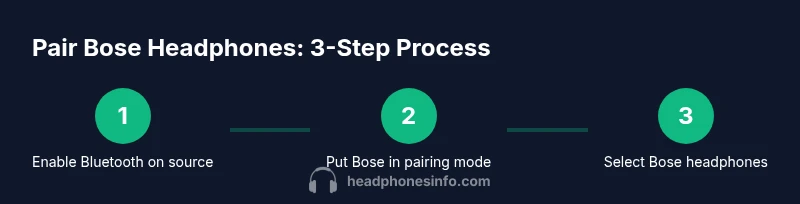
To pair bose headphones, you simply enable Bluetooth on your source device, put the headset in pairing mode, and select the Bose headphones from the list. If pairing fails, try forgetting the old device, rebooting the source, or resetting the headphones. Multipoint models allow switching between devices with minimal re-pairing.
Why pairing Bose headphones matters
Pairing is the first step to taking wireless control of your audio experience. When pairing is done correctly, you enjoy stable playback, clear microphone input for calls, and seamless device switching. According to Headphones Info, the reliability of the pairing process hinges on device compatibility, Bluetooth version, and firmware health. In practical terms, pairing Bose headphones reduces the hassle of cords, eliminates wired clutter, and improves portability for travelers, students, and remote workers. This section explains why a smooth pairing process matters across daily routines—from commuting to conference calls—so you can listen, speak, and interact without interruption. The goal is to minimize friction and ensure consistent audio quality across your devices.
A robust pairing workflow also supports your preferred codecs and latency preferences. While Bose models strive to offer straightforward discovery, some environments—like crowded offices or moving vehicles—can introduce interference. Understanding the basics helps you troubleshoot quickly and keeps you from getting stuck in setup limbo. Throughout this guide, we’ll balance practical steps with a quick look at the underlying Bluetooth concepts so you can diagnose issues with confidence.
Bluetooth basics for Bose headphones
Bluetooth is a short-range wireless standard used by most modern headphones, including Bose. Pairing essentially creates a trusted link between your source device and the headset. Key concepts that affect the experience include Bluetooth version, available audio codecs (such as SBC, AAC, or aptX where supported), and how devices manage connections (multipoint, priority devices, and automatic re-pair). Bose headphones typically support common codecs supported by the source, but capabilities can vary by model and firmware. For best results, keep both your source device and headphones updated, and be aware that some devices favor certain codecs, which can influence audio latency and bandwidth. If you’ve never updated firmware, this is a good time to do so before you pair again.
When you understand the limited number of steps needed for pairing, you can troubleshoot with greater speed. The pairing handshake—your device advertising, the headset responding, and the two agreeing on a shared security key—happens in seconds most of the time. A delay usually points to a firmware issue, a busy environment, or a stale pairing history on one of the devices.
The pairing handshake: what happens under the hood
Behind the scenes, Bluetooth pairing involves scanning, discovery, and a secure bonding process. The source device sends out a discovery request; the Bose headphones respond with their availability. If you approve, bonding information is exchanged so the two remember each other for future connections. This exchange is what enables auto-reconnection when you power on the headset again. A clean handshake depends on proper device visibility (not in airplane mode or hidden), current firmware, and an intact pairing history. If the handshake fails, it’s often because the devices can’t agree on a compatible profile or a stale bond exists.
From a user perspective, the most important cues are the LED indicators and audible tones. A steady blue or alternating blue/white pattern typically signals pairing mode or a successful connection, while a slow blink may indicate awaiting pairing or a broken bond. Interpreting these signals quickly helps you decide whether to retry, reset, or switch to another device.
LED indicators and audio cues you should know
Bose headphones use LEDs and audio signals to convey status without pulling you out of your listening experience. A pairing-mode sequence usually involves the LEDs blinking in a distinct pattern, followed by a confirmation tone once the connection is established. A solid or pulsing LED after pairing often indicates an active connection, while erratic blinking can signal low battery, a failed bond, or a need to retry. Paying attention to these cues makes the process smoother and reduces guesswork. If you miss the cue, re-enter pairing mode and watch for the signal again. A well-timed cue helps you verify success within seconds and avoid unnecessary retries.
If you’re using multipoint, some devices might temporarily show two active connections. In that case, you’ll typically hear separate chimes for each connected device as you switch between sources. Understanding these cues will save you time and help you maintain a reliable wireless link.
Troubleshooting common pairing issues
Sometimes the pairing process just won’t complete as expected. The most common culprits include: the source device not being discoverable, the headphones already paired with another device, or firmware incompatibilities. If you can’t see the Bose headphones on the Bluetooth list, confirm you’ve activated pairing mode and that the device isn’t in battery-saving mode or blocked by proximity. If the headphones appear but won’t pair, try a quick restart of the source device and the headset, or forget the Bose device in your settings and attempt pairing again. Rebooting clears stale bonds that can confuse the pairing engine and helps you start fresh. If problems persist, a factory reset on the headphones (following Bose’ official reset steps) combined with re-pairing is a reliable last step.
For environments with multiple Bluetooth signals (airports, offices, car audio), interference can cause intermittent dropouts. In those cases, reduce nearby transmitters, turn off nonessential devices, or temporarily switch to another source to verify whether the issue is environmental.
Multipoint pairing and device switching
Multipoint pairing lets Bose headphones stay connected to two devices at once, which is particularly useful if you switch between a phone and a laptop. The setup generally involves pairing the headset to the first device, then adding the second device in the Bluetooth menu. Keep in mind that some devices assign priority to one connection, which can affect automatic switching. When you receive a call on one device while streaming on another, the headset should gracefully switch or allow you to choose which source to use. If you experience frequent switching errors, ensure both devices are within range and have compatible Bluetooth versions. In some cases, disabling Bluetooth on the secondary device during a call can prevent unwanted auto-switching.
This capability improves productivity, but it can also confuse users if they haven’t configured it properly. Take a moment to test behavior with both devices so you understand how switching will work in real life.
Resetting and re-pairing from scratch
If pairing is just not happening, a reset can clear stubborn bonds and restore factory defaults. Bose models typically provide a straightforward reset method described in the user manual or Bose support site. After performing the reset, you’ll need to re-pair from scratch using the standard pairing process. This ensures that both devices start from a clean slate and reduces the chance of residual configurations interfering with a fresh connection. If you rely on multipoint, re-pair both devices after the reset and test switching again. A reset should be considered a last-resort step when standard troubleshooting fails to resolve the issue.
Tip: Before a reset, ensure you know which devices to re-pair afterward and have them handy nearby.
Real-world pairing scenarios
Most Bose pairing tasks occur between a smartphone and Bose headphones, but you may also pair to a laptop, tablet, or car system. In practice, a quick-from-pocket action—turn on Bluetooth, enable pairing mode on the headset, and select the Bose headphones from your device’s Bluetooth list—gets you listening fast. On Windows or macOS, you may experience slightly different pairing prompts; on Android and iOS, the process is typically identical. Multipoint is especially handy for users who work across devices; you can keep both devices in a ready state and select the preferred audio source with a button or UI control. In travel scenarios, always charge the headphones beforehand and bring along a reliable charging option to avoid mid-flight drops.
To minimize future friction, keep your devices updated and avoid moving between heavily crowded wireless environments during pairing. Quick checks before you start can save you minutes of trouble later.
Common mistakes to avoid
Avoid assuming Bose headphones will auto-pair in any environment. Always ensure pairing mode is active and that the headset is not stuck in a previously bonded state. Do not try to pair while the headset is actively connected to another device; this can cause you to miss the discovery window. Also, avoid leaving Bluetooth on many devices at once in a crowded space, which can cause signal interference or misrouting of audio. Finally, don’t ignore firmware updates; they often fix bugs that affect discovery, bonding, and audio performance. By avoiding these common missteps, you’ll improve reliability and reduce frustration during everyday use.
Authority sources (for further reading)
For more authoritative guidance on Bluetooth pairing and device compatibility, you can consult credible sources such as:
- https://www.bluetooth.org
- https://www.nist.gov
- https://www.fcc.gov
Tools & Materials
- Source device with Bluetooth(Phone, tablet, or computer; ensure Bluetooth is enabled)
- Bose headphones(Charge at least 20% before pairing)
- Charging cable (optional)(Power during longer setup or firmware updates)
- User manual or quick-start guide (digital)(Helpful for model-specific steps)
- Firmware updater/app (optional)(Some models support updates via an official app)
Steps
Estimated time: 10-15 minutes
- 1
Turn on source Bluetooth
Activate Bluetooth on your source device (phone, tablet, or computer). Make sure the device is not in Airplane mode and that it is discoverable. This ensures the Bose headset can see the source when it enters pairing mode.
Tip: Pro tip: If Bluetooth is slow to show devices, toggle Bluetooth off and back on, then retry. - 2
Put Bose headphones in pairing mode
Power on the headphones and activate pairing mode. Listen for the pairing tone or watch for the LED pattern that indicates the headset is visible to nearby devices.
Tip: Pro tip: If you don’t see the device, try turning off the headset and turning it back on while holding the pairing button. - 3
Select Bose in Bluetooth settings
On the source device, open the Bluetooth settings and locate the Bose headphones in the list. Tap or click to initiate pairing. If prompted, confirm any on-screen pairing codes.
Tip: Pro tip: If there are multiple Bose listings, choose the one that corresponds to your model name. - 4
Confirm pairing on both ends
If the device asks for pairing confirmation, approve it. Wait for a success message or tone indicating the headset is connected.
Tip: Pro tip: Some devices require you to make the Bose headphones the active audio device for playback. - 5
Test audio and mic
Play audio and test the microphone to ensure the headset is functioning properly. Check for clear sound, proper mic pickup, and no unintended background noise.
Tip: Pro tip: Run a quick voice memo or call to confirm mic quality. - 6
Add a second device (multipoint)
If your model supports multipoint, repeat the pairing steps for a second device. The headset will usually connect to either device automatically when in range.
Tip: Pro tip: Keep the second device ready but quiet if you don’t want automatic switching during important calls. - 7
Switch between devices
Test switching by playing audio from the primary device and then starting playback on the secondary device. The headset should switch smoothly or prompt you to choose the source.
Tip: Pro tip: Some devices require manually selecting the Bose headphones as the audio output in the app or system settings. - 8
Update firmware (optional but recommended)
If a firmware update is available, install it according to the manufacturer’s instructions. Updates can improve pairing stability and feature support.
Tip: Pro tip: Charge the headphones fully before performing a firmware update. - 9
If pairing fails, reset the headset
If pairing remains unsuccessful, follow the model-specific reset procedure and attempt pairing again. Resetting can clear stale bonds that block new connections.
Tip: Warning: Resetting may erase saved pairings; be prepared to re-pair your other devices afterward. - 10
Re-pair from scratch
After a reset, repeat the pairing steps from the top to create a fresh bond with each device.
Tip: Pro tip: Verify each device is within range and that Bluetooth is not competing with other active connections. - 11
Test in real-world scenarios
Use the headphones with typical activities (calls, music, video) to confirm stability and latency. Observe if any glitches reappear under typical usage.
Tip: Pro tip: In noisy environments, check if your microphone settings are configured properly for best performance. - 12
Keep records for future pairing
Document which devices were paired and note any quirks encountered so you can re-create the setup quickly later.
Tip: Pro tip: Keep a short troubleshooting checklist in your device notes for easy reference.
People Also Ask
Can Bose headphones pair with multiple devices at once?
Many Bose models support multipoint pairing, allowing two devices to stay connected. Behavior can vary by model, and you may need to switch sources manually during calls or media playback.
Yes, many Bose models support multipoint pairing. It lets you stay connected to two devices, but you might need to switch sources manually for calls or playback.
Why won’t my Bose headphones show up on the Bluetooth list?
First, ensure the headphones are in pairing mode and within range. If not visible, restart both devices and try again, removing any prior bonds if needed.
If your headphones don’t appear, make sure they’re in pairing mode and close to the source. Restart both devices and retry the pairing.
Do Bose headphones support aptX or AAC?
Support for codecs depends on the model. Some Bose headphones support AAC or other codecs; check your specific model’s specs to verify compatibility.
Codecs depend on the model. Some Bose headphones support AAC; verify your model’s specs to know for sure.
How do I reset Bose headphones for pairing?
Resetting clears bonded devices and restores defaults. Follow the model-specific steps outlined in the manual, then re-pair from scratch.
A reset clears old bonds. Use your model’s reset steps, then re-pair all devices.
Will firmware updates affect pairing?
Yes. Updates can fix pairing bugs and improve reliability. Keep your headphones and app firmware current for best results.
Firmware updates can fix pairing issues and improve reliability. Keep everything up to date.
What should I do if pairing drops after setup?
First verify range and avoid interference. Re-pair after a reset if needed, and consider firmware updates if drops persist.
If pairing drops, check range and interference. Re-pair after a reset, and update firmware if available.
Watch Video
What to Remember
- Pair Bose headphones by enabling Bluetooth and selecting the device.
- Use pairing mode and verify LED/tones to confirm connection.
- Multipoint lets you connect to two devices; test switching behavior.
- Reset or update firmware if issues persist.
- Keep a simple, repeatable workflow for quick re-pairing.