Headphones Not Working on PC: Troubleshooting Guide
Urgent, step-by-step troubleshooting guide to fix headphones not working on PC, covering wired and wireless setups, drivers, Bluetooth pairing, and common Windows issues. Learn quick fixes and prevention tips from Headphones Info.


Headphones not working on pc is usually caused by a misconfigured playback device or a loose connection. Start by confirming the headphones are plugged in or paired, then set them as the default output, and test in a quick app. If issues persist, update drivers, try another port, and re-pair Bluetooth devices. The following steps cover wired and wireless setups.
Quick checks you can do in seconds
If your headphones aren’t producing sound on your PC, start with the simplest checks. First, confirm the device is physically connected or paired. For wired headphones, try a different jack or USB port; for Bluetooth, ensure the headset is connected and not paused in the OS. Then open the sound settings and set the headphones as the default playback device. In many cases, a quick test in a media app or system sound test confirms whether the issue is at the device level or within an app. According to Headphones Info, many PC audio problems stem from a misconfigured default device or a loose connector rather than a faulty headset. If the device still doesn’t output sound, move to driver updates and port reassignment. Taking these 3-4 seconds of upfront checks often saves hours of troubleshooting and avoids unnecessary steps.
Common causes at a glance
Before diving deep, map the likely culprits. The most common is a mis-selected playback device: Windows or macOS can switch output automatically after updates or reconnects. Another frequent issue is outdated or corrupted audio drivers, which disrupt the OS’s ability to route sound to the headset. Hardware faults—like a damaged plug, frayed cable, or a loose connection—are still common, especially after travel or drops. Wireless headsets may fail if the Bluetooth dongle is skipped, the battery is drained, or pairing has become corrupted. Finally, many apps override system settings, so a game or video app could mute or reroute sound away from your headphones. Recognizing the likely cause helps you decide where to focus first.
Wired headsets: cables, ports, and adapters
With wired headphones, a lot of problems boil down to the physical link. Inspect the 3.5mm plug or USB-C/USB-A adapter for bent pins or dirt. Try a different port on the PC—front panel jacks can be low-quality or loose, while the back panel is typically more stable. If you use an adapter, test with a direct connection to rule out adapter failure. Check the headphone cable for visible wear and test the inline microphone or mute switch, which can sometimes mute audio accidentally. Cleaning the jack and reseating the plug can restore a loose contact. If using USB headphones, unplug, wait a few seconds, and plug into a different USB controller or port. These steps resolve many cable-related issues without tools.
Bluetooth/wireless pairing and dongles
Bluetooth problems are a common reason headphones won’t work on PC. Ensure Bluetooth is enabled and visible, and that the headset is not connected to another device. Re-pair the headset by removing it from the PC’s Bluetooth list, then re-pair from scratch. If you’re using a USB Bluetooth dongle, try a different USB port (preferably a USB 2.0/3.0 port) and install any vendor-provided drivers. Battery health matters—low power causes intermittent audio or dropouts. In some cases, updating the Bluetooth stack or temporarily turning off nearby devices can help. If your PC lacks Bluetooth, consider a wired USB adapter instead.
Software and drivers: Windows, macOS, and apps
Software conflicts can mute or misroute audio without visible error messages. Start by checking the sound settings in your operating system: ensure the headset is selected as output, the volume is up, and the device isn’t disabled. Update audio drivers via Device Manager (Windows) or System Preferences (macOS). Don’t rely on Windows Update alone; go to the manufacturer site for the latest audio chipset drivers. Check that your apps aren’t forcing a different output device or muting the headset. Some gaming or conferencing apps have their own output settings; set them to the system default or explicitly select the headphones. If you’re using voice assistants or virtual mixers, close them to rule out interference.
Windows-specific steps: using Troubleshooters and Audio settings
Windows provides built-in tools to diagnose audio problems. Run the Playing Audio troubleshooter, then review the results and apply recommended fixes. Open Sound Settings, locate Input and Output devices, and verify the correct device is set as default. Reinstall drivers by right-clicking the device in Device Manager and choosing Uninstall, then reboot to reinstall automatically. Disable enhancements and spatial sound options if they cause issues. If the problem persists after these steps, reboot with the headset connected to ensure Windows reinitializes the audio stream.
Testing across devices to isolate the fault
To isolate whether the problem is the headset or the PC, test across multiple devices. Try the headphones with a different PC, laptop, or a smartphone via the same connection type. If sound works on other devices, the issue is likely PC-specific; if not, the headset could be defective. Record a short test clip with clear audio on each device to compare volume, balance, and mic function. If your headset includes an in-line mic, test it on all platforms. Use a known-good cable or adapter to verify the cable integrity. This cross-device comparison helps avoid unnecessary replacements.
Step-by-step diagnostic sequence you can follow
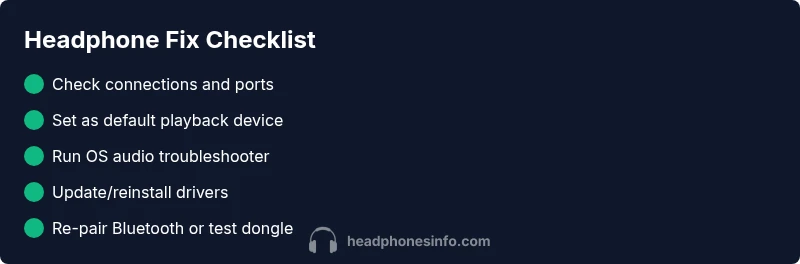
Follow the exact sequence to narrow down the fault: 1) Confirm power and connections; 2) Set the headset as default output; 3) Run OS audio troubleshooter; 4) Test with another app; 5) Update drivers; 6) Re-pair Bluetooth or switch ports; 7) Check for hardware faults; 8) If none works, test on another device. Each step should be completed before moving to the next. Document results to reference later and avoid repeating steps. If you reach a hardware fault, consider professional repair or replacement.
Prevention tips and long-term care
Prevent future issues with proactive maintenance. Keep ports clean; store cables properly; update drivers regularly; avoid bending cables near the plug; sanitize and inspect the jack; consider a wired USB-C or Bluetooth dongle as a dedicated solution. Maintain battery health for wireless models by avoiding full discharge and storing at moderate temperatures. Use a surge protector to safeguard connected devices and back up your audio preferences in case of system updates. Regular checks save time and keep your setup reliable.
Steps
Estimated time: 45-60 minutes
- 1
Check physical connections
Inspect plugs, jacks, and adapters for dirt, kinks, or bent pins. Re-seat firmly and try a different port if available. For Bluetooth, ensure the headset is powered on and in pairing mode if needed.
Tip: A clean jack and solid seating often restore signal without tools. - 2
Set as default playback device
Open the sound settings and ensure the correct headset is selected as the default output. Disable any other device temporarily to confirm routing is correct.
Tip: After changing defaults, restart the audio app to apply changes. - 3
Run OS audio troubleshooter
Execute the built-in troubleshooter (Windows: Playing Audio; macOS: Audio MIDI Setup checks). Follow recommendations and apply fixes where prompted.
Tip: Document any error codes for reference if you need help later. - 4
Test with another app and device
Play sound from a game, browser, and media player. If one app denies sound, the issue might be app-specific rather than system-wide.
Tip: If sound works in some apps but not others, check per-app audio settings. - 5
Update or reinstall drivers
Visit the manufacturer site for the latest drivers or use Device Manager to uninstall and let Windows reinstall automatically on reboot.
Tip: Do not install generic drivers from untrusted sources. - 6
Re-pair Bluetooth or switch ports
If wireless, remove the device from Bluetooth, then re-pair. If using a dongle, plug into a different port and update dongle drivers.
Tip: Keep devices close during pairing and ensure battery is healthy. - 7
Check for hardware faults
Inspect for damaged cables, cracked casings, and a malfunctioning inline mic or controls. If possible, test with a known-good cable.
Tip: If hardware damage is found, replacement is usually the most reliable fix. - 8
Test on another device
Connect the same headphones to another PC or mobile to confirm whether the issue is device-specific.
Tip: If it works on another device, focus on your PC configuration rather than the headset.
Diagnosis: Headphones produce no sound on PC
Possible Causes
- highPower/connection issue
- highWrong default playback device
- mediumOutdated or corrupt audio drivers
- lowBluetooth pairing or dongle fault
- lowApp-specific output override
Fixes
- easyCheck physical connections and ensure the device is set as default output
- easyUpdate or reinstall audio drivers and re-pair Bluetooth if needed
- easyRun OS audio troubleshooters and adjust app-specific settings
- mediumTest with another device to confirm hardware fault or replacement needs
People Also Ask
Why are my headphones not detected by Windows?
This usually means the device isn’t selected as the default output, a driver issue, or a hardware connection fault. Start by re-seating the plug or re-pairing Bluetooth, then check the Sound Settings to ensure the headset is active.
If Windows doesn’t see your headset, try re-plugging or re-pairing, then check the sound settings.
How do I set my headphones as the default playback device?
Open the Sound settings in your OS, select the correct output device, and choose Set as Default. Apply changes and restart any active apps to apply the new output path.
Go to sound settings, pick your headphones, and set them as default. Then restart apps to apply.
Why do headphones work on my phone but not on my PC?
Phone compatibility usually points to a PC-specific configuration issue—drivers, port problems, or OS settings. Compare the CPU/memory load and check that the PC isn’t muting the device via an app or game setting.
If it works on your phone but not PC, focus on drivers, ports, and per-app audio settings on the PC.
Should I uninstall and reinstall audio drivers?
Uninstalling and reinstalling drivers can reset misconfigurations. Do this from Device Manager, then reboot. If available, download the latest drivers from the manufacturer's site rather than relying on automatic updates.
Reinstalling can fix corrupt drivers—just reboot after removal and test.
My Bluetooth headset keeps disconnecting. What now?
Check battery health, re-pair the device, and ensure the Bluetooth dongle/stack isn’t congested by nearby devices. Update Bluetooth drivers and consider using a wired connection if the problem persists.
Low power or interference is often the culprit—re-pair and check drivers, or switch to wired.
Is it safe to use third-party audio drivers?
Stick to official drivers from the device or chipset maker. Third-party drivers can introduce instability or security risks. If you’re troubleshooting, prefer the official sources and test changes incrementally.
Only use official drivers when possible; third-party options can cause new problems.
Watch Video
What to Remember
- Check default playback device first to restore sound fast.
- Test wired and wireless paths to isolate issues.
- Update or reinstall drivers to fix software faults.
- Use built-in troubleshooters for PC-specific problems.
- If problems persist, test on another device or seek professional help.