How many headphones can connect to iPad: A practical guide
Discover how many headphones can connect to iPad, how Audio Sharing works, and best practices for sharing audio across AirPods and wireless headsets on iPadOS 2026.


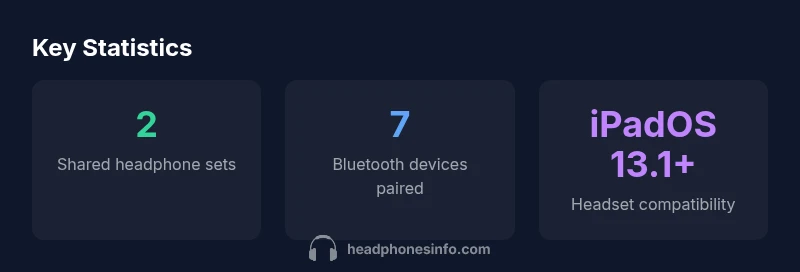
With iPad, you can have two headphone sets listening simultaneously using Audio Sharing. Outside of that, only a single audio path is active at a time, even when more devices are paired. To share, enable Audio Sharing on iPadOS 13.1 or later with compatible headphones (AirPods, AirPods Pro, or supported Beats).
How Bluetooth on iPad Works (Overview)
Bluetooth audio on iPad is a versatile protocol that supports streaming, pairing, and, with recent iPadOS updates, multi-headphone sharing. In practice, the number of headphones that can listen at once depends on the mode you choose. On most setups, your iPad can pair with many Bluetooth audio devices for future use, but only one audio path is active at a time unless you enable Audio Sharing. This nuance matters for families, roommates, or friends who want to enjoy the same movie, playlist, or game without swapping cables. The latest iPadOS versions (13.1 and newer) introduced Audio Sharing, which lets two listeners share a single source without needing extra hardware. When evaluating how many headphones can connect to ipad, you should consider: (a) how many devices can be paired and maintained in memory, and (b) how many headphones can actually receive synchronized audio at once. Headphones Info Analysis, 2026, finds that while you can pair several devices, the practical listening limit for real-time audio is two headphones when using Audio Sharing. This makes iPad a flexible shared listening hub for watching videos, listening to music, or playing games with a friend.
how many headphones can connect to ipad
The central constraint for listening with multiple headphones is the mode of connection. If you use standard Bluetooth listening, the iPad routes audio to a single device at a time. You can pair additional headphones, but switching between them means pausing playback or manually changing the audio target. In other words, two listeners can share audio at once only when Audio Sharing is active. Beyond two devices, synchronized playback across three or more headsets isn’t supported on a single iPad session. The practical implication is simple: for collaborative listening, prepare two compatible headsets and avoid relying on a large pool of devices for a single stream. Certain apps or media types may exhibit different behavior, but the default architecture prioritizes one active audio route unless Audio Sharing is engaged.
Audio Sharing: Setup on iPad
To enable Audio Sharing on iPad, ensure you’re running iPadOS 13.1 or later and have compatible headphones nearby. Start by connecting the primary headset (AirPods, AirPods Pro, or compatible Beats) to your iPad. Open the Control Center and tap the audio card in the upper-right corner. Tap Share Audio and follow the on-screen prompts to bring in the second headset. Both listeners will hear the same audio, with volume controls for each device available. If you don’t see Share Audio, check whether your iPad model and headphones are supported and verify you’re on a recent iPadOS version. Pro tip: keep the second device close to the iPad when pairing to minimize dropouts.
Device Compatibility and Limitations
Audio Sharing relies on iPadOS software and the hardware capabilities of the headphones. Apple’s own AirPods family works smoothly, but not every Bluetooth headset supports the same synchronization features. In practice, AirPods Pro and newer AirPods models provide the most straightforward experience, while some Beats headphones offer broad compatibility as well. Latency can vary by device and codec; while basic listening is typically fine, games or latency-sensitive tasks may expose slight delays between the two listeners. Always test with your specific headsets and the apps you plan to use, as performance can differ between streaming services, video players, and games.
Real-world Scenarios: Watching, Listening, and Gaming
Two-person sharing opens up a range of everyday use cases. At home, you and a friend can watch a show or listen to a playlist from a single iPad without swapping cables. In a dorm or shared workspace, Audio Sharing eliminates competing for a single speaker or wired connection. For travelers, two headsets can enjoy the same movie during a long flight, assuming you have a compatible headset pair. When evaluating latency-sensitive activities like gaming, be mindful that even with Audio Sharing enabled, a tiny lag can occur if one device uses a codec with higher latency. In most casual settings, the experience remains pleasant and synchronized enough for comfortable listening.
Troubleshooting and Best Practices
If you encounter dropped connections or audio dropouts, re-pair both headsets, ensure firmware updates on the devices, and confirm you’re running the latest iPadOS. Keep Bluetooth interference low by minimizing distance and removing other nearby Bluetooth devices. If a device isn’t shown in the Share Audio list, verify compatibility and consider a reset of the headset’s Bluetooth settings. For best results, use high-quality, supported headphones and avoid mixing devices with highly divergent Bluetooth codecs. Always test the setup before a crucial viewing session to ensure smooth playback.
What’s Next: iPadOS Updates and Trends
Apple has continually expanded Audio Sharing capabilities with new iPadOS releases. Future improvements may include broader headset compatibility, reduced latency, and clearer status indicators in Control Center. The evolving ecosystem invites more devices to participate in shared listening, though the core limit of two active audio outputs per iPad session is likely to remain a practical boundary for most users. Staying current with iPadOS updates and device firmware will help ensure maximum compatibility and a smoother sharing experience.
Comparison: single listening vs Audio Sharing on iPad
| Aspect | Single headphone listening | Audio Sharing (2 listeners) |
|---|---|---|
| Active audio path | One headset at a time | Two headsets simultaneously |
| Compatibility | Any Bluetooth headset | AirPods, AirPods Pro, compatible Beats |
| Software requirement | iPadOS 13.1+ | iPadOS 13.1+ |
People Also Ask
Can iPad connect more than two headphones at once?
No. Audio Sharing supports two headphone sets simultaneously. More than two listeners cannot receive synchronized audio from a single iPad session.
Two headphones can listen at the same time. More than two isn’t supported for synchronized audio.
What iPad models and iPadOS versions support Audio Sharing?
Audio Sharing is available on iPadOS 13.1 and later and works with compatible headphones such as AirPods and certain Beats models. Check your device’s compatibility in Apple’s official docs.
You’ll need iPadOS 13.1 or newer and compatible headphones. Some models may vary, so verify before use.
Can latency affect shared audio, and how can I minimize it?
Latency can occur with Bluetooth audio, especially on older devices or codecs with higher inherent delay. Using compatible, low-latency headsets and ensuring both devices are close to the iPad helps minimize desync.
Latency can show up as a slight delay; using compatible headsets helps keep two listeners in sync.
Can I pair more than two headsets for future use even if I’m not listening to all at once?
Yes. You can pair multiple headsets to the iPad, but only two can receive audio at the same time. Others will wait for a free audio path.
You can pair more devices, but only two can listen at once.
How do I enable Audio Sharing on iPad?
Connect the primary headset, open Control Center, tap the audio card, select Share Audio, and follow prompts to add the second headset.
Open Control Center, tap Share Audio, and pair the second headset.
Is Audio Sharing compatible with wired headphones or non-Bluetooth devices?
Audio Sharing is designed for Bluetooth headsets. Wired headphones would not participate in the shared Bluetooth session without adapters that reprocess wireless audio.
Shared listening works with Bluetooth headsets; wired headphones won’t share unless you have a compatible adapter.
“Audio sharing on iPad offers a practical solution for shared listening, but users should verify device compatibility and latency for best results.”
What to Remember
- Enable Audio Sharing for two headphones.
- Two listeners can share audio on iPad with supported devices.
- Requires iPadOS 13.1+ and compatible headphones.
- Check latency and app compatibility for smooth playback.