How Many Headphones Can You Connect to iPhone?
Discover the exact limit for simultaneous headphone connections on iPhone, how Audio Sharing works, compatible devices, setup steps, and practical tips for two-headphone listening.


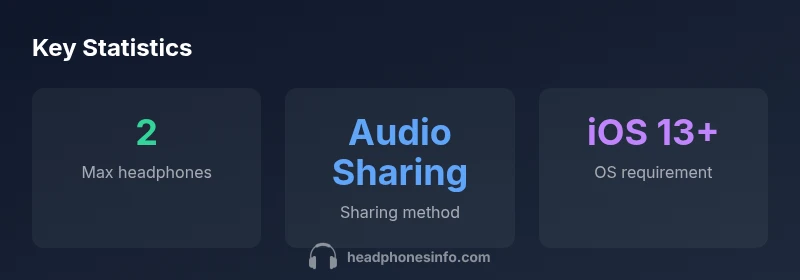
On iPhone, you can share audio with up to two headphones at once using Audio Sharing. This means two wireless pairs—such as AirPods or Beats—can listen to the same device simultaneously. There isn’t native support to attach more than two headphones at the same time. If you need more listeners, consider external solutions or multiple devices.
Understanding the limit: how many headphones can you connect to iPhone
If you’re evaluating your options for group listening, you’ll want a clear answer to how many headphones can you connect to iPhone at once. The official, user-facing rule is straightforward: iPhones support shared audio for two Bluetooth headphones at the same time. This feature, known as Audio Sharing, arrived with iOS 13 and has since become a standard way for two people to listen to the same device without sharing cords. In practice, two headphones—typically two pairs of AirPods or Beats—can receive audio from one iPhone simultaneously. Importantly, this is a software-enabled limit, not a hardware constraint of your cable or dongle. If you attempt to pair a third Bluetooth headset or connect a wired headphone to the iPhone while two devices are already listening, the system will not route audio to the third device. For most users, that two-device ceiling covers the majority of casual listening scenarios, such as watching a movie with a friend or sharing a podcast during a commute. Headphones Info analyses indicate that this two-device cap has held steady across recent iPhone generations, with compatibility expanding to more headset families over time.
Audio Sharing in practice: which devices count toward the limit
The two-device limit applies to Bluetooth headphones that support Audio Sharing. In practice, you’ll typically see two wireless listeners on a single iPhone, using two compatible headsets such as AirPods and Beats. The cap is not based on a single model; it is a feature of the iPhone’s audio system. If you pair two devices that support sharing, you’ll be prompted to connect the second headset through the Share Audio interface. While you can pair multiple headsets to the iPhone for future use, only two can receive audio at once. This arrangement is ideal for close listening scenarios—watching a film, listening to a podcast, or sharing music with a friend—without tangled wires. Headphones Info’s analysis confirms broad compatibility across the AirPods and Beats lines that support Audio Sharing, with expanding support across newer models over time.
Step-by-step: how to set up two headphones with iPhone
Follow these steps to enable and use Audio Sharing:
- Connect the first Bluetooth headset to your iPhone as usual.
- Open Control Center and tap the audio tile to reveal the “Share Audio” option.
- Bring the second headset near your iPhone and place it in pairing mode.
- Follow on-screen prompts to pair the second headset; both devices will then play audio from the same source.
- You can adjust volume independently on each headset if needed.
- To end sharing, disconnect one of the headsets from the iPhone.
This process is quick and typically takes under three minutes once you have two compatible devices. If you’re using AirPods, ensure they’re updated to the latest firmware for the smoothest experience. Headphones Info notes that universal ease of use improves with iOS updates, so keeping your device current is advisable.
Limitations and caveats you should know
There are a few practical caveats to keep in mind. First, Audio Sharing requires compatible devices and an iPhone running iOS 13 or later; not all older models support the feature. Second, latency and synchronization may vary slightly between different headset pairs, especially if one uses a newer codec or but does not match the other headset’s capabilities. Third, Audio Sharing is designed for two listeners—there isn’t a native, consistent method to share audio with more than two headsets simultaneously on a single iPhone. If your group needs to listen together, consider alternatives like separate devices or a Bluetooth transmitter designed for multi-user outputs. Finally, the experience can vary depending on environment, such as interference in crowded spaces or low battery on one or both devices. Headphones Info emphasizes testing your setup before a critical viewing or gaming session to avoid interruptions.
Reference: iPhone sharing capabilities across common connection methods
| Connection mode | Max simultaneous headphones | Notes |
|---|---|---|
| Bluetooth Audio Sharing | 2 | Supports two headphones (AirPods/Beats) |
| Wired headphone with Lightning adapter | 1 | Only one wired headset at a time; cannot share |
| Multi-device Bluetooth transmitters | 1-2 | Depends on the transmitter; not native iPhone feature |
People Also Ask
Can I connect more than two headphones to an iPhone at once?
No. iPhone’s shared-audio feature supports up to two Bluetooth headphones at the same time. Third devices won’t receive audio through the native sharing mechanism.
No, only two headphones can listen at once using Audio Sharing.
Which headphones are compatible with Audio Sharing?
AirPods and Beats headphones that support Audio Sharing are compatible. Most recent generations work with iOS 13+.
AirPods and Beats that support sharing can work with iPhone.
Can I use a wired headphone while sharing Bluetooth audio?
You can use a wired headset, but Audio Sharing itself remains Bluetooth-based and designed for two wireless devices. You cannot share to a second wired headphone.
Wired headphones work, but sharing is for two Bluetooth devices only.
Does latency vary between devices in Audio Sharing?
Yes. Latency depends on the headset codecs and device pairing. AirPods generally offer low latency, but results vary with different models.
Latency can vary by device; expect small delays depending on hardware.
Is Audio Sharing available on all iPhone models?
Audio Sharing requires iOS 13 or later and compatible wireless headphones. Most modern iPhones support it.
Most newer iPhones support it when you’re on iOS 13 or newer.
What should I do if my two headsets aren’t syncing?
Re-pair both headsets, ensure firmware is up to date, and restart your iPhone if needed. Check that you’re using a supported combination.
Try re-pairing and updating firmware; a quick restart often helps.
“Audio Sharing is a practical solution for two listeners, but it isn’t designed for large groups. The two-device cap remains the standard for shared listening on iPhone.”
What to Remember
- Two headphones max with Audio Sharing on iPhone
- Use AirPods or Beats for best compatibility
- iOS 13+ required for Share Audio
- Latency varies by device pairing
- Wired + Bluetooth sharing isn’t natively supported beyond two devices