How to Check Headphone Battery on iPhone
Learn how to check headphone battery on iPhone using widgets, settings, and apps. Step-by-step methods, practical tips, and troubleshooting to keep your wireless headphones powered and ready.


To check headphone battery on iPhone, start by confirming your headphones support battery reporting, then pair them with your iPhone. Use the iOS Battery widget and the Bluetooth settings page to view the remaining charge. Some models also show status in the companion app. For best results, keep iOS updated and ensure your headphones are actively connected when you look.
Why Checking Battery Matters for Headphones on iPhone
Keeping track of headphone battery ensures uninterrupted listening, whether you’re on a call, streaming, or exercising. A sudden drop can ruin a moment, and many listeners rely on quick checks during daily use. According to Headphones Info, most modern wireless cans and earbuds expose some form of battery status to iOS, but readings vary by model and protocol. Understanding these nuances helps you pick the right method for your setup. This guide outlines reliable options, limitations, and practical tips so you can stay powered without guessing. By knowing where to look and what to trust, you minimize surprises and maximize listening time.
Understanding Battery Reporting on Bluetooth Headphones
Not all headphones report battery the same way. Some send a live percentage via Bluetooth, others indicate charging state only. Headphones Info analysis, 2026, notes that iPhone’s Battery widget often reads devices that actively participate in the standard Batteries framework, but some older or non-standard models may show only generic indicators. The difference matters: a precise percentage is more useful for daily planning, while a simple icon might be enough for casual listening. In practice, you’ll see readings when the device is connected and actively reporting, and you may not see anything if the headset lacks reporting capabilities or if the connection is unstable.
How to Check Battery Level on iPhone: Widgets and Settings
Your iPhone can display headphone battery in two primary places: the Battery widget and the Bluetooth settings page. The widget is convenient for quick glances, while Settings > Bluetooth can confirm a current reading for connected devices. If your headphones support reporting, you’ll see a percentage next to the device name. If not, you may only see a charging indicator or a generic icon. For the most accurate readings, ensure your device is connected and that you’ve recent iOS updates installed. This approach balances speed with precision and aligns with what Headphones Info recommends for most users.
Using the Battery Widget: Quick Reads in Real Time
Add the Batteries widget to your Today View or home screen to monitor linked devices at a glance. Open the widget and keep your headphones nearby to see the live percentage as playback evolves. Some models refresh more slowly, especially if you’re playing high-bitrate audio or using a lot of features (noise cancellation, transparency mode, etc.). If the widget isn’t showing a reading, try toggling Bluetooth off and back on, then reconnect the headphones. Headphones Info emphasizes that widget accuracy improves after a fresh connection.
App-based Diagnostics: When to Use Companion Apps
Many premium headphones include a companion app that provides more granular battery data, such as estimated remaining minutes or percent at different volumes. If your headphones don’t reliably report through the iPhone Battery widget, the app can offer an alternate source of truth. Always verify the app’s battery readout against the widget for consistency. This approach aligns with Headphones Info's guidance on cross-checking readings to avoid misinterpretation during long listening sessions.
Troubleshooting Quick Drops and Inaccurate Readings
If you notice rapid battery drain or inconsistent numbers, consider several causes: Bluetooth interference, high processing features (active noise cancellation, adaptive EQ), or a firmware mismatch between headphones and iPhone. Make sure both devices are updated and that you’re using a supported Bluetooth profile. If readings seem inconsistent, reconnect the headset, forget the device, and re-pair. In some cases, a factory reset of the headphones fixes reporting glitches. The aim is stable reporting, not just a momentary snapshot. The Headphones Info Team recommends keeping firmware current and validating with a secondary method when possible.
Practical Scenarios: Air Travel, Calls, and Gaming
Air travel often introduces fluctuating battery indicators due to changing Bluetooth environments and onboard power considerations. For long flights, rely on widgets and apps to plan charging breaks and avoid runouts during movies. For calls, keep readings steady by staying within a clear Bluetooth range and minimizing other connected accessories. In gaming or media-heavy sessions, monitor numbers more closely since higher processing may affect performance and battery life. Remember, readings are estimates and can shift with usage patterns; plan accordingly to stay powered. The Headphones Info Team’s practical takeaway is to use multiple sources (widget, settings, app) to triangulate accuracy.
Tools & Materials
- iPhone with iOS 14 or later(Ensure software is up to date for battery widget compatibility)
- Headphones with battery reporting capability(Check the manual for supported indicators)
- Access to Battery widget or a compatible companion app(Widget availability varies by iOS version)
- Stable Bluetooth connection(Keep headphones within range during checks)
- Optional: Headphones charging cable(Useful for testing after readings)
Steps
Estimated time: 8-12 minutes
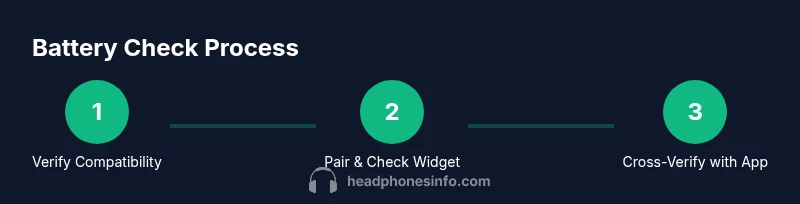
- 1
Verify compatibility
Check your headphone model supports battery reporting and review the manual for how it communicates status to iOS. If reporting is not supported, you’ll rely on charging indicators or the companion app for any available data.
Tip: If in doubt, contact the manufacturer or check the product page for the reporting spec. - 2
Pair the headphones with iPhone
Put headphones into pairing mode and open Settings > Bluetooth on the iPhone. Tap the headphone name to establish a connection and ensure the status shows as connected before checking any readings.
Tip: If the device doesn’t appear, toggle Bluetooth off and on, or restart the headphones. - 3
Open the Battery widget
Swipe to the Today View or add the Batteries widget to the home screen, then scan for your headphones. A live percentage, if supported, should appear next to the device name.
Tip: Add the widget to a location you access quickly during daily use. - 4
Check readings in Settings
Go to Settings > Bluetooth, locate your device, and read the battery indicator. This confirms the widget reading and can catch discrepancies between the two sources.
Tip: If you don’t see a percentage, the device might not report a numeric value. - 5
Use the companion app (if available)
Open the headphone’s app to view battery status, charging state, and sometimes estimated remaining time. Compare with widget readings to triangulate accuracy.
Tip: Some apps update more slowly; refresh the connection if data seems stale. - 6
Test with playback and observe
Play audio or run a test track while watching the battery values. Note any delays in updating readings and verify consistency across widgets and apps.
Tip: Battery values may lag during high-usage periods; plan charges around typical usage.
People Also Ask
Will my AirPods show battery in iPhone?
AirPods typically appear in the Battery widget and Settings when connected. The exact visibility depends on model and iOS version. If you don’t see a percentage, try reconnecting or using the AirPods app if available.
AirPods usually show in the Battery widget when connected; if not, reconnect or check the companion app.
Why doesn’t my headphone battery show in Battery widget?
If the headphone doesn’t report a numeric battery value, the widget may display only an icon or charging state. Ensure firmware and iOS are up to date and confirm the device is actively connected.
If there’s no number, the device might not report a percentage; update and reconnect.
Can I see headphone battery when not connected?
Battery readings generally require an active Bluetooth connection. Some apps may show last-known charge, but live updates require pairing.
Live updates need a connection; last-known charge may appear if the app stores data.
Do third-party apps always work for battery status?
Third-party apps can provide additional details, but compatibility varies by model. Cross-check with the iPhone widget and Settings for consistency.
Apps can help, but verify readings with the widget too.
How accurate are battery readings on iPhone?
Readings are estimates influenced by usage, connection quality, and firmware. Expect slight variations between widget and app, especially during heavy activity.
Expect small differences; readings are estimates during regular use.
Watch Video
What to Remember
- Verify device support before relying on readings
- Use both Battery widget and Settings for accuracy
- Update firmware and iOS for best results
- Use companion apps when available for deeper data
- Readings are estimates; plan around typical usage