How to Check Headphones Battery: A Practical Guide for 2026
Learn how to check headphone battery life and health with a practical, 2026-guided approach. From indicators and apps to long-term tests, this guide helps you keep wireless and wired headphones performing at their best.


This guide shows you how to check headphone battery across devices and models. You’ll learn to read current charge from indicator lights, app dashboards, and OS battery data, then estimate remaining life and health over time. Whether you own wireless, ANC, or wired headphones, you’ll gain practical checks you can perform in under an hour.
Why checking headphones battery matters
Regularly checking your headphone battery is essential for reliability, especially if you depend on wireless listening for work or travel. A healthy battery ensures you get the promised runtime, consistent performance during noise-cancelling sessions, and fewer surprises before long sessions. The Headphones Info team emphasizes that battery health isn’t just about a single charge; it’s about how capacity degrades over time and how quickly you can recover from a drain. According to Headphones Info, many users underestimate wear and tear and assume a charging indicator tells the full story. In 2026, battery-aware habits can extend overall lifespan and help you plan replacements before performance suffers. This knowledge is especially valuable for modern, compact earbuds and active‑noise-cancelling headsets where battery life directly affects user experience.
In this guide, you’ll learn practical checks you can perform with minimal tools, compare indicators across devices, and build a simple maintenance routine. The goal is to make you confident in interpreting charge levels, not just reading a single number. By adopting these checks, you’ll reduce anxiety about running out of power and improve your ability to schedule charging around critical listening sessions.
Quick methods to check battery level
There are several reliable ways to verify how much charge your headphones have left and how healthy the battery is. Start with the simplest method and then move to more detailed checks if you need precise data.
- Indicator LEDs on the case or buds: Many models use a color or blinking pattern to convey current charge. Note the pattern and compare it against the manufacturer’s guide. In practice, a consistent high or mid-level LED across several uses is a good sign, while rapid changes or a dim indicator can signal aging.
- Official companion app: Most wireless models offer a battery view within their app. This often shows current charge, estimated remaining playtime, and sometimes the battery health percentage if the model supports it. Regularly verify the app data against actual usage to detect discrepancies early.
- OS battery readouts: After pairing, you can view battery status in iOS Control Center or Android’s Battery/Device details. These readings can be less precise than the manufacturer app but are useful as a quick cross-check and for spotting sudden drops.
- Playback‑based tests: If you’re unsure about the data, perform a short, controlled test by playing a consistent audio track at a comfortable volume and timing how long the battery lasts from a full start to a known cutoff. This practical measure helps validate app or indicator readings.
- Charging behavior: Observe charging time and how the battery behaves after a full charge. If charging takes significantly longer than advertised or if there is heat or swelling, stop using the device and consult support. Regularly calibrating the battery through a full discharge/charge cycle can improve the accuracy of the readings over time.
Note: For accuracy, don’t rely on a single indicator. Cross-check with at least two methods before deciding on maintenance or replacement. Headphones Info analysis shows that users who combine app data with LED indicators tend to make better judgments about battery health over the product lifespan.
What you’ll gain from this approach
- A clear picture of current charge and how long you can realistically listen before recharging
- An ability to spot signs of degradation early, rather than waiting for dramatic performance drops
- A simple routine you can repeat across different headphone models to stay informed
Testing battery health over time
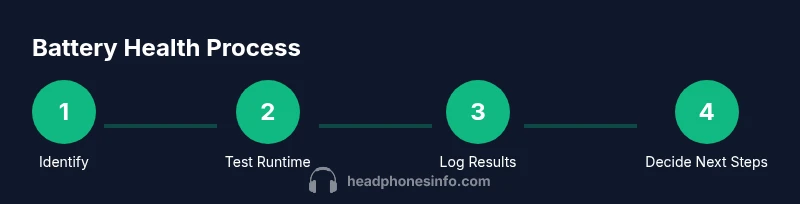
Battery health isn’t static; it changes with use and charging habits. A robust approach combines short-term checks with longer-term tracking. By documenting charge levels, runtime estimates, and any noticeable shifts in performance, you’ll be able to quantify trends and decide when it’s time to replace or service.
- Establish a baseline: After a full charge, record the estimated runtime from the manufacturer’s spec and your actual observed playtime during a typical day. This baseline becomes your reference point for future comparisons.
- Track a few cycles: Over the next 4–6 weeks, repeat the full-charge tests at regular intervals (e.g., weekly). Note any difference between expected and actual playtime, the speed of charging, and responsiveness of LED indicators.
- Compare to capacity expectations: If you consistently observe a reduction in runtime without changes in usage patterns, it may indicate diminishing battery capacity. While you can often compensate with quick recharges, persistent drops are a signal to reconsider model longevity or service options.
- Keep a log: A simple log (date, model, charge percent, estimated runtime, actual runtime, charging time, any anomalies) helps you visualize trends and support conversations with manufacturers.
In 2026, the trend is toward more transparent battery metrics in apps, but expectations can vary across brands. A well-documented approach reduces uncertainty and helps you make informed maintenance decisions faster.
Best practices for maximizing battery life
Maximizing battery longevity is a blend of usage habits and charging care. Even small changes can extend the time between replacements and improve daily experience. Here are practical recommendations that apply to most modern wireless headphones and many wired variants with internal rechargeable batteries:
- Avoid extreme temperatures: Heat and cold stress battery chemistry. When storing or charging, aim for room temperature and avoid direct sunlight or leaving devices in a hot car.
- Partial charging is practical: Unlike older laptops, modern lithium-ion chemistries tolerate partial charging well. Keeping the battery between 20% and 80% most of the time reduces stress and helps maintain capacity longer.
- Don’t keep a full charge for long periods: If you won’t use the headphones for days, store them with a partial charge rather than 100% to minimize aging.
- Use the official charger: Use the manufacturer-supplied cable and adapter when possible. Mismatched power can cause slower charging or heat buildup that harms battery health over time.
- Calibrate occasionally: If readings seem off, perform a full discharge (to near 0%) and recharge to full once every 2–3 months to recalibrate the battery indicator. Do this only if the device does not contain a risk of deep discharge.
- Clean contacts and case: Dirty charging contacts can increase resistance and impede charging efficiency. Clean gently with a dry microfiber cloth.
Consistency matters. A small daily routine—checking the indicator before travel, noting the runtime, and charging after use—helps you avoid surprises and maintains trust in your headphones’ performance.
Troubleshooting common battery issues
Battery issues can stem from charging habits, environmental conditions, or device design. Here are common symptoms and practical fixes you can try without voiding warranties:
- Fast drain after a long hold: If a new update caused rapid battery drain, check for apps consuming background processes and close unused ones. Restarting the device can also clear software glitches.
- Slow or no charge: Inspect the charging cable and port for debris or damage. Clean if necessary and try an alternate cable or charger. If the indicator doesn’t move after an hour, the battery may be aging.
- Inconsistent readings: Cross-validate indicator LEDs with app data and OS readings. If they diverge significantly, reset the headphones if supported or contact support for a battery health check.
- Overheating during charging: Place the headphones on a cool surface and avoid charging on soft surfaces that trap heat. If overheating persists, discontinue use and seek service.
- Shortened runtime without heavy usage: Consider battery health decline rather than a sudden software issue. If the device is still under warranty, request a diagnostic battery test.
When in doubt, rely on official support channels. Some issues require hardware inspection or battery replacement services, which may be covered under warranty. This guided approach helps you triage problems without guessing.
How to read battery life data from apps & measurements
Interpreting data from apps and system readouts requires understanding what each metric means. A few core ideas can help you draw meaningful conclusions without specialist tools:
- Current charge vs. estimated runtime: A higher remaining percentage is helpful, but the real value is how long you can listen at your typical volume. Compare the app’s runtime estimate with your actual listening sessions to confirm accuracy.
- Historical trends: A single data point is less informative than a trend. Use weekly logs to identify a downward trajectory, which suggests capacity loss rather than normal fluctuation.
- Charging behavior: Note how long it takes to reach full charge and whether the indicator changes promptly when the battery is full. Prolonged charging time or flickering indicators can indicate aging or circuitry issues.
- Battery health percentage (if available): If your model exposes a health metric, treat it as an approximate gauge. Use it in combination with runtime data to decide on service or replacement.
A disciplined approach—combining app data, OS metrics, and your own testing—gives you a reliable picture of battery health. Headphones Info’s guidance is to treat these numbers as estimates, not guarantees, and to maintain a regular check routine to stay ahead of degradation.
Practical wrap-up and next steps
By adopting these checks, you gain a practical, repeatable way to monitor headphone battery health without specialized tools. Start with quick indicators, then corroborate with app data and short in-device tests. Build a simple log for ongoing tracking and set reminders for periodic checks—ideally every 2–6 weeks depending on usage. If you notice a clear decline in runtimes or inconsistent indicators, plan for a service assessment or consider a replacement.
The Headphones Info team emphasizes that consistent monitoring is the most effective defense against sudden outages. A small investment in time now prevents bigger headaches on the road or during important sessions.
Recommended routine (one-page summary)
- Before every long listening session: Check LED indicator and OS/app readouts for charge.
- Once a week: Run a quick runtime test and log the results.
- Every 1–2 months: Calibrate battery readings via a full charge-discharge cycle if supported by the model.
- Annually: Review whether battery health affects performance and plan replacements if needed.
- When in doubt: Compare readings across at least two sources (indicator + app) and consult the manufacturer if results diverge significantly.
Tools & Materials
- Headphones or earbuds(Fully charged before testing whenever possible)
- Official companion app on iOS/Android(Used to read battery status and runtime estimates)
- Smartphone or tablet(For OS battery readouts and timers)
- Charging cable and compatible charger(Original or manufacturer-approved cable)
- Notebook or digital log(Record baseline and track changes over time)
- Timer or stopwatch(Used during controlled runtime tests)
Steps
Estimated time: 30-45 minutes
- 1
Identify model and prepare.
Confirm your headphone model and ensure you have a full charge to start a baseline. This prevents misreading indicators that occur during low power states. Keep the original charging cable handy and set up your log for future comparisons.
Tip: Note the exact model name and firmware version in case the app data differs between variants. - 2
Check LED indicators and case status.
Observe the charging case and buds for their status LEDs. Compare the pattern to the manufacturer’s guide to determine current charge. If indicators appear inconsistent, charge to full and retry in 15–20 minutes.
Tip: Take a photo of the indicator pattern for reference in your log. - 3
Open the official app to view battery.
Launch the manufacturer app and navigate to the battery section. Record current charge percentage and any health readouts. If a health metric isn’t shown, note runtime estimates and rely on the other methods for accuracy.
Tip: If data is missing, ensure the device is properly paired and the app has permission to access battery information. - 4
Check OS-level battery data.
On iOS/Android, check the device’s connected accessories battery status. Compare this with the app reading. Document any discrepancies and consider performing a quick reset if readings diverge.
Tip: Restart the devices if data seems frozen or inconsistent. - 5
Run a controlled playback test.
Play a consistent audio sample at a comfortable volume for a defined period (e.g., 15–20 minutes). Note start and end times and compare with the app’s runtime estimate. This helps validate real-world performance.
Tip: Use a timer and a consistent volume to reduce variables. - 6
Record results and compile baseline.
Fill your log with date, model, charge %, runtime observed, and charging time. This baseline will help you detect degradation over weeks or months.
Tip: Label entries with usage context (travel, commute, work) for better interpretation. - 7
Calibrate if supported.
Some models support a full charge-discharge calibration. If your device allows it and you’re comfortable, run a calibration cycle to refresh indicators.
Tip: Only perform calibration if the manufacturer supports it for your model. - 8
Decide on next steps.
If runtime consistently falls short of expectations or indicators drift, consider service, battery replacement, or a model upgrade. Document outcomes for warranty or support discussions.
Tip: When in doubt, contact support with your log and measurements.
People Also Ask
How often should I check headphone battery health?
For most users, a quick check every 2–4 weeks is enough, with a full baseline test every 2–3 months. If you use headphones extensively or rely on wireless use, consider more frequent checks.
Check battery health every few weeks, and do a longer baseline every couple of months to stay ahead of degradation.
Do all headphones provide battery health data in the app?
Not all models expose an explicit battery health metric. If health data isn’t shown, rely on runtime estimates and charging behavior across multiple sources.
Some models show health in the app, others don’t. In that case, use runtime and charging behavior to gauge health.
Can wired headphones have battery health issues?
Yes, wireless-capable wired headphones can still have rechargeable batteries for ANC or wireless features. Check the device’s charging behavior and runtime data like you would with wireless models.
Even wired headphones with wireless features have batteries; monitor their charge and performance as you would for wireless models.
What signals indicate a degraded battery?
Consistently shorter runtimes, longer charging times, warm to hot charging, and inconsistent indicators typically signal aging or battery issues.
If runtimes drop or charging takes longer than usual, you may be seeing battery aging.
Is calibration necessary for every model?
Calibration helps some models align indicators with real capacity. Only perform if the manufacturer recommends it for your device.
Calibration helps some devices; follow the manufacturer’s guidance.
When should I replace headphones due to battery?
If runtime is consistently far below specs and battery health indicators show poor capacity, plan a replacement or service. Check warranty terms first.
If runtimes are poor and health is low, replacement or service is sensible, especially under warranty.
Watch Video
What to Remember
- Check battery health using multiple data sources.
- Keep a log to track capacity changes over time.
- Use a combination of indicators, apps, and OS data for accuracy.
- Calibrate and test regularly to catch degradation early.
- Follow manufacturer guidelines to avoid safety risks.