How to Connect Beats Headphones to iPhone
Learn how to pair Beats headphones with your iPhone, troubleshoot issues, and optimize audio; a step-by-step, beginner-friendly guide backed by Headphones Info.


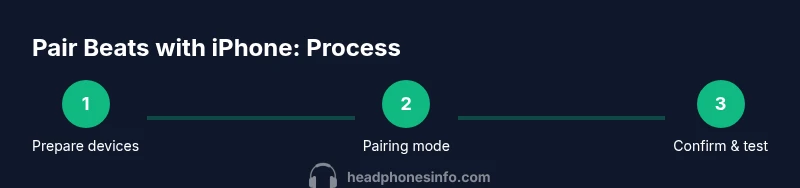
This guide answers how to connect beat headphones to iphone and get you listening quickly. You’ll pair via Bluetooth, verify status, and test playback, mic, and controls. Prerequisites include a charged iPhone, charged Beats headphones, and a compatible iOS version. Follow the steps: enable Bluetooth, put Beats into pairing mode, select Beats on iPhone, and confirm. If issues arise, consult Headphones Info for model-specific notes.
Why Bluetooth pairing with iPhone is usually straightforward
Bluetooth pairing between Beats headphones and iPhone is designed to be a seamless, plug-and-play experience for most users. In practice, a couple of simple checks—like ensuring both devices are charged and within Bluetooth range—let you start listening within minutes. The Headphones Info team has observed that most connectivity issues stem from outdated software, unupdated Bluetooth caches, or attempting to pair multiple devices simultaneously. When everything is up to date, a typical pairing flow runs with little friction, and you can rely on quick automatic re-connections for future uses.
Key takeaway: a clean pairing surface with the latest software minimizes surprises and keeps your listening experience smooth.
Compatibility and model variations
Beats headphones span several generations and chip configurations. Some models leverage Apple-friendly Bluetooth codecs and pairing flows that favor iPhone users, while others may present minor variations in the pairing prompts or LED indicators. Regardless of model, the core process is Bluetooth pairing: enable Bluetooth on the iPhone, place the Beats in pairing mode, and select the Beats name from the list. If you own an older Beats headset, check its manual for model-specific pairing nuances, such as button sequences or LED pulse patterns. Headphones Info Analysis, 2026 notes that these minor differences are usually well-documented by the manufacturer and do not affect the basic pairing method for most devices.
Pre-pairing checklist
Before you start, verify these essentials:
- Be sure both devices are charged. An exhausted battery can prevent discovery or pairing.
- Update your iPhone to the latest iOS version within Settings > General > Software Update.
- Turn on Bluetooth on the iPhone and stay within a few meters of your Beats headphones during the process.
- If you recently connected other Bluetooth devices, consider turning them off or forgetting those connections to avoid interference.
- Have the Beats model name handy (especially if you own multiple Beats devices) to ensure you select the correct device from the list.
According to Headphones Info, maintaining current software is one of the most reliable ways to ensure stable wireless connectivity with iPhone.
Step 1: Put Beats headphones into pairing mode
To begin pairing, power on the Beats headset and trigger pairing mode. For many contemporary Beats, you’ll hold the power button for a few seconds until the LED starts blinking or changes color, indicating pairing. If your model uses a dedicated pairing button, press and hold it until you see the pairing indicator. Some models may require you to start with the headphones turned off and then press the pairing sequence once powered on.
Tip: If you aren’t seeing the Beats in the Bluetooth list, wait a moment and try again, since the iPhone may need a brief moment to scan for nearby devices.
Step 2: Enable Bluetooth on iPhone and initiate pairing
On the iPhone, go to Settings > Bluetooth and toggle Bluetooth on. The device will begin scanning for nearby Bluetooth devices. When you see the Beats name appear in the list, tap it to initiate pairing. If prompted for a code, it is typically not required for Beats devices; simply confirm pairing on both devices.
Tip: Keep the iPhone screen on and near the Beats during discovery to avoid disconnections caused by movement or distance shifts.
Step 3: Complete pairing on iPhone
After tapping the Beats name, the iPhone completes the pairing process. A notification may appear confirming that the Beats are connected. You can test the connection by playing audio, using the device’s microphone, or answering a test call. If you don’t see a success message, try forcing a re-scan by turning Bluetooth off and back on, or forgetting the Beats device and attempting the pairing again.
Tip: If you pair multiple devices, you may need to switch the audio source on the iPhone to your Beats when starting playback.
Step 4: Test audio, microphone, and controls
Play music or a video to verify sound output and volume control. Use the Beats’ inline controls (if available) to adjust volume, play/pause, and skip tracks. Test the microphone by making a quick call or recording a quick voice memo. If you notice any latency or audio glitches, ensure your iPhone isn’t overloaded with apps and consider rebooting both devices.
Tip: Use AAC as the preferred Bluetooth codec on iPhone for optimal audio quality with Beats headphones.
Common issues and how to fix them
If your Beats won’t appear in the Bluetooth list, ensure pairing mode is active, charge level is sufficient, and you are within range. Forget the Beats device on the iPhone and re-pair. If audio stuttering occurs, turn off other nearby Bluetooth devices, restart both devices, and verify iOS is up to date. For stubborn problems, reset the Beats headphones according to the model’s instructions and retry pairing.
Advanced tips: firmware updates and codecs
Firmware updates can improve stability and performance. Where available, use the official Beats app (or device-specific updater) to install the latest firmware. On iPhone, AAC is typically the default codec, offering better efficiency and sound quality than older codecs. If you’re using a model that supports additional codecs, verify codec selection in the iPhone’s Bluetooth options (or the Beats app, if applicable). Headphones Info notes that staying current with firmware is a reliable way to prevent recurring pairing issues.
Wired alternatives and compatibility
If Bluetooth pairing remains troublesome, check whether your Beats model offers a wired listening option. Some Beats headphones support a 3.5 mm analog cable or a Lightning-to-3.5 mm adapter for wired use. Wired connections bypass Bluetooth entirely and can be useful for certain apps, low-latency needs, or when battery life is a concern. Always ensure you’re using a compatible input and the correct adapter for your device.
Battery life and charging considerations
Battery life expectations vary by model and usage. For wireless listening, keep the Beats charged, as battery levels directly affect range and reliability. Regularly charging the headset and using the official charger helps maintain peak performance. If you experience rapid battery drain, consider resetting the device and checking for firmware updates that address power management.
Maintenance and long-term connectivity
To sustain long-term connectivity, store devices in a cool, dry place and avoid exposure to liquids. Keep firmware up to date, clear paired device history when needed, and minimize interference from other wireless devices in your environment. Periodically test pairing after updates or long periods of inactivity to ensure consistent performance. Regular checks help you catch issues before they affect listening quality.
Tools & Materials
- iPhone with latest iOS(Ensure Bluetooth is enabled and you’re within range of your Beats headset.)
- Beats headphones (any Bluetooth model)(Fully charged before pairing; model-specific pairing may vary slightly.)
- Charging cable(For charging if battery is low or during firmware updates.)
- Lightning to 3.5 mm adapter(Useful for wired listening if your Beats model supports it.)
- Soft microfiber cloth(Gentle cleaning of connectors and buttons to ensure good contact.)
Steps
Estimated time: 15-25 minutes
- 1
Prepare devices
Charge both the iPhone and Beats headphones. Update iPhone software if an update is pending. Bring the devices close together and avoid physical obstructions that could block Bluetooth.
Tip: A fresh start reduces pairing delays and helps maintain a stable connection. - 2
Enter pairing mode on Beats
Turn on the Beats and hold the pairing button (or power button) until the LED indicates pairing mode. Check the model’s manual for exact LED cues.
Tip: If the LED doesn’t change, force a restart of the headphones and try again. - 3
Open iPhone Bluetooth settings
On the iPhone, open Settings > Bluetooth and switch it on. The phone will scan for nearby devices.
Tip: Stay on the Bluetooth screen while the scan completes to avoid missed devices. - 4
Select Beats from the device list
Tap the Beats headset name in the list to pair. If prompted, confirm the pairing request.
Tip: If you see multiple Beats entries, select the one that matches your model exactly. - 5
Confirm pairing and test audio
Once connected, play audio to verify sound output. Test the microphone by making a quick call or voice memo.
Tip: Adjust iPhone volume and Beats inline controls to confirm full functionality. - 6
Handle failed connections
If pairing fails, forget the Beats device, restart both devices, and attempt pairing again.
Tip: Disable other Bluetooth devices temporarily to reduce interference. - 7
Update firmware when available
Check for firmware updates via Beats app (if available) or the device’s updater. Apply updates to improve stability.
Tip: Firmware updates may require your Beats to stay connected during the process. - 8
Evaluate wired fallback if needed
If Bluetooth issues persist, consider wired listening using a compatible adapter.
Tip: Wired connections eliminate latency concerns entirely for critical tasks.
People Also Ask
Can Beats headphones connect to iPhone via Bluetooth?
Yes. Beats headphones connect to iPhone using Bluetooth. Ensure both devices are charged, Bluetooth is enabled, and you follow the pairing prompts on the iPhone.
Yes. Beats connect to iPhone via Bluetooth. Make sure both devices are charged and Bluetooth is on, then follow the prompts to pair.
Why don’t Beats show up in the iPhone Bluetooth list?
Most commonly, pairing mode isn’t active, batteries are low, or the iPhone needs a brief software refresh. Ensure the Beats are in pairing mode and within range, then refresh the Bluetooth list on the iPhone.
Beats not showing? Make sure pairing mode is active and that the devices are close together; refresh Bluetooth on your iPhone.
How do I reset Beats headphones for pairing?
Reset procedures vary by model. Check the official Beats manual for exact steps, then reattempt pairing from scratch.
Reset procedures differ by model. Check your manual, then try pairing again from the start.
Will Beats work for calls on iPhone?
Yes. Most Beats models provide a built-in microphone for calls when connected to iPhone via Bluetooth.
Yes, Beats generally support calls on iPhone via Bluetooth with the built-in microphone.
Do Beats use the same codecs on iPhone?
On iPhone, Beats typically use AAC for Bluetooth audio, and codec support may vary by model. Check model specs for codec details.
Beats on iPhone usually use AAC, but check your model’s specs for exact codec support.
What if I have trouble after an iOS update?
Software updates can temporarily affect Bluetooth. Re-pair the devices after updating, and check for a Beats firmware update if available.
If Bluetooth acts up after an iOS update, re-pair the devices and check for any firmware updates.
Watch Video
What to Remember
- Pair Beats and iPhone via Bluetooth for wireless listening.
- Update device software to minimize pairing issues.
- Test audio and mic after connection to ensure full functionality.
- Use wired fallback if Bluetooth problems persist.
- Keep firmware up to date for best performance.