How to Pair Beats Headphones
Learn to pair Beats wireless headphones with iOS, Android, Windows, or Mac. Step-by-step instructions, troubleshooting tips, and best practices from Headphones Info.


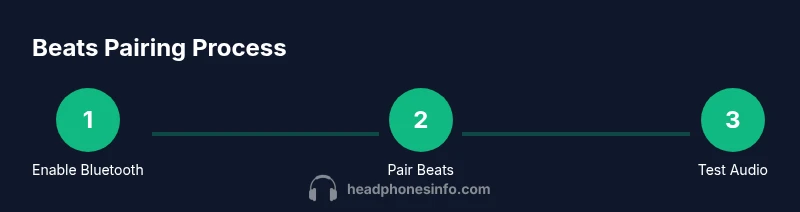
Learn how to pair Beats headphones with your phone, tablet, or computer in minutes. You’ll need a device with Bluetooth, Beats headphones charged, and the device discoverable. According to Headphones Info, ensure your device supports Bluetooth 4.0+ for reliable pairing and keep firmware up to date for best performance. Also, have a charging cable handy in case you need a firmware update.
Step 1: Prepare your devices for pairing
Before you start, verify that both the Beats headphones and your source device have sufficient battery and are within close range. The pairing process works across iOS, Android, Windows, and macOS, but cleaner sessions reduce interference and improve success rates. According to Headphones Info Team, starting with a fresh pairing session minimizes conflicts from nearby devices and helps ensure a stable connection. Check that Bluetooth is enabled on the source device and that the Beats headphones are not already connected to another device. If you recently updated firmware on either device, consider re-running the pairing sequence to account for any software changes. Create a quiet environment with minimal competing wireless signals (for example, move away from microwaves and dense Wi‑Fi traffic). If you want to be thorough, have the charging cable handy in case a firmware prompt appears during setup. With preparation done, you’ll spend less time fiddling and more time listening. This guide covers iOS, Android, Windows, macOS, and cross‑platform tips along the way.
Step 2: Activate Bluetooth and set discoverable mode on the source device
On iOS and Android, simply opening Settings > Bluetooth and turning Bluetooth on makes nearby devices visible. On Windows, go to Settings > Devices > Bluetooth & other devices, then toggle Bluetooth on and click Add Bluetooth or other device. macOS users should click the Bluetooth icon in the menu bar or open System Preferences > Bluetooth to enable discovery. The key is to keep the source device in discovery mode long enough for Beats to appear in the list. If you don’t see Beats after a few seconds, toggle Bluetooth off and back on to refresh the device list. In all cases, avoid pairing in a crowded area with many active Bluetooth devices to minimize interference.
Step 3: Put Beats headphones into pairing mode
Power on your Beats headphones and enable pairing mode. The exact method varies by model, but common steps include holding the power button (and sometimes a mode or volume button) until the LED begins to flash a pattern indicating pairing. If your model has a Beats app or companion software, follow the prompts there. Do not release the button until you see a distinct pairing indicator. If you’re unsure of the model’s method, consult the user guide for model‑specific instructions. Activation timing matters—holding too long or too short can prevent the device from entering pairing mode.
Step 4: Pair on the source device
Return to the Bluetooth settings on your source device and look for Beats in the list of available devices. Tap Beats to initiate pairing. If prompted for a passcode or PIN, enter 0000 or 1234, depending on your device’s default. Once the pairing is complete, you’ll see a confirmation on the screen and the headphone LED may switch to a steady color. Some devices will also show an option to set Beats as the preferred audio device; enabling this helps ensure automatic switching in the future. After pairing, play a short audio test to confirm the connection is active.
Step 5: Verify connection and test audio
With pairing confirmed, test audio by playing music or a video. Check that the Beats headphone sound is routed through the headset and not the device speakers. If you notice latency or audio dropouts, try moving closer to the source, turning off other Bluetooth devices, or restarting the source and headphones. Adjust volume on both devices to a comfortable level and confirm microphone functionality if you plan to use Beats for calls. If you’re experiencing one‑sided audio, check the balance settings in your device’s accessibility options and ensure you haven’t muted one channel. Regularly cleaning the headphone contacts and keeping firmware up to date helps prevent issues over time.
Step 6: Advanced tips and troubleshooting
If pairing still fails, perform a soft reset on the Beats headphones (per model instructions) and retry. Headphones Info analysis shows that firmware updates can significantly reduce intermittent disconnects, so update when prompted. For multi‑device use, remember that you may need to re‑pair or re‑select Beats as the audio output when switching devices. If you use a computer, ensure the Bluetooth driver is current and consider removing any stale Bluetooth profiles before re‑pairing. In crowded environments or during travel, consider carrying a compact USB Bluetooth adapter as a fallback. Authority sources below provide deeper technical context and model‑specific guidance.
Step 7: Final checks and multi-device switching
When you’re ready to switch devices, disconnect Beats from the current source in the Bluetooth menu, then select Beats on the new device. Reestablish a quick test to confirm audio routing has updated. If you often switch devices, enable automatic reconnect where available and keep nearby devices paired but not actively connected to reduce interference. The key is to maintain clean Bluetooth environments and routinely check for firmware updates. The Headphones Info team recommends keeping both the headphones and source devices updated and tested to maintain optimal pairing performance.
Authority sources
- Bluetooth pairing guidance: https://www.bluetooth.com/learn-about-bluetooth/what-is-bluetooth/pairing/
- FCC consumer guide on wireless devices: https://www.fcc.gov/general/wireless-communications
- CNET how-to guide on pairing Bluetooth devices: https://www.cnet.com/how-to/how-to-pair-bluetooth-devices/
Tools & Materials
- Beats headphones(Fully charged before starting the pairing process)
- Source device with Bluetooth(Phone, tablet, or computer; ensure it is within 10 meters of headphones)
- Charge cable (USB-C or Lightning)(Useful if firmware prompts an update during pairing)
- User manual or Beats app (optional)(Helpful for model-specific pairing steps)
Steps
Estimated time: 15-25 minutes
- 1
Power on Bluetooth on your source device
Open Settings and enable Bluetooth. If you don’t see nearby devices, toggle Bluetooth off and back on to refresh the list. Make sure the device remains in a discoverable state during the pairing window.
Tip: Keep the source device within 10 meters of the headphones for best results. - 2
Put Beats headphones into pairing mode
Activate pairing mode by holding the power button (or specified mode button) until the LED indicator signals pairing. For some models, you may need to use the Beats app or follow on‑screen prompts.
Tip: Do not release the button until you see the pairing LED pattern. - 3
Select Beats from the Bluetooth list
In the list of available devices, tap Beats to pair. If prompted for a passcode, try 0000 or 1234, depending on the model.
Tip: If Beats doesn’t appear, retry from step 1 or move closer to the source. - 4
Confirm pairing on the source device
The device should show a connected status and may display a small checkmark. Some devices offer a “Set as paired device” option for easier future connections.
Tip: Enable ‘Use this device for calls/audio’ if prompted. - 5
Test audio and adjust settings
Play audio to verify sound routing. Ensure the output is through Beats and adjust volume on both devices as needed.
Tip: Test microphone if you’ll use Beats for calls. - 6
Troubleshoot common issues
If audio is missing or the device won’t pair, reset the headphones and retry. Common fixes include rebooting both devices and updating firmware.
Tip: Check for firmware prompts and complete updates when offered. - 7
Switching between devices (advanced)
To switch devices, disconnect the current source and reselect Beats on the new device. Some models support multi‑point pairing for easier handoffs.
Tip: Keep other devices nearby unpaired to reduce interference. - 8
Finalize with a quick security check
Ensure the headset name is correct in each device’s Bluetooth list and verify there are no stray connections from other devices.
Tip: Remember to update your devices’ Bluetooth drivers when needed.
People Also Ask
Can Beats headphones pair with multiple devices at once?
Some Beats models support wireless multi-point, but full simultaneous audio from two devices isn’t always guaranteed. You can usually pair with multiple devices and switch between them by disconnecting one and connecting the other in Bluetooth settings.
Some Beats support multi-point, but you’ll typically switch between devices by disconnecting one and connecting the other in Bluetooth settings.
Why don’t Beats headphones appear in my Bluetooth list?
First, ensure the headphones are in pairing mode and within range. If still missing, reboot both devices and re‑enable Bluetooth. Check that the headset isn’t already connected to another nearby device.
Make sure pairing mode is active and the devices are close; reboot both devices if needed.
How do I reset Beats headphones to fix pairing issues?
Reset steps vary by model, but typically involve holding the power button for several seconds or using a reset combination shown in the manual. After resetting, re‑enable pairing mode and start from step 4 again.
Resetting usually involves a long press of the power button or a dedicated reset sequence; then re‑pair from Bluetooth settings.
Can I pair Beats headphones with a Windows PC?
Yes. Turn on Bluetooth on the PC, put Beats into pairing mode, and select Beats from the Windows Bluetooth settings. Some PCs may require drivers or updates for optimal performance.
Absolutely—pair Beats with Windows via Bluetooth settings, just like with mobile devices.
Is there a quick way to check if Beats are connected correctly?
Look for a connected status in the Bluetooth settings and test audio playback. If you hear stuttering, try moving closer to the source and reducing interference from other devices.
Check the connection in settings and run an audio test to confirm proper pairing.
What should I do if the Beats are still not pairing after updates?
Double‑check model compatibility, reset the headphones, and retry pairing from the beginning. If problems persist, consult the manufacturer’s support or the Beats user community for model‑specific guidance.
If updates don’t fix it, reset and retry, and seek model‑specific help if needed.
Watch Video
What to Remember
- Prepare both devices to minimize interference
- Place Beats in pairing mode correctly and follow prompts
- Test audio and verify routing after pairing
- Keep firmware up to date for best reliability
- Learn how to switch between devices smoothly