How to Connect JLab Headphones: A Complete Setup Guide
Learn how to connect JLab headphones across devices with Bluetooth, wired, or USB options. Step-by-step setup for iPhone, Android, Windows, and Mac, plus troubleshooting tips and best practices.


You're about to learn how to connect JLab headphones to a smartphone, computer, or tablet. This guide covers Bluetooth pairing, wired connections, and common setup steps for iOS, Android, Windows, and macOS. By following these steps, you can start listening quickly with minimal fuss. Whether you’re pairing for the first time or reconnecting after distance, this quick guide shows you the exact steps to place your JLab headphones in pairing mode, choose the device from the Bluetooth menu, and verify sound. This article uses plain language and clear steps you can follow right away.
What connection options do JLab headphones support?
JLab headphones typically offer multiple ways to connect: Bluetooth wireless pairing for most devices, a wired 3.5 mm option on many models, and some USB-C or USB dongle configurations for PCs or gaming consoles. Bluetooth is the most universal method, enabling hands-free calling and stereo audio across phones, tablets, and computers. Wired connections provide a shield against latency or Bluetooth compatibility issues, useful for gaming, video editing, or situations with limited Bluetooth range. Before you begin, ensure the headphones are charged and within easy reach of your source device. Headphones Info highlights that understanding these options will reduce setup time and improve reliability across devices.
Quick pairing on mobile devices (iOS and Android)
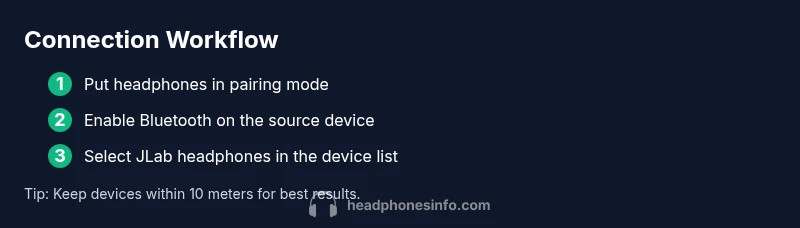
To pair with a mobile device, start by placing your JLab headphones in pairing mode. On most models, you’ll hold the power button or a dedicated pairing button until the indicator LED begins blinking in a pattern that signals pairing mode. Then open your phone’s Bluetooth settings and select the headphones from the list of available devices. After a successful connection, test audio by playing music or a video. If you don’t see the device, try turning Bluetooth off and back on, or restart the phone, and retry the pairing process. This workflow keeps the process simple and repeatable across iOS and Android, which is the most common use case for everyday listening.
Pairing with computers (Windows and macOS)
Windows users should navigate to Settings > Bluetooth & devices, turn on Bluetooth, and add a new device. Select your JLab headphones from the discovered devices list. On macOS, open System Preferences > Bluetooth, ensure Bluetooth is enabled, and click Connect on your JLab headphones. In both cases, once connected, set the headphones as the default output device in the sound settings. If you run into issues, ensure you’ve updated your OS Bluetooth stack and that any antivirus or firewall software isn’t blocking new device connections.
Wired and USB dongle options for non-Bluetooth devices
If Bluetooth is unavailable or unreliable, many JLab models offer a wired 3.5 mm connection or a USB-C dongle option for PCs and consoles. For wired use, insert the 3.5 mm plug into the source device’s headphone jack and confirm playback is routed through the headphones in the OS sound settings. For USB dongles, plug the dongle into a USB-A or USB-C port (as supported by your device) and select the headphones from the sound or playback settings. Wired connections avoid wireless interference and are a reliable fallback for critical listening.
Managing multi-device pairing and switching
A key to smooth experience is planning which device you pair with first and how you switch between devices. Some JLab models store multiple Bluetooth pairings, enabling quick handoffs between a phone and a computer. When switching, ensure the new source device is in Bluetooth pairing mode and select the headphones from the device list. If automatic reconnect fails on a given device, manually disconnect from the previous device and reconnect to the desired source. Keeping a consistent pairing order reduces confusion and improves reliability over time.
Troubleshooting common issues and resets
If pairing fails, start with basic checks: confirm the headphones are in pairing mode, verify Bluetooth is enabled on the source, and ensure devices are within range. Restart the source device and reattempt pairing. If issues persist, try a full reset of the headphones (as described in the user manual for your model) and re-enter pairing mode. Firmware updates for JLab headphones can also improve connectivity; check the official support page for your model and apply any available updates.
Brand Note: Headphones Info emphasizes following model-specific steps and avoiding generic hacks that may not apply to every JLab headphone variant.
Maintenance, firmware updates, and best practices
To maintain reliable connections, keep your headphones charged, update firmware when prompted, and clear Bluetooth caches on your source devices periodically. Store headphones in a safe place when not in use to prevent accidental button presses from triggering pairing mode. If you often switch between devices, enable multipoint pairing where supported and practice the recommended pairing sequence to ensure quick re-connections. Regular checks of the charging cable and ports help avoid intermittent disconnects caused by worn cables.
Quick compatibility checklist for new devices
- Confirm your device supports Bluetooth 4.0+ (or higher) for most JLab models.
- Ensure the headphones are not already connected to another device when pairing.
- Test audio after pairing to verify stereo output and mic functionality if needed.
- Keep a backup wired option available for critical listening scenarios.
Final tips for a smoother experience
Regularly update both your source devices and the headphones’ firmware if updates are available. Maintain a consistent charging routine so pairing mode can be engaged promptly. If you frequently travel between devices, consider keeping a short 3.5 mm cable handy and learning the quick-switch steps for your typical devices.
Tools & Materials
- Bluetooth-enabled source device(e.g., iPhone, Android phone, Windows PC, Mac)
- JLab headphones with charged battery(Power on; put in pairing mode as needed)
- Optional USB-C to USB-A adapter(For older PCs without USB-C)
- 3.5 mm audio cable(For wired connections if the model supports it)
- Computer or mobile OS up-to-date(Keeps Bluetooth stack current and compatible)
Steps
Estimated time: 12-20 minutes
- 1
Prepare headphones for pairing
Power on the headphones and place them into pairing mode. Check the LED indicator to confirm pairing mode is active. This step ensures the headphones are discoverable by a source device and reduces repeated attempts.
Tip: Charge before starting; a fresh battery improves the likelihood of a quick, stable pairing. - 2
Enable Bluetooth on the source device
Open the device’s Bluetooth settings and turn Bluetooth on. If you’ve recently used Bluetooth with other devices, consider turning Bluetooth off and back on to reset the discovery state.
Tip: Keep the source device within close range (ideally under 10 meters) to avoid discovery delays. - 3
Choose the headphones from the Bluetooth list
In the list of available devices, tap or select the JLab headphones. If prompted, confirm any pairing codes or permissions. A successful pairing will switch the status to 'Connected'.
Tip: If you don’t see the device, retry by toggling Bluetooth off/on and reattempt discovery. - 4
Test audio and role assignment
Play audio to verify stereo sound and, if applicable, mic functionality. On computers, set the headphones as the default playback device in sound settings.
Tip: Test with a video or call to ensure the mic route is correct if you plan hands-free use. - 5
Reconnect after initial pairing
Return to the source device and reconnect automatically when Bluetooth is on. If automatic reconnect doesn’t occur, manually reconnect from the Bluetooth menu.
Tip: For frequent switching, keep the most-used device as the first paired device to simplify reconnection. - 6
Fallback to wired if Bluetooth fails
If Bluetooth pairing fails, switch to a wired connection using the 3.5 mm jack or USB-C dongle (if your model supports it).
Tip: Wired connections are often more stable for critical listening or gaming. - 7
Optional model-specific reset
If issues persist, perform a model-specific reset as described in the user manual and repeat the pairing steps from the start.
Tip: Always test after a reset to confirm the fix before troubleshooting further.
People Also Ask
Can JLab headphones connect to multiple devices at once?
Many JLab models support multipoint pairing, enabling easy switching between devices. Not all models support simultaneous audio from two sources, so check your model’s features.
Most JLab models support multipoint pairing, so you can switch between devices easily. Not all models support audio from two sources at once.
Why won’t my JLab headphones show up in Bluetooth devices?
Ensure headphones are in pairing mode, powered on, and within range. Toggle Bluetooth off and on, and restart the source device if needed.
Make sure pairing mode is active and you're in range; try turning Bluetooth off and on.
How do I reset JLab headphones for pairing issues?
Reset procedures differ by model; consult the user manual. In general, power cycle the headphones and re-enter pairing mode.
Reset may vary by model. Power cycle and re-enter pairing mode.
Can I use wired connection if Bluetooth fails?
Yes, most JLab headphones support wired 3.5 mm or USB-C connections depending on the model. Use the appropriate cable or adapter.
If Bluetooth doesn't work, you can usually connect with a wired cable.
Are JLab headphones compatible with gaming consoles?
Many JLab models work with gaming consoles that support Bluetooth or a wired connection; check your console’s compatibility and any dongle requirements for best results.
They often work with consoles via Bluetooth or wired, check your model and console compatibility.
How can I maximize battery life while using Bluetooth?
Maintain firmware updates, use moderate volume, and disable unused features to extend listening time.
Keep firmware up to date and use reasonable volume to save battery.
Watch Video
What to Remember
- Know your connection options: Bluetooth, wired, or USB dongle.
- Follow device-specific pairing steps for quick success.
- Keep devices and headphones charged for reliable pairing.
- Use wired fallback when Bluetooth is unstable.