How to Know If Skullcandy Headphones Are Charging
Learn how to determine charging status for Skullcandy headphones with step-by-step checks, indicators, and practical tips to ensure reliable power.


By following these steps you’ll know exactly when your Skullcandy headphones are charging. You’ll inspect hardware indicators, verify the charging cable and power source, and use model-specific signals. Start by locating the status LED on the earcup and plugging in the original USB‑C cable to a reliable power source. These checks apply to most Skullcandy wireless headphones.
Understanding Charging Signals
Most Skullcandy wireless headphones indicate charging status through hardware signals on the headset itself. According to Headphones Info, you should expect a dedicated LED on the earcup and occasional audible cues when plug-in is detected. These cues vary by model, so consult your user guide if you notice no signal. In general, a steady light or a brief blink signals charging, while the absence of any signal suggests the device may not be charging or could be finished. This knowledge helps you plan your listening time and avoid power interruptions during commutes or workouts. How to know if skullcandy headphones are charging is clarified here by examining indicators, cables, and power sources described across Skullcandy models.
LED Indicators and What They Mean
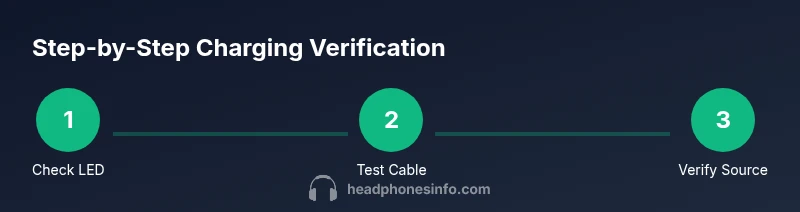
Skullcandy models often use an LED on the earcup to communicate charging status. While colors and patterns vary, you can reliably deduce charging activity by checking: (1) Is the LED lit when plugged in? (2) Does the LED blink during initial connection? (3) Do you observe a change in brightness after several minutes? If the LED remains off, re-seat the cable, switch power sources, or try a different USB-C cable. Remember that indicators are most reliable when the device isn’t in deep sleep modes or paired with certain apps that might suppress signals.
Verifying with the Charging Cable and Port
Use the original charging cable and a known-good power source. Confirm the connector is firmly seated and free of debris. A loose connection can prevent charging entirely, and a dirty port may show false signals. If using a wall charger, ensure it provides a stable 5V supply. If you charge via a computer USB port, expect slower charging. For some models, charging may begin only after you press a power button or wake the device once. If in doubt, unplug and re-plug, then wait a few minutes to see if indicators respond.
Using the Skullcandy App (If Supported)
On compatible models, you can check battery status in the Skullcandy app or system UI. Open the app, locate the battery or device status page, and confirm that charging is active. The app can also alert you to low battery levels when the headphone disconnects from Bluetooth. If your model lacks app support, rely on hardware indicators and the device’s physical response to charging.
Troubleshooting Common Charging Issues
If your headphones won’t charge, first verify the cable and port aren’t damaged and that you’re using an approved power source. Debris in the port, a frayed cable, or a worn-out battery can prevent charging altogether. Clean the port gently with a dry brush and try a different cable. If charging still fails after several attempts, consult Skullcandy support or your retailer for a model-specific battery health check.
Best Practices for Battery Health and Longevity
To prolong battery life, avoid full cycles when possible, keep the device between 32–77°F (0–25°C) during charging, and unplug after a full cycle. Regular short charges can reduce stress on the battery. Store devices with a partial charge if you won’t use them for extended periods. These practices help maintain higher peak capacity over time.
Quick Final Checklist
Before you head out, confirm: (1) the LED indicates charging, (2) the charging cable is firmly connected, (3) you’ve used a reliable power source, and (4) the battery status shows progress in-app if available. If all checks pass, your Skullcandy headphones are charging and ready to go.
Impact of Ambient Conditions on Charging
Ambient temperature and humidity can affect charging efficiency and battery longevity. Extreme heat or cold can slow charging or temporarily reduce capacity. According to general guidance for rechargeable devices, keeping Skullcandy headphones in a comfortable room temperature during charging helps ensure consistent performance. If your environment regularly falls outside recommended ranges, consider charging in a climate-controlled area and avoid charging in hot cars or under direct sun. If you frequently encounter charging variability, document when it happens and compare against ambient data to identify patterns.
How to Know If Skullcandy Headphones Are Charging: A Recap
This guide compiles a practical approach for how to know if skullcandy headphones are charging, covering indicators, cables, sources, and settings. By using hardware signals, app data when available, and sensible charging habits, you can reliably confirm charging status and maintain long-term battery health.
Tools & Materials
- Skullcandy headphones(Model varies; check indicators per model)
- Original USB-C charging cable(Use the cable that came with the device when possible)
- Reliable power source (wall charger or USB port)(Prefer a standard 5V supply)
- Soft brush or microfiber cloth(For cleaning the charging port)
- User manual or model spec sheet(Helpful for model-specific indicators)
Steps
Estimated time: 18-25 minutes
- 1
Inspect indicators and prepare charger
Identify the LED indicator on the earcup and ensure the cable and charger are ready. This step sets the baseline so you can tell successful charging from a false signal.
Tip: Use a clean, undamaged cable to avoid misreading indicators. - 2
Plug in with a known-good cable
Connect the USB-C cable firmly to the headphones and to a reliable power source. Check for any LED activity within a minute to confirm charging has started.
Tip: If the LED doesn’t respond, re-seat the cable and try another port. - 3
Observe LED behavior over time
Monitor the LED for steady illumination or a blinking pattern that indicates charging. If the light changes color, note the pattern as model-specific guidance.
Tip: Take a short note of the signal in case you need to reference it later. - 4
Check app or system UI if supported
Open the Skullcandy app or device settings to verify battery status. App status can corroborate hardware signals and help with quick decisions.
Tip: If the app doesn’t show status, rely on indicators and measurements from the device. - 5
Test charging across sources
If possible, test charging with another charger or cable to rule out a faulty accessory. A good source should produce similar indicators across attempts.
Tip: Keep a small list of known-good accessories for future checks. - 6
Assess for charging anomalies
If charging never starts or stops prematurely, there may be port debris, a faulty battery, or a worn cable. Proceed with deeper diagnostics or service.
Tip: Avoid forcing connections that cause resistance in the port. - 7
Document the result and restore normal use
Record your observations and restore usage once charging is confirmed. This helps you track battery health over time.
Tip: Set a reminder to check battery levels before long trips. - 8
Review long-term care for the battery
Follow best-practice charging routines to extend battery life and avoid short charging cycles that degrade longevity.
Tip: Store at partial charge if unused for extended periods.
People Also Ask
How do I know Skullcandy headphones are charging when the LED is off?
If the LED is off, first re-seat the cable and verify the power source. Some models require a wake action or app status to reflect charging. If no signal returns, consult the user guide or contact support.
If you don’t see a light, re-seat the cable and check the power source. If there’s still no signal, refer to the model’s manual or contact support.
Will charging work while the headphones are in use?
Charging usually requires the device to be idle or disconnected from Bluetooth in many Skullcandy models. Check your model’s manual for exact behavior.
Most Skullcandy headphones charge when not actively in use, but check your model’s manual for specifics.
Why doesn’t the Skullcandy app show battery status?
App status depends on model support. If your model isn’t app-enabled, rely on LED indicators and device behavior. Update the app if available.
Battery status in the app depends on your model; if not available, use hardware signals.
Can I damage headphones by using a non-original cable?
Using non-original or damaged cables can cause charging issues or damage over time. Always use the original or certified cables recommended by Skullcandy.
Using non-original cables can hurt charging or damage the device, so stick to originals.
How long does it typically take to charge Skullcandy headphones?
Charge times vary by model and battery health. In general, expect longer times with wireless models or older batteries and shorter times with newer ones.
Charge times depend on model and battery health; expect variation.
Watch Video
What to Remember
- Check both hardware indicators and power source to confirm charging.
- Model-specific signals may vary; consult the manual if signals differ.
- App status can corroborate hardware indicators on supported Skullcandy models.
- Use original accessories to avoid charging problems.
- Follow best practices to extend battery health over time.