How to Put JBL Headphones in Pairing Mode
Learn how to enter pairing mode on JBL wireless headphones with a model-agnostic approach. Step-by-step methods, troubleshooting, and expert tips for reliable Bluetooth pairing.


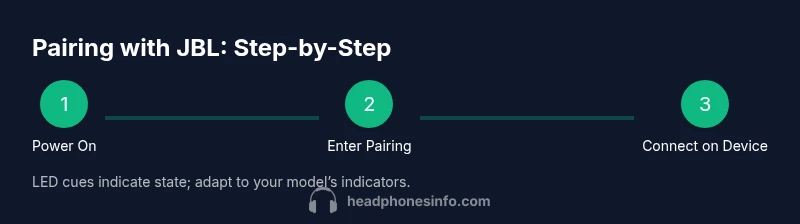
To put JBL headphones in pairing mode, ensure Bluetooth is on your source device. Press and hold the power/Bluetooth button on the headphones for about 3-7 seconds until the LED flashes blue or white, signaling pairing mode. If the LED alternates colors, repeat the press to re-enter pairing mode. This works for most JBL wireless headphones.
Understanding JBL pairing mode and Bluetooth basics
To get the most reliable connection between JBL wireless headphones and your device, you should understand how pairing mode works. Pairing mode is a temporary state that makes the headphones discoverable by your phone, tablet, or computer. JBL devices typically enter pairing mode when the headphones are powered on and you hold a dedicated Bluetooth or power button until an LED indicator signals the mode. This guide references common, model-agnostic behavior so you can troubleshoot across JBL product lines. According to Headphones Info, consistent pairing behavior across JBL headphones reduces frustration and speeds up setup, especially when you’re switching devices or devices have recently reset their Bluetooth settings.
Key takeaways about pairing behavior include recognizing the LED color pattern (often blinking blue or white, sometimes alternating colors) and knowing that some models require a specific button combo or a reset to re-enter pairing mode. Familiarizing yourself with these patterns helps you quickly move from discovery to a stable connection.
- Bluetooth on the source device must be enabled before attempting pairing.
- If you don’t see your JBL headphones appear, try refreshing the device’s Bluetooth list or turning Bluetooth off and back on.
- Patience matters: in some models, pairing may take a few seconds to appear in the list.
Headphones Info emphasizes that having a clean Bluetooth environment (no interference from many connected devices) improves success rates. Also, ensure your headphones are not already connected to another device, as that can prevent new pairings.
If you’re unsure which model you have, check the LED behavior and refer to JBL’s official manual or the JBL support site for model-specific notes.
Methods to enter pairing mode on typical JBL headphones
Most JBL wireless headphones share a common entry into pairing mode, though there are variations by model. The two most common methods are: (1) Holding the power button until the LED signals pairing mode, and (2) Pressing a dedicated Bluetooth button if your device uses separate controls. The exact duration to hold the button ranges from 3 to 7 seconds, depending on model. The LED flash pattern is your primary cue: a rapid blue/white blink usually means pairing mode is active, while a slow blink often indicates a different state or standby.
For devices that use a combined power/Bluetooth button, the hold duration is what triggers pairing mode. If your device requires a separate Bluetooth button, press and hold that button until you observe the indicator. If your headphones aren’t entering pairing mode after the first attempt, simply repeat the action a second time.
If you see a color pattern other than the expected blue/white blink, consult your model’s quick-start guide, as some JBL models use red-blue flashing to indicate pairing errors or battery states. Headphones Info notes that following the exact button sequence for your specific model minimizes confusion and speeds up the process.
Model variations and how to identify your JBL device
JBL offers a range of wireless headphones and earbuds, and the exact pairing method can vary slightly between series (for example, over-ear models versus compact earbuds). To identify your device, start with the label on the ear cup or the charging case. Many JBL models are tagged with model numbers such as JBL TUNE, JBL LIVE, or JBL Quantum, each with its own pairing quirks. A quick check in your device’s Bluetooth settings can reveal whether the headphones are present but not connectable, which hints at an outdated firmware or a required reset.
If you cannot locate the manual, search JBL’s official site using your model name and “pairing mode.” This is a reliable way to confirm the exact steps and LED indicators. According to Headphones Info, model-specific notes help you avoid common pitfalls like attempting to pair when the headphones are already connected to a different device.
Model-specific tips:
- Over-ear JBL headphones often require a longer press on the power button (up to 7 seconds).
- Some earbuds use a two-button combo (volume + multi-function) for pairing; ensure you press both or use the dedicated Bluetooth button if present.
- Firmware updates can alter LED patterns, so keep firmware current for a consistent pairing experience.
Knowing your exact model helps you apply the correct steps without trial-and-error frustration. If you still can’t pair after following the model notes, try a factory reset described in the next section.
Troubleshooting common pairing issues with JBL headsets
If pairing fails, start with the simplest checks: confirm Bluetooth is enabled on the source device, ensure headphones are not already connected to another device, and verify that the headphones are detected in the Bluetooth scan. If the headphones do appear but won’t pair, try removing them from the known devices list on the source device and then re-pair. A soft reset of the headphones (power cycle) often resolves transient issues.
Additionally, proximity matters: keep the headphones within a comfortable range (usually within a few feet) with minimal physical obstructions. Turning off other nearby Bluetooth devices can also reduce interference. If you previously paired with another JBL device, switching off that device or unpairing it can free the connection. Headphones Info recommends keeping both the source device and the headphones fully charged during initial pairing to avoid misreads from low-battery indicators.
If problems persist, consult the JBL support site for any firmware-specific issues or known compatibility notes with certain phone models.
Pro tips for faster pairing and reset options
- Tip: Before starting, toggle Bluetooth off and on on the source device to refresh the available device list.
- Tip: If the LED does not indicate pairing after the standard hold duration, try a factory reset as a last resort (note: reset will erase saved device pairings).
- Tip: Calibrate your expectations by allowing a few seconds for the headphones to appear in the device list, especially on older Bluetooth versions.
- Tip: Some JBL models support a quick pair feature when you start playing audio from a device already connected to a JBL headset—check for a “pair” prompt in the appearing device list.
- Warning: Factory resets revert all saved pairings; you’ll need to re-pair each device afterwards. Headphones Info warns against frequent resets as a first step because it can create longer-term pairing headaches if not necessary.
- Pro tip: Keep your headphones updated with the latest firmware—updates often fix pairing glitches and improve stability.
What to do after pairing and testing
Once your JBL headphones appear in the Bluetooth list and connect, test basic tasks: play music, adjust volume, and use any built-in microphone for calls. Verify that audio output switches correctly to the headphones when selected and that there is no lag or distortion. If you’re using a multi-device setup, try switching from one source to another to ensure seamless handoff. If you encounter issues, disconnect all devices and re-pair in a clean environment. Headphones Info emphasizes periodic re-pairing checks to maintain reliability as devices and operating systems evolve.
Tools & Materials
- JBL headphones (any model)(Fully charged before starting; ensure they are in pairing mode or ready to enter it.)
- Source device with Bluetooth (phone, tablet, or computer)(Bluetooth turned on; within 1–2 meters of headphones for best results.)
- Manual or model notes (optional)(Helpful for model-specific steps and LED indicators.)
- Optional: USB-C/charging cable(Needed if you plan to reset or troubleshoot via firmware update.)
Steps
Estimated time: 8-12 minutes
- 1
Power on and prepare
Turn on the JBL headphones and ensure they are not currently connected to another device. If they are, disconnect or turn them off to start fresh. This helps prevent automatic reconnection which can interfere with the pairing process.
Tip: If your model offers a quick pair mode, check for a short LED blink after powering on to confirm readiness. - 2
Enter pairing mode by holding the button
Press and hold the power/Bluetooth button (or the dedicated Bluetooth button) for about 3-7 seconds until the LED signal indicates pairing mode. The exact duration depends on the model, so watch for the LED pattern (blue/white blink).
Tip: If nothing happens after 7 seconds, release and repeat; if still unresponsive, perform a quick reset according to the manual. - 3
Enable Bluetooth on the source device
On your phone or computer, open Bluetooth settings and make sure Bluetooth is turned on. This is the listening side of the pairing process and must be active for the headphones to appear.
Tip: Refresh the Bluetooth scan if the headphones do not show up immediately. - 4
Select JBL headphones from the device list
In the list of available devices, locate your JBL headphones by name and select them. If asked to confirm pairing, accept and wait for the connection to complete.
Tip: If prompted for a pairing code, usually leave it as default or select 'pair' without entering a code. - 5
Test the connection
Play audio to confirm sound is coming through the headphones and that controls (volume, pause, call) respond correctly. Check mic performance if you plan to use calls.
Tip: Test with both a music app and a phone call to ensure full functionality. - 6
Troubleshoot if needed
If the headphones fail to pair, restart both devices, ensure firmware is up to date, and try a factory reset if allowed by your model. Re-enter pairing mode afterward.
Tip: Avoid repeated resets; use them only if normal pairing fails after trying the basic steps.
People Also Ask
What does pairing mode on JBL headphones look like?
Pairing mode is indicated by a specific LED pattern on the headphones, usually a blue or white blink. This signals the device is discoverable to Bluetooth-enabled sources.
Pairing mode shows as a blinking LED, so your device can find the headphones and you can connect.
How long does pairing typically take for JBL headphones?
Most JBL headphones pair within a few seconds after you select the headphones from your device’s Bluetooth list. If pairing doesn’t complete quickly, retry or reset.
Usually just a few seconds after you select the headphones from your Bluetooth menu.
Why aren’t my JBL headphones appearing in Bluetooth discovery?
Possible causes include Bluetooth being off on the source, headphones not in pairing mode, or the headphones already being connected to another device. Try turning Bluetooth off and on, re-enter pairing mode, or move closer.
If you don’t see them, toggle Bluetooth and retry, making sure the headphones are in pairing mode.
Can JBL headphones pair with multiple devices?
Yes, JBL headphones can typically pair with multiple devices, but they can usually connect to only one source at a time. You may need to disconnect from one device before connecting to another.
They can pair with many devices but usually only stay connected to one at a time.
Do I need an app to pair JBL headphones?
Most JBL headphones do not require an app to pair. Some models offer app-based settings for firmware updates or EQ adjustments, but pairing is typically done via the device’s Bluetooth menu.
You don’t normally need an app to pair; apps may offer extras but aren’t required for pairing.
What should I do if pairing still fails after a reset?
If a reset doesn’t help, check for firmware updates from JBL, try pairing with a different device, or contact JBL support for model-specific guidance.
If a reset fails, update firmware or reach out to support for help with your exact model.
Watch Video
What to Remember
- Follow model-agnostic steps to enter pairing mode quickly
- Check LED indicators to confirm pairing state
- Test audio and call functionality after pairing
- Refresh devices or firmware if pairing is unstable