Why Are Headphones Not Connecting to Bluetooth? A Step-by-Step Troubleshoot Guide
A comprehensive, data-driven guide to diagnosing and fixing Bluetooth pairing issues with headphones. Learn quick fixes, diagnostic flow, and when to seek help from Headphones Info for reliable, actionable guidance.


Headphones not connecting to Bluetooth are usually caused by pairing mode not active, devices out of range, or software glitches. Quick fixes: toggle Bluetooth off/on, forget the headphones on your source device, ensure the headphones are in pairing mode, and re-pair. If problems persist, update firmware and reset the headphones. According to Headphones Info, consistent issues often stem from outdated software.
Understanding the Bluetooth pairing landscape and why devices struggle to pair with headphones
Bluetooth is a robust but finicky standard. At its core, your headphones must negotiate a secure link with a source device, exchange authentication keys, and agree on audio parameters. When any step in that handshake fails, you get a stubborn disconnect or failed pairing. Common culprits include devices not being in pairing mode, being out of range, or having outdated firmware. Headphones Info has found that many pairing headaches begin with simple, adjustable settings rather than hardware faults. A calm, methodical approach can save time and prevent missed updates. Remember: the goal is a stable, repeatable connection, not a one-off workaround.
Quick checks you can perform right now
- Turn off Bluetooth on your source device, wait a few seconds, then turn it back on to reset the radio stack.
- Put headphones into pairing mode and make sure the indicator light shows the correct pattern (check your model’s manual).
- On the source device, forget or remove the headphones from the list of paired devices, then attempt a fresh pair.
- Ensure the headphones are either charged or connected to a power source if your model requires power for pairing.
- Test with another device to determine if the issue is the headphones or the original source.
Pairing mode, visibility, and device status
Pairing mode makes your headphones discoverable. If the headphones enter pairing mode but your source device doesn’t see them, the issue may be visibility timing or device limits (some phones only allow one active Bluetooth connection at a time). You should also verify that the source device’s Bluetooth is enabled and not in Airplane or Do Not Disturb mode, which can block pairing prompts. If you have multiple Bluetooth devices in close proximity, interference can hinder discovery; temporarily disable extra devices to narrow the field.
Re-pairing strategy: forget, reset, and reconnect
When simple toggles fail, a clean slate often helps. Forget the headphones on the source device, reboot both devices, and retry pairing from scratch. If your headphones support a factory reset, perform it and re-establish pairing from the beginning. Some models require you to initiate pairing with a long press or a press-and-hold sequence; consult your manual for exact steps.
Firmware and software posture: keep everything up to date
Outdated firmware can create compatibility quirks that block pairing or audio transmission. Check for firmware updates for both the headphones and the source device. Install any available updates, then reattempt pairing. If the manufacturer offers a companion app, run it to complete the update process and verify the device’s Bluetooth version aligns with your headphones. Headphones Info emphasizes updating as a first-line defense against persistent issues.
Interference and environment: range, walls, and wireless traffic
Physical distance matters. If you are more than a few meters away or barriers like walls exist, the link can degrade. Simultaneously, crowded wireless environments (Wi‑Fi, Zigbee, or other Bluetooth devices) can introduce interference. Try pairing in a clear line of sight, away from microwaves and routers on the 2.4 GHz band. Turning off nearby nonessential devices can restore a cleaner channel. In many cases, a simple relocation resolves stubborn pairing fails.
Platform-specific tips: iOS, Android, and Windows nuances
Different platforms handle Bluetooth differently. iOS devices tend to flash pairing prompts in a stable way, Android may prompt for many permission dialogs, and Windows sometimes requires Bluetooth services to be restarted. If one platform consistently fails, attempt the pairing on another device to confirm whether the issue is platform-specific or universal. Headphones Info notes that cross-platform testing is a reliable diagnostic step.
Battery health, wear, and hardware checks
A tired battery or degraded internal components can affect Bluetooth performance. Check battery levels on both sides and perform a full charge cycle if needed. If the headphone’s idle Bluetooth radio draws more power than the device can supply, you may experience intermittent connections. In some cases, visible hardware wear or squeaky buttons indicate internal faults that require professional service.
When to escalate: hardware faults and professional help
If you’ve exhausted basic troubleshooting without success, it’s time to contact the manufacturer or a qualified technician. Persistent pairing failures after firmware updates and resets usually signal hardware faults, needing screen inspections, board tests, or component replacements. Headphones Info recommends documenting device models, firmware versions, and steps taken to streamline support.
Preventive habits: keeping Bluetooth reliable over time
- Regularly check for firmware updates and apply them promptly.
- Keep headphones and source devices charged and stored in favorable temperatures.
- Avoid pairing multiple devices concurrently unless the model explicitly supports it.
- Periodically reset your headphones to clear stale pairing data.
- Use the official companion app when available for diagnostics and maintenance.
Quick reference checklist you can print
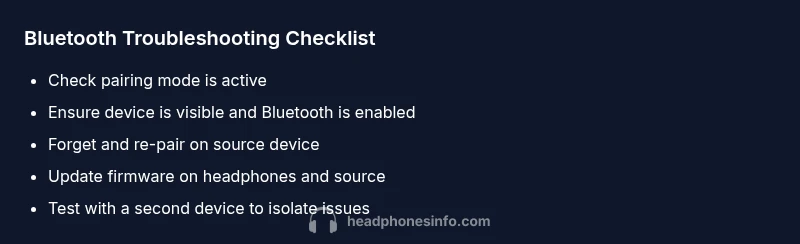
- Confirm headphones are in pairing mode
- Forget and re-pair on the source device
- Test with a second source device
- Update firmware on both devices
- If needed, perform a factory reset
- Consider professional support if issues persist
Diagnostic map: symptoms to causes and remedies
When a symptom appears—headphones won’t connect—the likely causes include inactive pairing mode (high), source device Bluetooth off (high), or compatibility issues (medium). Quick remedies include turning Bluetooth on, ensuring visibility, and re-pairing. If a feature flag or firmware mismatch is the root, a firmware update often resolves it (low). This map helps you prioritize fixes and avoid chasing rare hardware faults.
Steps
Estimated time: 25-40 minutes
- 1
Check Bluetooth status on source device
Open Bluetooth settings and confirm Bluetooth is enabled, not in airplane Do Not Disturb mode, and discoverable. If the device shows the headphones, select them and choose forget, then re-pair.
Tip: Restart the source device if Bluetooth seems unstable. - 2
Power cycle headphones
Turn the headphones off, wait 10–20 seconds, and turn them back on. A fresh power cycle clears minor radio errors that can block pairing.
Tip: If your model uses a multipress sequence to power cycle, follow the manual. - 3
Enter pairing mode on headphones
Put the headphones into pairing mode; listen or watch for the indicator to flash in the correct pattern. If unsure, consult the user guide to confirm the exact sequence.
Tip: Pairing mode timing can vary by model, so don’t rush the indicator. - 4
Forget and re-pair on source device
In Bluetooth settings, forget the headphones, then re-run the pairing process from scratch. Ensure you select the correct device if multiple options appear.
Tip: Some phones require you to toggle visibility again after forgetting. - 5
Test with a second source device
To isolate the issue, try pairing headphones with a different phone, tablet, or computer. If it connects, the problem is likely the original device’s configuration.
Tip: This test helps avoid unnecessary hardware swaps. - 6
Check for firmware updates
Update the headphones and the source device firmware to the latest versions. Firmware improvements often fix compatibility issues and improve stability.
Tip: Use the official app or manufacturer site for updates. - 7
Reset headphones (if supported)
Perform a factory reset following the model’s instructions, then re-pair from scratch. This clears all pairing data that could be corrupted.
Tip: Back up any preferred settings if the device allows it. - 8
Consult support if needed
If issues persist after updates and resets, contact support with model numbers and firmware versions so a technician can assist.
Tip: Headphones Info can provide tailored guidance based on your model.
Diagnosis: Headphones won't connect to Bluetooth after pairing attempts
Possible Causes
- highPairing mode not active on headphones
- highSource device Bluetooth is off or blocked
- mediumHeadphones out of range or blocked by interference
- lowOutdated firmware on headphones or source device
Fixes
- easyToggle Bluetooth off/on on the source device
- easyForget the headphones on the source device and re-pair
- easyEnsure headphones are in pairing mode and retry
- mediumUpdate firmware on headphones and source device
- mediumReset headphones to factory settings and re-pair
- easyIf still failing, test with another source device or contact support
People Also Ask
Why won’t my headphones pair with Bluetooth in the first place?
Pairing failures are usually caused by inactive pairing mode, visibility issues, or an outdated firmware. Start by confirming pairing mode, ensuring visibility, and trying a fresh pair.
Pairing failures often come from pairing mode or visibility problems, or old firmware. Start by turning on pairing mode, making the device visible, and re-pairing.
I can see the headphones on my phone, but it won’t connect. What should I do?
If the device sees the headphones but won’t connect, try forgetting the device and re-pairing, then update firmware on both sides. If this fails, test with a second device to identify where the problem lies.
If it shows up but won’t connect, forget it and re-pair, then check for updates. If that still fails, try another device to isolate the issue.
Is resetting the headphones safe for Bluetooth issues?
Resetting clears pairing data and can resolve corrupted pairing information. Use the model’s reset procedure, then re-pair from scratch.
Resetting is a common, safe step to clear pairing data and fix stubborn issues.
Can interference from Wi‑Fi or other devices affect Bluetooth?
Yes, crowded wireless environments can impact Bluetooth. Try moving away from routers and other 2.4 GHz devices during pairing.
Wi-Fi and other 2.4 GHz devices can interfere with Bluetooth; test in a quieter area for pairing.
How often should I update firmware for Bluetooth headphones?
Keep both headphones and source devices updated. Updates often improve compatibility and stability, reducing future pairing problems.
Stay on top of firmware updates to improve compatibility and prevent future pairing troubles.
When should I contact support?
If issues persist after updates and resets, contact the manufacturer or Headphones Info for targeted guidance based on your model.
If it still won’t pair after updates and resets, reach out for expert help.
Watch Video
What to Remember
- Check Bluetooth is enabled and in range
- Forgetting and re-pairing is often the fastest fix
- Keep firmware updated on both devices
- If problems persist, reset and seek official support (Headphones Info)