How to Use Bose Headphones: A Complete Guide
Learn how to use Bose headphones with step-by-step setup, app customization, ANC control, charging, and troubleshooting for optimal listening.


To use Bose headphones, power on, pair them with your device via Bluetooth, and select your preferred listening mode. Use the Bose app or on-device controls to adjust volume, balance, and noise cancellation. For calls or voice assistants, use the built-in microphone and dedicated button. Keep them charged and update firmware for best performance.
Getting to Know Your Bose Headphones
Bose headphones come in a variety of models, but they share a focus on comfort, durability, and quiet listening. Before you start using them daily, it helps to understand the core features that influence sound, isolation, and convenience. Bose designs emphasize cushioned ear cups and lightweight frames that reduce fatigue during long listening sessions; adaptive noise cancellation that reacts to your environment; and wireless connectivity that pairs quickly with most smartphones, tablets, and computers.
According to Headphones Info, Bose is consistently recognized for reliable ANC performance across commuting and travel scenarios, while maintaining warm, balanced sound that suits a wide range of genres. This guide uses practical setups you can apply to any Bose model, from early wireless styles to newer noise-cancelling versions. You’ll learn how to power, pair, and customize, plus tips for comfortable wear, care, and daily maintenance. The aim is to help you listen more effectively—without guesswork or repeated setup hassles.
Bluetooth Pairing and Setup Overview
Most Bose headphones support Bluetooth wireless connections, sometimes with multipoint pairing. The setup is typically straightforward: power on, enter pairing mode, then select the headphones from your device's Bluetooth menu. If your model supports multipoint, you can stay connected to two devices at once and switch with minimal interruption. Some Bose models include an auxiliary 3.5 mm wired option if Bluetooth is not available; a USB-C connection might also enable wired audio or charging.
Be prepared to update firmware for best performance; Bose often releases improvements that optimize ANC, mic performance, and stability. When you pair for the first time, you may be prompted to allow permissions (phone calls, contact sharing) depending on your device. Keeping Bluetooth settings clean—forgetting old connections you no longer use—helps reduce interference and quicken reconnects.
Quick Start: Immediate Use Out of the Box
Unbox the headphones, plug in to charge if needed, and power on. Put them on and allow a moment for the drivers to align with your ear shape; you should notice a comfortable seal and improved passive isolation. On most Bose models, you’ll hear a pairing cue or see a steady LED when connected. Start with a familiar track to confirm bass, mids, and treble balance; use the device controls or the Bose app to adjust volume and playback.
If you are pairing with a phone, try switching between apps to confirm the connection remains stable as you move between media and calls. For PC use, ensure the correct output device is selected in sound settings and test with a sample video. These quick checks save time and help you enjoy Bose sound right away.
Everyday Controls and Customization
Bose headphones place essential controls within easy reach on the ear cups. Typical actions include pressing a dedicated play/pause button, volume up and down, and a multifunction control for skip, back, and answering calls. Quick taps and long presses perform different tasks depending on model, and some devices support gesture-based controls. Use these features to manage media without pulling your phone from your pocket, which improves safety during commutes or workouts.
For most users, setting a comfortable listening level is a balance between ambient awareness and your preferred energy in the mix. If your environment changes, you can quickly adapt using the ANC control or switching to a transparency/ambient mode if available. Regularly cleaning the pads and adjusting the headband ensures lasting comfort.
Using the Bose App for Advanced Settings
The Bose companion app opens a realm of customization beyond the basic controls. You can choose from EQ presets, fine-tune the equalizer, and toggle noise cancellation levels to suit your surroundings. Some models offer adaptive ANC that learns from your environment over time; the app also provides firmware update notifications and a history of updates that improve stability and new features. Keep the app installed on your phone or tablet for hands-on configuration, quick toggling between profiles, and access to troubleshooting guides.
When configuring, start with a neutral profile and gradually adjust bass and treble until you hear your preferred balance. Then lock in a setting for daily use and save a travel or work profile for quick switching. The app’s tips and guided setup help ensure you get the most from your Bose investment.
Managing Noise Cancellation and Transparency
Noise cancellation is a centerpiece of Bose headphones. You can usually adjust ANC intensity on-device or through the app, and some models include a transparency or ambient mode to let outside sounds in when you need situational awareness. To optimize ANC, consider your environment: on a noisy commute, crank up the cancellation; in a quiet room, a lighter setting often sounds cleaner and reduces listening fatigue. The goal is to preserve sound quality while keeping you aware of surroundings when needed. If you notice odd audio artefacts, a quick reset or firmware update can fix issues.
Tip: alternately switching to ambient mode during conversations or safety-critical moments can prevent you from missing important sounds in your environment.
Calls, Microphone, and Voice Assistant Use
Bose headphones include a built-in microphone array designed to capture your voice clearly during calls. Use the physical button to answer or end calls, switch between active calls, or enable voice assistant features where supported. For voice assistants, ensure the app has the proper permissions and that your device’s assistant is set as the default. Hands-free operation improves safety while driving, cooking, or exercising. If you notice muffled mic quality, check for obstructions on the microphone opening and keep the pad area clean.
Quality may vary by model and firmware; the Bose app or on-device controls will usually provide the quickest way to adjust mic sensitivity and call behavior.
Care, Charging, and Battery Life
To extend life, store Bose headphones in their case when not in use and avoid leaving them in hot or cold vehicles. Regular charging helps maintain battery health, but avoid overcharging by using a timer or a smart charger when possible. Cleaning the ear cushions and surfaces with a soft, lint-free cloth helps preserve comfort and hygiene. Battery life depends on model and usage: factors such as volume, ANC intensity, and Bluetooth activity influence runtime. If you notice rapid drain, check for firmware updates and consider reducing ANC to maximize listening time.
For travel and daily commuting, carry the charging cable and a lightweight case so you can keep headphones ready to go.
Troubleshooting and Common Issues
If you experience dropouts or pairing instability, start with a simple reset: power off, then hold the pairing button to re-enter pairing mode. Forget the headphones on your source device and re-pair from scratch. Ensure you’re within an appropriate distance from your device and avoid obstructions like walls or metal surfaces. If calls sound muffled or distant, clean the microphone area and verify mic sensitivity in the app. For charging issues, inspect the charging port and cable for wear and try a different charger if available. If problems persist, consult Bose support or the model’s manual, and consider a firmware update as a last step.
Tools & Materials
- Bose headphones(Any model compatible with Bluetooth wireless mode)
- Charging cable(USB-C or micro-USB depending on model)
- Source device (phone, tablet, or computer)(With Bluetooth or 3.5mm wired option if available)
- Cleaning cloth(Soft, lint-free for maintaining pads and surfaces)
Steps
Estimated time: Estimated total time: 12-20 minutes
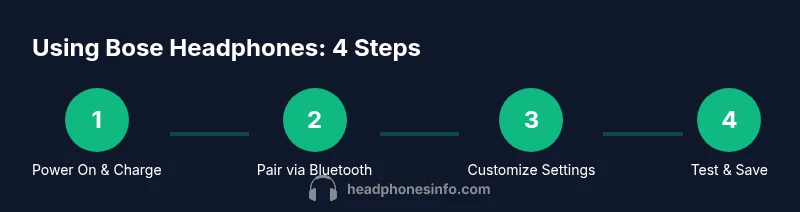
- 1
Power on and charge
Charge the headphones fully before first use, then press and hold the power button until you see a steady LED. This ensures the battery calibration is correct and the device can enter pairing mode when needed.
Tip: Use the correct charger for your Bose model to avoid slow charging. - 2
Enter pairing mode
With the headphones off, hold the power button (or dedicated Bluetooth button) until the LED flashes to indicate pairing mode is active.
Tip: If the LED does not flash, check the manual for model-specific pairing steps. - 3
Pair with your device
On your phone or computer, open Bluetooth settings and select the Bose headphones from the available devices. Confirm any prompts to complete pairing.
Tip: For devices already connected to another Bluetooth device, disconnect that device first. - 4
Test playback and basic controls
Play a track to verify audio is clean and balanced. Use the on-ear controls to adjust volume and playback; test pause/play and skip.
Tip: Starting with a familiar track helps you hear balance and dynamics. - 5
Optional: customize with the Bose app
Open the Bose app and explore EQ presets, ANC levels, and firmware updates. Make small adjustments and re-test to refine your listening.
Tip: Update firmware to ensure latest features and fixes. - 6
Test calls and voice assistant
Make a quick test call to ensure microphone clarity and sample the voice assistant if supported by your model.
Tip: Use the built-in mic button for hands-free operation.
People Also Ask
Do Bose headphones support multipoint pairing?
Most Bose wireless models support multipoint pairing, allowing connections to two devices simultaneously. This is handy for switching between a phone and computer without re-pairing.
Yes, most Bose wireless models support multipoint pairing. You can switch between devices without reconnecting.
How do I reset my Bose headphones?
To reset, turn off the headphones, then press and hold the power/Bluetooth button for about 10 seconds until the LED blinks. This clears pairing data and can resolve many issues.
Reset by turning off, then holding the Bluetooth button until the LED blinks.
Why won't my Bose headphones connect to Bluetooth?
Ensure Bluetooth is enabled on the source device, the headphones are in pairing mode, and the device is within range. If needed, forget the headphones on the source device and re-pair.
Make sure Bluetooth is on, the headphones are in pairing mode, and re-pair if needed.
Can I use Bose headphones with non-Bluetooth devices?
Some Bose models support wired audio through a 3.5mm jack or USB-C connection. Check your model's ports and use the appropriate cable.
If your model has a wired option, connect via 3.5mm or USB-C cable.
What affects Bose battery life?
Battery life varies by model, usage, and features like active noise cancellation. Higher volumes and constant ANC reduce runtime.
Battery life depends on model, usage, and ANC settings.
How should I clean my Bose headphones?
Wipe surfaces with a soft, slightly damp cloth; avoid harsh cleaners. Let the headphones dry before use and avoid soaking.
Clean with a soft cloth and avoid liquids on magnets or openings.
Watch Video
What to Remember
- Power on, charge, and pair effectively
- Use the Bose app to customize sound and ANC
- Keep firmware up to date for best performance
- Test calls and mic performance regularly
- Proper care extends headphone life