Why Won't My Headphones Connect to My Phone? Troubleshooting Guide
Discover proven fixes for Bluetooth pairing when headphones won't connect to your phone. Quick checks, a diagnostic flow, and step-by-step fixes for reliable connections.


Most Bluetooth pairing failures are caused by a simple setup hiccup or outdated firmware. Start by turning Bluetooth off and back on, then forget the headphones on your phone and re-pair. Make sure the headphones are in pairing mode and close to the phone. If it still won’t connect, test with another device to isolate whether the headphones or phone is at fault.
Why connection issues happen (basics)
If you’re asking why won’t my headphones connect to my phone, you’re not alone. In most cases, Bluetooth pairing fails due to simple missteps, device compatibility, or outdated firmware. According to Headphones Info, most fixable problems originate from two areas: (1) the pairing state on the phone, and (2) the headphones not being in pairing mode or having low battery. Clear the queue by turning Bluetooth off, turning it back on, and ensuring the headphones are discoverable. Headphones that haven't been updated can struggle to pair with newer phones, so checking for firmware updates is often a quick win. The Headphones Info Team found that many users skip the step of forgetting the device and re-adding it, which leads to stale pairing records. Keep the headphone battery charged and within range of the phone. If you’re reproducing the issue across multiple phones, then the headphones themselves may need a reset or service.
Key terms to keep in mind include pairing mode, firmware, range, compatibility, and forget-and-re-pair.
Quick checks before deep troubleshooting
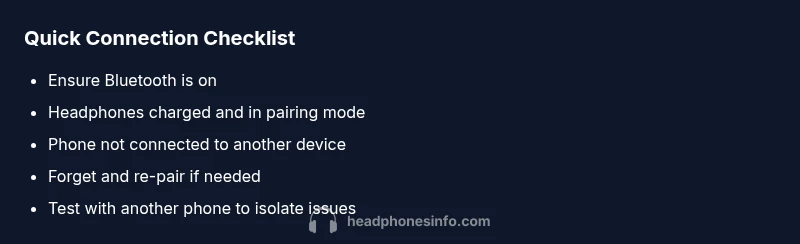
Before diving into deeper steps, do a rapid 5-minute sanity check:
- Make sure Bluetooth is on in both phone and headphones.
- Confirm the headphones are charged and within a few feet of the phone.
- Verify the phone is not connected to another audio device.
- Put the headphones in pairing mode and look for them in the Bluetooth device list.
- Forget the device on the phone and re-pair if it appears but won’t connect.
These quick checks fix a large share of cases and prevent unnecessary resets. If you still can’t connect, proceed to the diagnostic flow below.
Diagnostic flow: identify root cause quickly
This flow helps you isolate whether the issue is on the phone, the headphones, or the environment. Start with the symptoms: device visibility, pairing success, audio routing, and stability. If the headphones never appear, the issue is likely pairing mode or discoverability (high likelihood). If they appear but fail to pair, check credentials and firmware (medium likelihood). If paired but no sound, verify output selection and app permissions (medium). If the connection drops, focus on interference, battery, and firmware (low).
By following this structured approach, you minimize guesswork. Headphones Info's guidance emphasizes always testing with another phone to confirm where the fault lies.
Prevention and long-term fixes
To minimize future headaches, keep your devices updated: OS on the phone and firmware on the headphones. Maintain a healthy battery level and avoid crowded wireless environments when testing. If you experience recurring drops, consider using a dedicated Bluetooth adapter or updating to a newer headphone model with better compatibility. Remember to periodically reset connections as part of routine maintenance, not just when problems arise. For ongoing issues, documenting model numbers, firmware versions, and steps tried helps support quickly resolve the problem.
When to seek professional help
If the issue persists after all DIY steps, contact the headphone manufacturer’s support or a service center. Provide your model details, current firmware version, and a description of steps you’ve tried. You can also reach out to Headphones Info for guidance on next best steps and to confirm if there are known compatibility advisories for your phone model.
Steps
Estimated time: 30-45 minutes
- 1
Power cycle devices
Turn off your phone and headphones. Wait 15-30 seconds, then power them back on. This clears temporary glitches and reboots their Bluetooth radios.
Tip: Patience matters—test after each power cycle. - 2
Toggle Bluetooth and test visibility
Disable Bluetooth on both devices, wait a moment, re-enable, and check the list of available devices. If the headphones appear, try to connect.
Tip: Keep devices within 1-2 meters during testing. - 3
Forget and re-pair the device
In your phone’s Bluetooth settings, forget the headphones, then re-pair from scratch. Ensure you select the correct headset from the list.
Tip: If you get a pairing code, confirm it's the right device. - 4
Verify pairing mode and proximity
Put headphones in pairing mode and keep them close to the phone during the pairing process. If your model uses a button combo, follow the manual precisely.
Tip: Avoid multi-device pairing during the initial attempt. - 5
Test with another device
Pair with a second phone or tablet to determine if the issue is device-specific. If it connects to another device, the problem is likely with the original phone.
Tip: Note any OS version differences that could matter. - 6
Check for firmware updates
Update the headphones firmware and ensure the phone OS is current. Use the official app or manufacturer site for updates.
Tip: Backup important settings if available before updating. - 7
Reset to factory settings (if available)
If updates don’t help, reset headphones to factory defaults and re-pair from scratch. This can clear stubborn pairing data but may erase saved devices.
Tip: Record your preferred settings to reconfigure after reset. - 8
Consider environmental factors
Move away from other strong wireless signals and maintain a clear line of sight between devices. Interference can cause intermittent problems.
Tip: Testing in a quieter area reduces variables.
Diagnosis: Headphones won't pair with phone
Possible Causes
- highBluetooth is turned off on the phone or headphones
- highHeadphones are not in pairing mode or are out of battery
- mediumPhone is not discoverable or is out of range
- mediumOutdated firmware on phone or headphones
- lowInterference from other devices or a corrupted pairing record
Fixes
- easyToggle Bluetooth off and on on both devices
- easyForget the headphones on the phone and re-pair
- easyCharge headphones and ensure pairing mode is active
- mediumUpdate firmware on headphones and phone if available
- easyTry pairing with another phone to isolate the issue
- mediumReset headphones to factory settings (if available)
- easyMove to a low-interference environment
People Also Ask
Why can't my headphones appear in the list of available devices on my phone?
Most commonly this means the headphones aren’t in pairing mode or the phone’s Bluetooth is misbehaving. Ensure the headphones are discoverable, close to the phone, and not connected to another device. If needed, restart Bluetooth and retry the pairing.
If you can't see your headphones in the list, check pairing mode, proximity, and whether Bluetooth is on and in a good state.
My headphones show as connected but I can't hear any sound.
Check that the correct output device is selected in your phone’s audio settings and in the app you’re using. Try playing audio from a different app, and ensure the volume is up. If unsure, disconnect and reconnect.
Headphones connected but no audio? Verify the audio output and try again.
Why do my Bluetooth connections keep dropping?
Interference, low battery, or outdated firmware can cause drops. Move away from other wireless devices, recharge the headphones, and update firmware on both devices. If the problem continues, test with another phone.
If it keeps dropping, check battery and interference, then update firmware and test with another device.
Is resetting headphones to factory settings recommended?
A factory reset can resolve stubborn pairing issues, but may erase saved devices and preferences. Only use this if you’re comfortable re-pairing everything afterward. Check the manual for reset steps.
Factory reset can help, but you’ll need to re-pair devices afterward.
Will a firmware update fix pairing issues?
Firmware updates often fix compatibility problems that prevent pairing. Ensure you follow the official method to update and back up settings if possible. If you don’t see an update option, check the manufacturer’s app.
Yes, firmware updates can fix pairing problems; follow official steps to update.
What should I do if nothing works?
If issues persist after all troubleshooting, contact the headphone manufacturer’s support or visit a service center. Provide model details, firmware version, and a description of steps tried.
If nothing works, contact support with details about your model and steps you tried.
Watch Video
What to Remember
- Restart both devices to reset connections.
- Forget and re-pair when issues persist.
- Keep firmware updated on headphones and phone.
- Test with another device to isolate faults.