Headphones Won't Connect to iPhone: Troubleshooting Guide
Struggling to pair headphones with your iPhone? This urgent troubleshooting guide from Headphones Info covers common causes, step-by-step fixes, and prevention tips to restore reliable Bluetooth audio quickly.


The most likely reason your headphones won’t connect to iPhone is a Bluetooth pairing issue or a stubborn software glitch. Start by toggling Bluetooth off/on, forgetting the device, and re-pairing. If the problem persists, check for iOS updates, reset network settings, and test with another device to isolate the fault.
Quick Diagnostics: The Most Common Causes
According to Headphones Info, the top reasons headphones won’t connect to iPhone are Bluetooth pairing issues, outdated iOS software, and interference from other Bluetooth devices. A stubborn cache can also prevent fresh connections. Start by ruling out the simplest causes: make sure Bluetooth is turned on, your headphones are in pairing mode, and the iPhone is not in Airplane mode. This section helps you quickly identify which route to pursue without unnecessary steps. If you recently updated iOS, a temporary Bluetooth glitch may persist; in that case resetting network settings often resolves the problem. If a single device fails to connect while others pair normally, the issue is likely with the headphones or their firmware rather than the iPhone hardware.
Headphones Info emphasizes acting fast on obvious bottlenecks and avoiding over-testing other devices. With multiple devices in your space, interference is a frequent culprit, so isolating the problem to one device is critical. Keep a calm, stepwise approach and document which action resolves the issue, so you can reproduce a fix later or guide a friend through the same process.
Verify iPhone Bluetooth Settings
Before diving deep, confirm iPhone Bluetooth basics are solid. Ensure Bluetooth is enabled and the iPhone is not in Airplane mode. If Bluetooth is on but the headphones don’t appear, toggle Bluetooth off for 10 seconds, then back on to refresh the radio. Make sure the iPhone is not actively connected to another audio device, such as a speaker or car system, which can prevent new pairing. If you recently updated iOS, a temporary Bluetooth cache may linger; in this case a quick restart of the device can help. Finally, verify the headphones show up in the list of available devices and select them to pair. Headphones Info notes that the simplest fixes resolve most cases when the device is in pairing mode and the battery is adequate.
Inspect the Headphones and Battery Health
If the iPhone side looks good, inspect the headphones themselves. Check the pair mode status; many earphones require holding a button for several seconds to enter pairing mode. Ensure the battery is sufficiently charged, as some models refuse to pair when power is low. If you have a charging case or magnetic buds, ensure the contacts are clean and the case is not over-discharged. Some models also have firmware that can only be updated via companion apps—use the official app to verify firmware version and install updates if available. A firmware mismatch can cause unstable connections or intermittent drops, so keeping firmware current is a key preventive step highlighted by Headphones Info.
Forget Device and Re-Pair: The Safe Reset
Sometimes the Bluetooth pairing record on the iPhone gets corrupted. The safe reset is to Forget the device and re-pair. On iPhone, go to Settings > Bluetooth, find the headphone in the list, tap the information icon, and choose Forget This Device. Then re-enter pairing mode on the headphones and reconnect from the iPhone’s Bluetooth menu. After re-pairing, test playback at a moderate volume to confirm a stable connection. If issues persist, the problem might be the headphones’ firmware or a compatibility hiccup with iOS; reset the connection again after a short wait to reinitialize the pairing process.
System-Level Fixes: OS Updates and Network Resets
iPhone software upgrades can resolve Bluetooth incompatibilities, so check for iOS updates and install them if available. If problems continue, reset network settings to refresh all wireless configurations. This step erases saved networks and paired devices, so note down Wi‑Fi passwords and re-connect afterward. If you choose a full reset (All Settings), understand that data remains intact but personalized options reset. Headphones Info recommends performing these resets only after trying the simpler steps and ensuring data backup. If the issue still isn’t fixed, consider a factory reset on the headphones (if supported) or contact the manufacturer for a firmware patch.
Special Cases: Wired Adapters, Multi-Device Setups, and Accessibility
If you’re using wired adapters or switching between devices, ensure you’re not confusing the input pathway. Some iPhones require adapters that support audio output; a faulty adapter can masquerade as a Bluetooth issue. In multi-device environments, always disconnect other Bluetooth devices so the iPhone can discover the headphones. If you rely on accessibility features, ensure Bluetooth is not disabled by a setting or shortcut. Finally, verify there are no hardware damage signs on the iPhone’s Bluetooth antenna or the headphone’s connectors. Headphones Info notes that hardware faults, while less common, are a real possibility and should be assessed by a professional if other steps fail.
Prevention: Everyday Habits for Reliable Bluetooth
To minimize future problems, keep both iPhone and headphones firmware up to date, charge devices fully, and avoid extreme temperatures that können degrade battery performance. Regularly remove unused Bluetooth devices from the iPhone pairing list to reduce clutter and potential interference. Maintain a clean charging case and inspect for corrosion or debris on contacts. If you travel with your headphones, store them in a protective case to prevent accidental button presses that put them into pairing mode unintentionally. By following these best practices, you’ll reduce the odds of sudden disconnects and enjoy stable wireless audio.
Conclusion: Quick Recap and Next Steps
The most reliable path to solving headphones that won’t connect to iPhone is a structured approach: verify Bluetooth, inspect the headphones, re-pair, and then apply system-level fixes if needed. If all else fails, test with another iPhone or device to isolate the root cause. Remember to test after each step so you know which fix worked. With steady practice and careful firmware management, you can maintain a consistent Bluetooth experience.
Steps
Estimated time: 20-35 minutes
- 1
Power-cycle Bluetooth and headphones
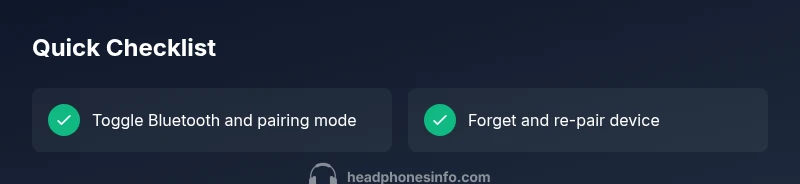
Toggle Bluetooth off, wait 10 seconds, then back on. Put headphones back into pairing mode and confirm their LED indicator shows pairing. If the headphones require a reset, perform a soft reset according to the manufacturer guide.
Tip: A full battery and clear pairing LED can speed up discovery. - 2
Forget and re-pair the device
On the iPhone, go to Settings > Bluetooth, tap the headphone entry, and choose Forget This Device. Put headphones back into pairing mode and reconnect from the Bluetooth menu. Test audio playback after each step.
Tip: Only re-pair after forgetting to avoid conflicting records. - 3
Update software and reset network settings
Check for iOS updates in Settings > General > Software Update and install if available. If issues persist, reset network settings (Settings > General > Transfer or Reset iPhone > Reset > Reset Network Settings). This clears Bluetooth caches and can resolve stubborn glitches.
Tip: Have Wi‑Fi passwords handy; you’ll reconnect afterward. - 4
Test with another device and compare results
Pair the headphones with a second iPhone or an Android device to see if the problem is device-specific or headset-related. If it connects fine to another device, the issue likely lies with the original iPhone. If it fails on other devices, the headphones may need firmware updates or a repair.
Tip: Document which device succeeds to isolate the fault quickly. - 5
Consider professional help if needed
If you’ve exhausted basic troubleshooting and the headset still won’t connect, contact the headphone manufacturer’s support or visit an authorized service center. Hardware faults or persistent firmware incompatibilities may require expert intervention.
Tip: Keep your proof of purchase and serial number handy for faster service.
Diagnosis: Headphones won't connect to iPhone via Bluetooth
Possible Causes
- highBluetooth is disabled or not discoverable
- highHeadphones not in pairing mode or battery dead
- highiPhone software outdated or Bluetooth cache issues
- lowInterference from other devices or crowded Bluetooth space
Fixes
- easyTurn Bluetooth on, ensure devices are in pairing mode, and charge headphones
- easyForget the headphone device in iPhone Settings > Bluetooth, then re-pair
- easyUpdate iOS and reset network settings if needed
- easyTest with another device to identify whether issue is with headphones or iPhone
People Also Ask
Why won’t my headphones pair with iPhone after an iOS update?
Updates can reset Bluetooth behavior or caches. Try forgetting the device, re-pairing, and if needed, reset network settings. If the issue persists, check for another update or firmware patches from the headphone manufacturer.
After iPhone updates, Bluetooth can glitch. Forget and re-pair the device, then reboot and, if needed, reset network settings. Check for headphone firmware updates too.
My headphones pair with other devices but not my iPhone—what now?
The issue is often with the iPhone’s Bluetooth cache or a conflicting setting. Forget the headset, restart Bluetooth, and try pairing again. If it still fails, update iOS and verify the headphone firmware.
If it pairs with other devices but not your iPhone, reset the Bluetooth cache and redo the pairing. Update iOS and headphone firmware if possible.
Does resetting settings erase personal data?
A network or all settings reset can remove saved Wi-Fi networks and preferences, but your apps and data should remain intact. Back up important information before proceeding.
Resetting settings may remove saved networks and preferences but doesn’t erase your apps or data. Back up first.
Is it safe to reset headphones themselves?
Most headphones allow a factory reset via a button sequence or companion app. This option is safe but may erase saved pairings and custom settings. Follow the manufacturer instructions precisely.
Factory resetting headphones is usually safe but will erase pairings and settings. Follow the manufacturer steps exactly.
When should I seek professional help?
If you’ve exhausted all troubleshooting steps and the issue remains, contact the headphone maker’s support or visit a service center. Hardware faults often require professional inspection.
If nothing works after all steps, contact support or a service center for hardware evaluation.
Watch Video
What to Remember
- Verify Bluetooth basics first and rule out obvious faults
- Re-pair after forgetting the device to reset the connection
- Update iOS and firmware to reduce compatibility issues
- Test with another device to identify root cause
- Consult manufacturer support for hardware-related problems