Why is headphones showing on my Android phone? Quick Troubleshooting Guide
Urgent troubleshooting guide to stop phantom headphone detection on Android. Learn causes, quick checks, diagnostic flow, and step-by-step fixes to restore audio quickly.


If your Android phone shows headphones as connected but you can't hear anything, start with simple fixes: toggle Bluetooth off and on, forget the device, and verify audio routing. Unplug any wired adapters, then reboot. If issues persist, reset network settings as a last resort and update your OS. These steps address common software glitches first.
Understanding the symptom and its impact
If you’re asking why is headphones showing on my android phone, you’re not alone. This symptom can disrupt music playback, video calls, and gaming audio. In many cases the issue is temporary and fixable through quick checks, while other times it points to a software glitch or hardware interference. This guide explains what’s happening, why it matters, and how to diagnose it quickly. Headphones Info’s analysis emphasizes that most users recover with a few targeted steps, especially when the problem is software-driven rather than a hardware fault. By following this guide, you’ll gain clarity on whether the issue is a routing problem, a stale Bluetooth pairing, or a phantom sensor in the jack or USB-C adapter. The important thing is to act methodically and avoid jumping to conclusions about hardware failure.
According to Headphones Info, understanding the symptom helps you avoid unnecessary replacements and wasted time. The goal is to restore normal sound flow, confirm whether audio is being misrouted to the headset, and ensure you can switch back to speaker or other outputs as needed. This approach minimizes risk and speeds up recovery.
Common causes behind phantom headphone detection
Phantom headphone detection on Android often comes from software glitches or misconfigured settings rather than a broken headset. Common causes include: Bluetooth connection ghosting after pairing, issues with audio routing in apps, outdated system software, and a stuck wired headset detection (especially with USB-C adapters). Understanding these helps prioritize fixes. Headphones Info notes that many users report this after a system update or app install, which can reset audio routes or alter Bluetooth profiles. By recognizing these patterns, you can target the malfunction without unnecessary experiments on your device.
Quick checks you can perform now
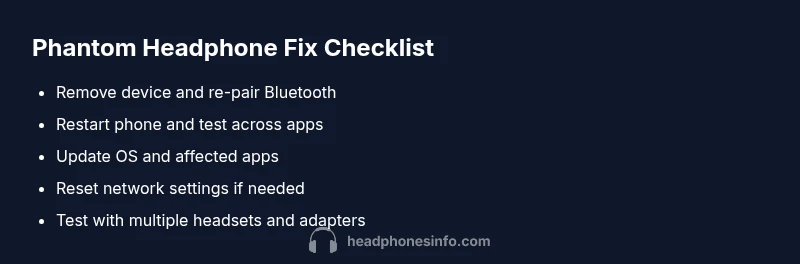
Start with non-destructive steps before diving into deeper fixes. Turn Bluetooth off and then back on; forget the headphones in Bluetooth settings and re-pair. Inspect for any wired adapters or dongles plugged into the phone’s port. Reboot the device and test playback with a known good app. Ensure silent focus or Do Not Disturb isn’t routing audio away from speakers. Check that the media volume is up and that apps aren’t using fixed output settings. If you have multiple Bluetooth devices, try disconnecting all except the one you want to use. These checks handle the most common misrouting scenarios quickly.
Diagnostic flow you can follow
- Symptom: headphones show as connected but no audio or wrong path.
- Check for: multiple connected devices, recent OS updates, app-specific routing.
- Diagnosis: software glitch or hardware detection hiccup.
- Solutions: reset Bluetooth preferences, reinstall affected apps, or perform a network reset if the issue persists. Headphones Info recommends validating across at least two apps (music and video) to confirm that routing is inconsistent rather than app-specific. If the problem reappears after a reset, it’s more likely to be a hardware detector issue.
Step-by-step fixes for the most likely cause (Bluetooth mispairing)
- Open Bluetooth settings and remove any headsets that appear more than once. 2) Turn Bluetooth off, reboot, and turn it back on. 3) Re-pair the headset with fresh credentials. 4) Test audio in a music app, a video player, and a call. 5) If the phantom device returns, proceed to a full network reset or seek service. These steps fix common mispairing problems and restore correct device roles. If you use multiple devices, consider unpairing older ones to reduce interference.
Safety, tips, and prevention
- Do not attempt invasive hardware repairs yourself; seek professional help if you hear crackling or smell burnt plastic.
- Regularly update your Android and apps to reduce routing glitches.
- Avoid overloading Bluetooth with many paired devices; unpair unused ones.
- Keep USB-C adapters and headphone jacks clean to avoid false detections.
- If you rely on critical audio, test with multiple apps to verify routing. Headphones Info emphasizes that consistent maintenance and controlled testing are the best defense against recurring phantom detections.
When to seek professional help and what to document
If the problem persists after all steps, a hardware fault in the port, cable, or headset is possible. Document when the issue occurs, the devices involved, and any error messages. A professional can run diagnostics and verify whether the issue is with the phone, headset, or a specific app. Headphones Info recommends collecting model numbers, OS version, and a brief timeline of when the issue started to speed up troubleshooting.
Additional testing: cross-device and cross-app checks
To rule out device-specific quirks, test the same headset with a different Android phone if available. Likewise, test different headsets with your phone. If the issue only appears with a particular app, focus on the app’s audio output settings and permissions. These cross-checks can reveal whether the problem is universal across the OS or isolated to one app. Headphones Info’s approach is to isolate variables methodically, ensuring you don’t misattribute the cause to the wrong component.
Steps
Estimated time: 20-40 minutes
- 1
Remove and re-pair Bluetooth
Open Bluetooth settings, forget all headphone devices, then re-pair using fresh pairing data. Test audio after each step to confirm routing changes.
Tip: Keep the headphone charged and within direct line of sight during pairing. - 2
Reboot and reset Bluetooth services
Restart your phone and toggle Bluetooth off and on again. This clears transient routing caches that may misreport connected devices.
Tip: If reps to pair fail, try pairing after a clean boot. - 3
Check app-specific routing
Some apps override system routing. Open a couple of apps (music, video, calls) and confirm output goes to the correct device.
Tip: Look for in-app audio output menus and select Speaker or Headphones as appropriate. - 4
Update OS and apps
Install the latest OS update and ensure all audio-related apps are current. Bug fixes often address phantom detection.
Tip: Back up data before major updates. - 5
Network and app reset if needed
If all else fails, reset network settings or app preferences. Note this will erase saved networks and sign-ins.
Tip: Document passwords and Wi-Fi credentials beforehand.
Diagnosis: Headphones show as connected on Android but no audio or wrong routing occurs
Possible Causes
- highBluetooth mispairing or ghost device
- mediumAudio routing bug after OS/app update
- lowStuck wired headset detection via USB-C/adapter
- lowApp-specific output settings interfering with routing
Fixes
- easyRemove paired devices, reset Bluetooth, and re-pair cleanly
- easyReboot device and verify audio routing across apps
- easyUpdate OS and affected apps; reinstall problematic apps if needed
- mediumPerform a network reset or factory app preferences only if the issue persists
People Also Ask
Why does my Android phone show headphones even when I’m not using them?
This is usually a software routing or Bluetooth pairing issue, not a broken headset. Start with removing the device, resetting Bluetooth, and checking app routing before exploring hardware faults.
Often it’s a software routing issue. Start by removing the device and resetting Bluetooth, then check app routing before considering hardware problems.
Is resetting network settings safe?
Resetting network settings is safe but will erase saved Wi-Fi networks and Bluetooth connections. You’ll need to re-enter passwords and re-pair devices afterward.
Yes, but you’ll need to reconnect to Wi-Fi and re-pair Bluetooth devices afterward.
Should I factory reset my phone to fix this?
A factory reset is a last resort and only recommended if multiple software fixes fail. It erases all data, settings, and apps, so back up first.
Only if nothing else works, and make sure you’ve backed up your data.
Can a faulty USB-C adapter cause false headphone detection?
Yes. A damaged or dirty USB-C adapter can misread headset presence. Remove the adapter and test with a direct port configuration.
It can; try removing adapters and testing directly with the port.
How long does troubleshooting usually take?
Most software fixes resolve within 15-30 minutes. If a hardware fault is detected, it may require professional service and longer diagnostics.
Most fixes take under half an hour; hardware issues may take longer.
Watch Video
What to Remember
- Identify whether the issue is software or hardware related
- Follow a progressive troubleshooting path from simple to advanced
- Always back up data before major resets
- Cross-test with multiple apps and devices when possible
- Consult a professional if symptoms persist after resets