Why Don't Headphones Work on My Phone? A Troubleshooter Guide
Diagnose and fix why headphones won’t work on your phone with wired or wireless gear. This step-by-step guide covers common causes, OS and app fixes, and practical prevention tips to restore audio fast.


If you’re wondering why don’t headphones work on my phone, start with simple checks: ensure the plug is fully seated or the Bluetooth pairing is complete, verify the correct audio output is selected, and confirm the device volume isn’t muted. If the problem persists, update the OS and test with another app or source. For persistent problems, try another known-good headset to isolate the issue.
Why don't headphones work on my phone
According to Headphones Info, many connection problems begin with simple checks and correct audio routing. If your headphones aren’t producing sound, first verify the type (wired vs wireless) and the correct output path. Ensure the plug is fully seated or the Bluetooth pairing is complete, and that the device volume is not muted. If the problem persists, update the OS and test with a different app or source. Finally, try a known-good headset to confirm whether the issue is device- or accessory-related. Headphones Info's analysis shows software routing and compatibility issues are common culprits, so this guide focuses on isolating those factors and providing actionable steps.
Quick checks you can do right now
- Inspect the physical connection: unplug and re-seat wired headphones, or toggle Bluetooth off and back on to re-initiate pairing. Check for debris in the jack or port. - Test with another app or media source to confirm the issue isn't a single app quirk. - Verify the correct output is selected (e.g., Speakers vs Headphones) in your quick settings. - Try a different headset or adapter if you’re using a dongle. If these basics don’t resolve it, move to the diagnostics in this guide.
Wired vs wireless: common fixes
Wired headphones rely on a clean, intact jack or USB-C/Lightning adapter. If the plug feels loose or the connector is damaged, sound may drop or cut out. Clean the jack gently and test with a spare cable. Wireless headphones depend on stable Bluetooth pairing and codec compatibility; if pairing fails, re-pair, forget the device, and retry pairing in pairing mode. For both kinds, software routing can send sound to a different output; ensure correct routing. Headphones Info emphasizes a methodical testing approach to identify the failing path.
Software and OS considerations you should not ignore
System updates can fix compatibility gaps that prevent audio from routing correctly. Check for available updates, install them, and restart. Some phones offer a Reset Network Settings option that clears Bluetooth caches and misrouted audio paths—use this if routing or pairing remains broken. If an app-specific issue persists, clear the app’s cache or reset its preferences. Headphones Info recommends avoiding ad-hoc hacks and instead using official settings options to minimize risk.
Hardware checks and when to replace or seek help
If testing on another phone reproduces the issue, the problem may be with the headphones themselves. Inspect cables and connectors for wear, fraying, or bent pins. If you have a warranty, contact the manufacturer for a replacement or repair. When headphones work on one device but not another, the phone’s audio IC or port may be at fault; a service center can diagnose hardware faults with specialized tools.
Prevention tips to avoid future issues
Store cables neatly to prevent kinks, use high-quality adapters, and keep firmware updated on both the phone and headphones. Regularly clean ports with a dry brush and avoid exposing cables to moisture. Use a dedicated headphone test routine after major OS updates. Following these best practices can reduce recurrence of common problems and keep audio flowing reliably.
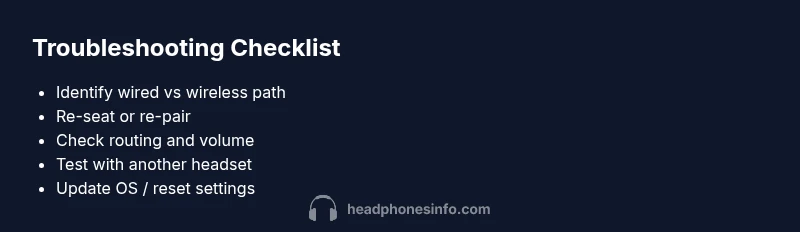
Steps
Estimated time: 30-60 minutes
- 1
Identify headphone type and device path
Determine whether you are using wired headphones with a jack or a wireless pair. Check if the phone shows any output indicators when plugged in or when paired. This helps isolate the path of failure.
Tip: Keep a spare pair for quick tests. - 2
Re-seat or re-pair
For wired: unplug and reinsert the plug firmly. For wireless: remove the pair from Bluetooth settings, then re-pair in pairing mode. This often clears simple routing glitches.
Tip: Do not force adapters into ports. - 3
Check output routing and volume
Ensure the phone is routing audio to Headphones, not Speakers. Verify media volume and mute status in the control center or quick settings.
Tip: Test with system sounds and media playback. - 4
Test with a different headset
Use a known-good wired or wireless headset to confirm whether the issue is with the original accessory or the phone.
Tip: If it works, the problem is likely the headset. - 5
Update OS and reset related settings
Install any available OS updates. If Bluetooth issues persist, reset network settings and clear Bluetooth cache.
Tip: Backup before performing resets. - 6
Seek professional help if needed
If both headsets fail across multiple devices or the problem remains after steps, consult a service center or warranty provider.
Tip: Document symptoms and steps tried for faster diagnosis.
Diagnosis: Headphones stop working with phone or are not recognized
Possible Causes
- highPower issue or device not providing output
- highLoose or damaged headphone jack / USB-C/Lightning adapter
- mediumBluetooth pairing or codec compatibility problem
- mediumSoftware routing or app-specific output misconfiguration
Fixes
- easyFor wired headsets: re-seat the plug firmly, inspect for debris, try a different cable or adapter. For Bluetooth: re-pair, forget the device, and retry pairing.
- easyTest the headphones on another device to rule out the accessory. If it works elsewhere, focus on the phone settings.
- easyUpdate OS and reset app preferences or audio routing in system settings. If needed, reset network settings to clear Bluetooth caches.
- easyIf issues persist, consult a service center or warranty support for hardware diagnostics.
People Also Ask
Why are wired headphones not recognized by my phone?
Common causes are a loose jack, dirt in the port, or a faulty adapter. Clean the jack, try a different cable, and test on another device to isolate the problem. If it still fails, check for software routing issues in settings.
A loose jack or dirty port is a frequent cause; test with another device to isolate the issue.
Why won't my Bluetooth headphones pair with my phone?
Ensure Bluetooth is enabled, forget the device, and re-pair. Make sure the headset is in pairing mode and within range. If pairing fails repeatedly, check for firmware updates on the headphones and phone.
Try forgetting and re-pairing, and ensure pairing mode is active.
What should I do if sound comes from only one ear?
Check balance settings, inspect the cable for wear, and test with another device. A faulty cable or damaged driver often causes this issue.
One-ear sound is usually a cable or driver fault.
Why does audio routing keep changing to speaker or earpiece?
Check accessibility and audio routing settings, and ensure apps aren't overriding the default output. A reset of network settings can clear misconfigured routing caches.
Routing can flip due to misconfigured settings; reset may help.
Is it safe to reset network settings?
Resetting network settings clears Bluetooth and Wi‑Fi caches, which can fix stubborn issues. Back up important credentials and be prepared to rejoin networks afterwards.
Resetting network settings can fix stubborn Bluetooth issues.
When should I seek professional help?
If multiple headsets fail on multiple devices, or if the issue persists after all steps, a service center or warranty support can diagnose hardware faults.
If problems persist, a professional can diagnose hardware faults.
Watch Video
What to Remember
- Identify wired vs wireless path first
- Test with known-good headphones to isolate the issue
- Update OS and clear routing caches if needed
- Hardware faults require professional help or warranty support