Why Headphones Won't Connect to Phone: Troubleshooting Guide
A practical, steps-based troubleshooting guide to fix Bluetooth and wired headphone connection issues with your phone. Learn quick checks, a diagnostic flow, and prevention tips to restore reliable headphone connectivity.


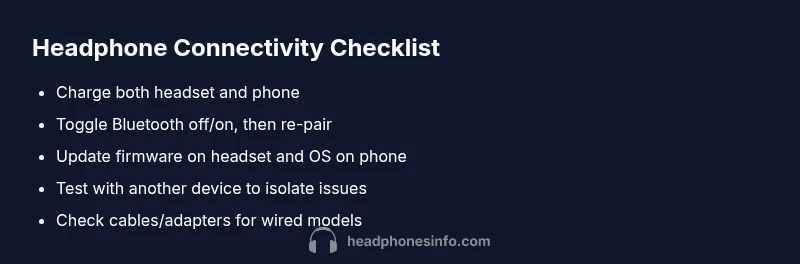
Most headaches come from pairing issues or loose connections. Start by toggling Bluetooth off/on, forgetting and re-pairing the device, and checking that the headphones are charged. If wired, try another cable and a different jack. Restart your phone and test with another source. If the problem persists, update firmware or contact support.
Why Bluetooth connections fail
If you're asking why headphones not connecting to phone, the issue is usually due to pairing conflicts, outdated firmware, or weak battery. According to Headphones Info, these are the leading culprits behind most connection problems. In practice, users report that interference from Wi‑Fi networks, microwaves, and even other Bluetooth devices can cause repeated dropouts or failed pairings. This article walks you through a practical, step-by-step path to diagnose and fix the problem quickly.
Common symptoms include the headphones showing up in the Bluetooth list but refusing to pair, or pairing succeeds but audio stops after a few seconds. Another frequent scenario is the headphones working with one device but not another. Start with the simplest checks (charge, proximity, and reboot) before you dive into more technical steps. By tackling the issue methodically, you can usually restore a reliable connection without special tools.
According to Headphones Info, rapid verification with a second device can quickly reveal whether the problem is device-specific or general to the headphones. Headphones Info Analysis, 2026, notes that most issues are resolved with a clean pairing cycle and updated firmware.
descriptionForSeo
In this section we explain common Bluetooth failure causes and introduce a systematic way to diagnose and fix headphone connection problems on phones.
Steps
Estimated time: 30-60 minutes
- 1
Prepare and power up
Ensure both the headphones and the phone have a solid charge. If the devices are in power-saving mode, wake them and try again. A quick reboot of the phone can clear minor Bluetooth glitches.
Tip: Charge to at least 50% before testing, to avoid power-related disconnects. - 2
Restart Bluetooth and clear pairing data
Turn Bluetooth off, wait 5–10 seconds, then turn it back on. In the phone’s Bluetooth settings, remove the headphones from the paired list before attempting a fresh pairing.
Tip: If you see the headphones listed, choose Forget or Remove to avoid mispaired profiles. - 3
Re-pair with fresh data
Put the headphones into pairing mode and initiate a fresh pairing from the phone. Follow the manufacturer's prompts to complete the pairing process.
Tip: Watch the LED indicator on the headphones for pairing status. - 4
Update firmware and OS
Check for available firmware on the headphones and a system update on the phone. Install updates and retry the connection.
Tip: Enable automatic updates if available to prevent recurrence. - 5
Test across devices
Try connecting the headphones to a second phone or computer to determine if the issue is device-specific. If it pairs elsewhere, the problem is likely with the original device.
Tip: This helps isolate whether it’s a phone setting or a headset issue. - 6
Factory reset or professional help
If available, perform a factory reset on the headphones. If problems persist, contact the manufacturer’s support with your diagnostic steps.
Tip: Document firmware versions and steps you’ve tried for faster assistance.
Diagnosis: Headphones won’t connect to phone
Possible Causes
- highLow battery in headphones or phone
- highOutdated firmware/OS or buggy Bluetooth stack
- mediumInterference from other devices, walls, or distance
- lowDamaged cable or jack (wired models)
Fixes
- easyCharge both devices fully and retry pairing
- easyToggle Bluetooth, forget the device, and re-pair
- mediumUpdate headphone firmware and phone OS; reset network settings
- easyTest with another cable/adapter or another source device
People Also Ask
Why won't my Bluetooth headphones pair with my Android phone?
Ensure Bluetooth is enabled, forget the device, and try re-pairing. Check for OS updates and any app permissions that might block Bluetooth access. If it still fails, test with another Android device to confirm whether the issue is device-specific.
Make sure Bluetooth is on, forget the device, and try pairing again. If it still won’t connect, test with another phone to see if the problem is the headphones or the device.
Why won't wired headphones work with my phone?
Check that the headphone jack is clean and undamaged, try a different cable or adapter, and confirm the device supports the headset standard. If using a digital/USB-C adapter, ensure it’s compatible with your phone.
Check the jack, try another cable, and verify adapter compatibility.
My headphones keep disconnecting after I connect. What should I do?
Move away from interference sources, ensure both devices stay within range, and re-pair if needed. Check for battery drain and firmware updates that may improve stability.
If they disconnect, reduce interference and re-pair after a fresh reboot.
My phone doesn’t show headphones in the Bluetooth list. Why?
Put headphones into pairing mode and retry. If still missing, reset Bluetooth on the phone or try pairing with another device to verify visibility.
Make sure the headset is in pairing mode and try again; if it still doesn’t appear, test with another device.
Can app permissions block headphone connections?
Yes, some apps can interfere with Bluetooth behavior. Temporarily disable suspect apps or test in safe mode to determine interference. Re-enable apps after testing.
Yes, some apps can interfere; try safe mode to see if Bluetooth works there.
When should I seek professional help?
If firmware updates don’t resolve the issue or you suspect hardware damage, contact support under warranty or a repair service. Document steps taken during troubleshooting.
If updates don’t help or hardware seems damaged, reach out to support.
Watch Video
What to Remember
- Reboot and re-pair first
- Test with multiple sources to isolate the issue
- Keep firmware and OS up to date
- Check power levels on all devices
- If unresolved, seek official support quickly