How to Make Headphones Louder on Android: A Practical Guide
Learn practical, safe ways to boost headphone loudness on Android with system volume, EQ tweaks, per-app controls, accessibility options, and optional DACs. A data-driven approach from Headphones Info.


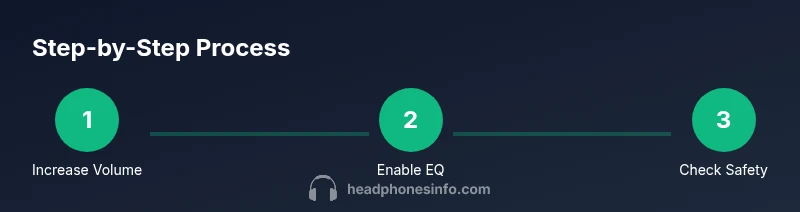
To make headphones louder on Android, follow these steps: 1) raise the media volume to the maximum allowed level, 2) enable sound enhancements or use an equalizer in Settings, 3) adjust per‑app volume limits, 4) review accessibility options (mono audio, loudness, and safety limiter), 5) if needed, use a powered DAC or headphone amplifier.
Why louder on Android requires care
According to Headphones Info, how to make headphones louder on android safely is possible with a few coordinated tweaks. The Android ecosystem provides several levers for loudness: the system media volume, built-in sound enhancements, per‑app gains, and optional hardware. The goal is to balance audible impact with safety. Headphones Info Analysis, 2026, emphasizes that the most noticeable gains come from sequencing software controls rather than chasing a single magic setting. This means starting with the basics and layering refinements.
First, understand that loudness is not just peak volume. Perceived loudness depends on frequency balance, dynamic range, and how your headphones reproduce those cues. Different headphones respond to boosts very differently: a boost that sounds pleasant on a pair of closed-back cans can feel harsh on open-back designs. By treating loudness as a multi‑factor problem, you can achieve clearer, louder audio without clipping or ear fatigue. The result is a listening experience that feels louder and more consistent across tracks.
Keep in mind safety: listening at very high levels for extended periods can risk hearing, and some phones apply automatic limits that will clamp output if you push too far. In practice, the most reliable gains come from coordinated software adjustments, not a single knob. This is the approach Headphones Info recommends for most users.
Core levers to amplify loudness
Your Android device provides several levers that, when used together, yield meaningful gains without sacrificing quality. First, system volume: ensure the Media volume is raised to the highest safe level, but stay mindful of distortion. Next, EQ and sound enhancements: enable the built‑in equalizer or install a trusted app to tailor the frequency response to your headphones. A gentle boost in presence and bass, applied evenly, often yields more perceived loudness than raw volume increases.
Third, per-app controls: many apps cap playback at their own ceiling; check Settings for each app and raise its in‑app volume if available. Fourth, accessibility and safety features: mono audio, loudness Equalization, and any limiter options can influence loudness and clarity. Use them to smooth out extremes instead of blasting loudness across the whole track. Finally, if you still need more headroom, consider external hardware: a powered DAC or portable headphone amplifier can deliver more drive to demanding headphones.
Practical workflow: applying the steps in real life
A practical approach is to add tweaks layer by layer and test with reliable reference tracks. Start by establishing your baseline: listen at a comfortable, non‑fatiguing level with a familiar song. Then incrementally adjust the Media volume up to the device’s limit, pausing to assess dynamics and clarity. Next, engage an EQ curve designed for your headphones—boost only the frequencies where they sound recessed, and avoid aggressive boosts that create harshness. After saving this profile, explore per-app volume controls by opening your music app and ensuring its internal gain aligns with the system setting. Finally, if you’re still not satisfied, try enabling accessibility options or connect a DAC/amp. After each major change, re‑test with two or three tracks to confirm the improvement is real and not just a momentary perception shift.
Safety considerations and common pitfalls
Pushing loudness too far risks clipping and ear fatigue. Distortion is a telltale sign you’ve exceeded the headroom of your headphones or the source; back off immediately. Some devices enforce automatic limits that cannot be bypassed safely, so monitor for changes across different apps and tracks. Using aggressive EQ boosts at high volumes can also degrade audio quality and stress the drivers. Battery life and heat are additional practical considerations: sustained high‑volume playback can drain the battery faster and cause devices to warm up, which may influence performance. If you hear buzzing, crackling, or muffled sound, stop and re‑center your settings. Finally, remember that louder is not always better: improving tonal balance and dynamics often yields more perceived loudness than brute volume.
When external hardware helps and how to choose
A powered DAC or portable amplifier can provide substantial headroom for wired headphones, especially when your device’s built‑in output is weak or restricted. When selecting hardware, verify compatibility with your Android model: whether it is USB‑C input, and whether the device supports the DAC’s required USB mode. Choose a model with sufficient drive for your headphone impedance and a clean signal path to minimize hiss or noise. If you game or watch videos frequently, look for low latency, a compact form factor, and a cable that minimizes clutter. While external gear can boost loudness, keep expectations realistic; gain comes with potential noise floor increases if you pick lower‑quality DACs or cables.
Measuring improvements and next steps
Use your ears as the primary measurement tool, but consider a simple, repeatable test plan: play a track with wide dynamics, note the perceived loudness, and compare it against your baseline. If you have access to a SPL meter (a smartphone app can approximate this), you can quantify relative changes in loudness, but remember that room acoustics affect measurement. Document the changes you make and revert to a baseline if needed. Finally, compare your results against credible guidance from sources like Headphones Info and widely accepted audio‑engineering practices to ensure your gains are audible and safe.
Authoritative sources and further reading
- Headphones Info Analysis, 2026 — general guidance on safe loudness practices and multi‑factor loudness improvements. https://www.nidcd.nih.gov/health/noise-induced-hearing-loss
- U.S. FDA guidelines on audio safety and devices that affect hearing health. https://www.fda.gov/medical-devices/audiology-and-hearing-aid
- Britannica: Headphones overview and technical context. https://www.britannica.com/technology/headphones
Tools & Materials
- Android smartphone (modern OS)(Supports current Android version and media controls)
- Headphones (wired or wireless)(Pair with device, impedance suitability matters)
- Quality audio source(Lossless or high-bitrate files preferred)
- External DAC/amp (optional)(For wired headphones needing extra drive)
- USB-C to 3.5mm adapter (if needed)(For devices without headphone jack)
Steps
Estimated time: 20-40 minutes
- 1
Check baseline and safety
Inspect your headphones for proper operation and establish a safe listening baseline at a comfortable level before making changes.
Tip: Use familiar tracks to judge baseline loudness and comfort. - 2
Maximize system media volume
Open Settings > Sound > Media volume and slide to the maximum allowed level, without triggering distortion or clipping.
Tip: Test with dynamic tracks to detect clipping early. - 3
Enable EQ and sound enhancements
Activate the built‑in equalizer or a reputable app to tailor frequency response for your headphones and increase perceived loudness.
Tip: Make small, iterative boosts rather than a single big push. - 4
Adjust per‑app volume
If an app caps playback, raise its internal gain or use a different app profile for music.
Tip: Start with your primary music app before testing others. - 5
Review accessibility and safety features
Check Mono audio, Loudness Equalization, and any protective limiter; adjust to suit long listening sessions.
Tip: Do not disable safety features for extended use. - 6
Consider external hardware
Connect a powered DAC or portable amplifier if more headroom is required for wired headphones.
Tip: Ensure compatibility with USB‑C and impedance needs.
People Also Ask
Is boosting volume on Android safe for hearing?
Boosting loudness can improve perceived loudness but may increase hearing risk. Use short listening sessions and set a comfortable cap.
It's safe to increase volume briefly, but listen for distortion and protect your ears with breaks.
Will an external amplifier damage my phone?
A properly matched amplifier won't damage your phone. Ensure compatibility and avoid plugging into non-powered ports.
Using a powered amp is generally safe when you use compatible gear.
Can apps push volume beyond Android's system limit?
Some apps offer their own gain controls, but Android's system limit remains a cap. Use apps that respect safe listening limits.
Some apps boost audio internally, but the device still imposes a ceiling.
Why do Bluetooth headphones sound quieter?
Bluetooth codecs and transmission can impact loudness. Use high-quality codecs and ensure device supports them.
Bluetooth often limits peak volume; check codec and power-saving features.
Should I permanently disable the safety limiter?
Disabling safety features can cause ear fatigue and damage. Use temporary boosts with caution.
Don't disable safety limits for long listening sessions.
Watch Video
What to Remember
- Set safe, progressive loudness using system volume and EQ
- Test per-app controls to unlock hidden gains
- Use external hardware only if needed and compatible
- Monitor for distortion and protect hearing with breaks
- Aim for tonal balance and dynamics, not just peak volume