How to Put Headphones in Discovery Mode
Learn how to put headphones into discovery mode to simplify Bluetooth pairing across devices. Step-by-step instructions, troubleshooting tips, and best practices for quick, reliable setup.


You can put headphones in discovery mode by turning them off, then holding the power/pairing button until the LED starts flashing in a discoverable pattern. While in discovery mode, keep your source device’s Bluetooth on and ready to scan. If the pattern doesn’t appear, try a short reset and retry from a fresh power cycle.
What discovery mode is and when to use it
Discovery mode is the Bluetooth-visible state that makes headphones detectable by nearby devices. This mode is used whenever you want to pair with a new phone, tablet, computer, or a car stereo. In daily use, most headphones switch to discovery mode automatically when you press the pairing button, but some models require a separate action. Understanding discovery mode helps you set up devices quickly and reduces frustration during multi-device use. According to Headphones Info, mastering the basics of discovery mode can save time during setup and prevent repeated attempts. If you’re troubleshooting, confirm your headphones are within range and fully charged. Headphones Info’s team also notes that firmware updates can affect how discoverable the headset is on newer operating systems.
How discovery mode works across different headphone types
Whether you own true wireless earbuds, over-ear wireless, or wired headphones with a Bluetooth adapter, the general idea is the same: you place the device into a publicly searchable state so nearby devices can find it. True wireless sets often use a dedicated pairing button; over-ear wireless headphones may use a combined power/pairing control. Some models show a blinking pattern (blue, red, or a steady pulse) to indicate discoverability. If your device uses NFC or a companion app, you may also initiate pairing from the app; however, many devices rely on physical button presses. Understanding these nuances helps you choose the right approach and minimizes confusion when different devices appear in your source’s Bluetooth list.
Step-by-step overview for entering discovery mode (conceptual)
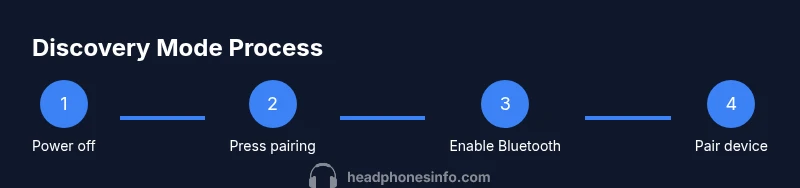
The general sequence is consistent across most headsets: first power the headphones off, locate the pairing button or power/pairing combo, then activate the discoverable state. On many models you’ll see a LED blink or change color to confirm discovery mode. Next, enable Bluetooth on your source device and begin scanning for new devices. When you see your headphones show up, select them to pair. If you don’t see them, try again from a full power cycle or consult the manual for model-specific cues. This overview provides a framework you can apply across brands without getting stuck on minor variation.
Troubleshooting when discovery mode won't activate
If discovery mode isn’t appearing, start with the basics: verify the headphones are charged, ensure you’re within range, and keep the source device Bluetooth enabled. Interference from multiple nearby devices can cause delays, so turn off Bluetooth on other devices temporarily. Firmware updates on both the headphones and the source can also affect discoverability, so check for latest versions. If needed, perform a factory reset following the manufacturer’s instructions, then re-enter discovery mode. When trouble persists, refer to the brand’s troubleshooting guide and Headphones Info’s broader guidance for common pitfalls.
Brand-specific quirks and tips
Different brands call the same state by different names—some call it pairing mode, others discoverable mode. LED indicators differ in color and blink pattern, which can be confusing if you switch between brands. Some headphones time the discoverable state; others stay discoverable until paired. If you’re unsure, start from the model’s manual or the official support site. The common thread is that the goal is to make the headphones visible to your source device so you can complete pairing smoothly.
Security, privacy, and best practices
Discovery mode increases visibility for nearby devices, which can pose privacy risks if you’re in public spaces. Use discovery mode only long enough to complete pairing, then disconnect or turn off Bluetooth on the source when finished. After pairing, keep the headphones in a trusted device list and consider removing old or unused devices from your source’s Bluetooth settings to minimize future conflicts. Regularly updating firmware helps maintain secure, stable connections.
How to verify the device appears on your source
On iOS and Android, open Bluetooth settings and start scanning; your headphones should appear under Available Devices. On Windows and macOS, go to Bluetooth settings and look for new devices; you may need to click a Scan or Add Device button. If the headset doesn’t show up, toggle Bluetooth off and on, restart the headphones, or try a different source device. Remember that some devices may require you to confirm a pairing code or accept a prompt on the source device.
Practical checklists and common pitfalls
Before you start: ensure headphones are charged and within range; have your source device ready; keep the manual handy for model-specific steps. During pairing, avoid interrupting the process with calls or notifications. After pairing, test playback to confirm a stable connection. Common pitfalls include leaving the headset in discoverable mode too long, pairing with the wrong device, or ignoring firmware updates that affect compatibility.
Tools & Materials
- Headphones(Fully charged to ensure discovery mode activation and pairing success.)
- Source device (phone, tablet, or computer)(Bluetooth-capable; keep Bluetooth on and in range.)
- Charging cable(Useful if the headset needs a quick top-up before pairing.)
- Spare power bank(Optional for extended setup sessions or travel.)
- Manual or quick-start guide(Helpful for model-specific pairing steps.)
Steps
Estimated time: 5-10 minutes
- 1
Power off the headphones
Ensure the headphones are completely powered down before attempting discovery mode. A full power-down prevents accidental input that disrupts the process.
Tip: If the device won’t turn off, press and hold the power button a bit longer to force shutdown. - 2
Identify the pairing control
Locate the button or control that initiates pairing. Some models use a dedicated pairing button; others combine power and pairing into one action.
Tip: Consult the manual if you’re unsure which control triggers pairing. - 3
Enter discovery/pairing mode
Press and hold the pairing control until you see a LED indication that the headset is discoverable. The signal pattern varies by model.
Tip: If there’s no LED cue, try a longer hold or perform a quick power cycle and retry. - 4
Enable Bluetooth on the source
Open the Bluetooth settings on your source device and ensure it’s actively scanning for new devices.
Tip: Turn off and back on Bluetooth on the source if it doesn’t start scanning right away. - 5
Pair from the source device
From the list of available devices, select your headphones and confirm any prompts to pair.
Tip: If you see multiple similar devices, choose the exact model name to avoid confusion. - 6
Test the connection
Play audio to verify a stable connection; if you hear glitches, retry from the beginning or reset the headphones.
Tip: Keep the two devices within a comfortable range during initial testing.
People Also Ask
What is discovery mode on headphones?
Discovery mode is the Bluetooth-enabled state that makes headphones detectable by nearby devices for pairing. It is typically activated briefly and is essential when you are pairing with a new device.
Discovery mode lets nearby devices see your headphones so you can pair. Turn it on briefly and complete pairing from your source.
How long should discovery mode stay active?
Keep discovery mode active just long enough to complete the pairing process. Once paired, you can exit discoverable mode.
Only keep it on while pairing; turn it off after you’re done.
Why don’t my headphones appear on my phone?
Ensure headphones are in discovery mode, within range, and charged. Toggle Bluetooth on the phone and retry. If necessary, forget the device on the phone and re-pair.
If they don’t show up, restart both devices and try again.
Do all headphones support discovery mode?
Most wireless headphones support a pairing or discoverable state, but some entry-level models may use different pairing methods. Check the manual for model-specific steps.
Most do, but verify with the manual for your exact model.
Is discovery mode secure?
Discovery mode increases visibility to nearby devices; pair with trusted devices only and disable discoverable mode after pairing to reduce exposure.
Yes, stay careful—only pair with devices you trust and turn it off after setup.
What if I still can’t pair after following steps?
Consult the manufacturer’s support page for model-specific guidance and consider contacting support if issues persist.
If pairing still fails, check for firmware updates or contact support.
Watch Video
What to Remember
- Power off before entering discovery mode
- Use the source device Bluetooth settings to pair
- Restart devices if pairing fails
- Account for brand-specific naming and indicators
- Disable discoverable mode after pairing