Why Do Headphones Not Work on My Laptop? An Urgent Troubleshooting Guide
Urgent troubleshooting guide to fix headphones not working on laptops, covering wired and wireless setups, drivers, jacks, and Bluetooth. Step-by-step fixes to restore audio fast.


Why don't headphones work on my laptop? The most likely causes are a loose or dirty headphone jack, the wrong playback device selected, or a faulty USB-C/BT connection. Start by confirming headphones are set as the default playback device, check for system mute, and inspect the jack for debris. If the issue persists, follow the diagnostic flow below for step-by-step fixes.
Why 'why don't headphones work on my laptop' is a common question
According to Headphones Info, laptop headphone failures are usually solvable with a few fast checks. The phrase captures a moment of frustration when audio suddenly stops, often traced to hardware wear or software settings. In 2026, Headphones Info analysis shows software issues and misconfigured output devices are the leading culprits, especially on Windows and macOS. This guide from the Headphones Info Team is designed to be urgent and practical, guiding you through a fast, logical flow to restore audio. Whether you’re using wired earbuds, over-ear headphones, or wireless Bluetooth cans, the same rules apply: isolate the symptom, test a quick fix, then escalate to driver or hardware checks if needed. By the end you’ll know exactly which step to take next and how to prevent this from recurring.
Quick checks you can do before diving deeper
- Make sure your system or app volume isn’t muted and that the headphones are selected as the default playback device. A common mismatch is the system sending sound to speakers while headphones are plugged in.
- Check the headphone jack or USB-C/BT dongle for debris or damage. A dusty port can muff sound or cause no sound at all.
- For Bluetooth headphones, ensure pairing is complete and the correct codec is selected. A stale pairing or codec mismatch can produce stutter or no sound.
- Restart the audio service or reboot the computer after any change. Sometimes a simple reset clears stuck audio pipes.
- If you can, test the headphones with another device (phone, tablet, another laptop) to determine if the issue is the headphones or the laptop.
Common causes at a glance
- Incorrect playback device selected: The OS may be routing audio to speakers. Always verify the active output device in the sound settings. Headphones Info analysis shows this is the most frequent cause of silent headphones on laptops.
- Outdated or corrupted drivers: Audio drivers occasionally fail after updates or after system changes. Keeping drivers current reduces this risk.
- Hardware port issues: A worn or damaged jack or USB-C/BT dongle can break the audio path. Visual inspection and swapping ports or adapters helps isolate the fault.
- Bluetooth pairing or codec problems: Some laptops struggle with certain codecs or profiles, causing no sound despite a successful connection.
- Headphones themselves: A faulty cable, broken drivers inside the headphone, or a defective USB dongle can manifest as no audio. Testing with a known-good pair helps confirm.
Headphones Info emphasizes that most laptop audio problems are not permanent hardware failures. The key is a structured approach to isolate whether the issue is software, port, or the headphones themselves.
Diagnostic flow overview
This section outlines a practical flow to identify and fix the issue quickly. Start with the simplest checks and move toward more involved steps. If this flow doesn’t resolve the problem, the next section provides a detailed, step-by-step guide.
- Symptom check: No sound from wired or wireless headphones after connection.
- If wired: try a different port, inspect the plug, then test with another wired device. If sound returns, the original port may be faulty.
- If Bluetooth: re-pair the device and test with a different codec if the option exists.
- If still no sound: update or reinstall audio drivers and run the built-in troubleshooter.
- If none of the above works: hardware fault likely; consider professional help after exhausting software and port tests.
Step-by-step fixes you can try today (Part 1)
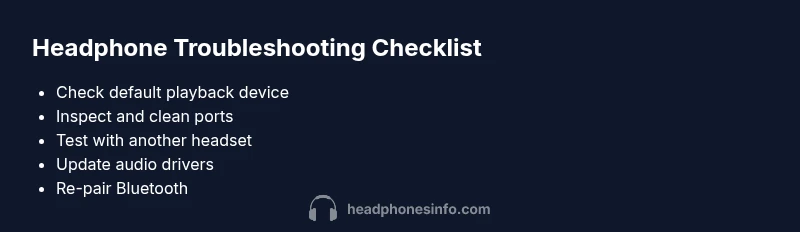
- Verify your system volume and output device. Open the sound settings and ensure the headphones are selected as the default playback device. If you’re using a media player, confirm the app’s own output device also points to headphones.
- Tip: After changing the output, run a quick audio test in a browser or app to confirm immediate results.
- Clean and reseat the jack or USB-C/BT dongle. Power off the laptop and gently insert the plug a few times to ensure full contact. If you see lint or dust, remove it with a soft brush.
- Tip: Do not use sharp tools to probe the port; static can damage sensitive electronics.
- Test with a different pair of wired headphones or earbuds. This helps confirm whether the problem lies with the original headphones or the laptop’s port.
- Tip: If another headset works, your original headphones may be faulty and require repair or replacement.
- Reboot the computer after changes. A clean restart can reset audio services and fix transient glitches that block sound output.
- Tip: If you’re on Windows, you can try restarting Windows Audio Service from the Services utility.
Step-by-step fixes you can try today (Part 2)
- Update or reinstall audio drivers. Go to Device Manager, locate your audio device, and choose Update Driver. If updates aren’t available or fail, uninstall the driver and reboot to reinstall automatically.
- Tip: Create a system restore point before major driver changes.
- For Bluetooth headphones, forget the device and re-pair. Remove the device from Bluetooth settings, then pair again. Ensure the correct codec is selected if the option exists (e.g., AAC, SBC).
- Tip: Keep headphones close to the laptop during pairing and remove other nearby Bluetooth devices to avoid interference.
- Try an external USB audio adapter (DAC) or USB-C audio dongle. This bypasses the laptop’s internal DAC and can confirm whether the issue is laptop hardware related.
- Tip: Use a reputable adapter with a known compatibility profile for your OS.
- Run the built-in audio troubleshooter. Both Windows and macOS provide guided troubleshooters that can detect missing drivers, misconfigured services, or hardware faults.
- Tip: Note any error codes or messages and search for them in the Headphones Info database or support articles for quick matching.
Steps
Estimated time: 30-45 minutes
- 1
Check basic audio settings
Open the system sound settings and verify that the headphones are selected as the default playback device. Confirm the volume is up and not muted in both system and app contexts.
Tip: If you see multiple devices, set both system and app outputs to headphones. - 2
Inspect hardware connections
Physically inspect the headphone plug or wireless dongle. Clean dust from the jack or port, reseat the plug firmly, and test another wired cable if available.
Tip: Always power off before inserting/removing ports. - 3
Test with a known-good headset
Connect a different wired headset or use another Bluetooth headset to determine if the issue is with the original headphones or the laptop.
Tip: If another headset works, the problem is likely the headphones themselves. - 4
Reboot audio services and the device
Restart the audio service (Windows) or log out/in (macOS) and reboot the laptop to clear stuck audio states.
Tip: A full reboot can resolve stubborn issues quickly. - 5
Update or reinstall audio drivers
Use Device Manager (Windows) or System Report (macOS) to update drivers or reinstall the audio driver. Restart afterward.
Tip: Back up your system restore points before major driver changes. - 6
Re-pair Bluetooth headphones
If using Bluetooth, forget and re-pair the device. Check for codec options if your OS allows it.
Tip: Keep devices close during pairing and remove other interference sources. - 7
Test with an external DAC/adapter
If available, connect a USB audio adapter to bypass the laptop’s internal DAC and confirm where the fault lies.
Tip: An external DAC is a reliable diagnostic tool. - 8
Run built-in audio troubleshooter
Execute the OS audio troubleshooter to identify common misconfigurations and apply recommended fixes.
Tip: Note any codes or messages for later lookup.
Diagnosis: Headphones connected but no sound on laptop (wired or wireless)
Possible Causes
- highIncorrect playback device selected
- highAudio driver or service issue
- lowFaulty headphone jack or USB-C/BT dongle
- mediumBluetooth pairing/codec problem
- lowHeadphones themselves faulty
Fixes
- easySet headphones as default playback device in the OS and in app
- easyUpdate or reinstall audio drivers and restart audio services
- easyClean the headphone jack and check for debris
- easyRe-pair Bluetooth headphones or use wired connection as a test
- easyTest headphones with another device to isolate hardware fault
People Also Ask
Why is there no sound on headphones but speakers work?
Likely the OS is routing audio to speakers or the headphones aren’t selected as the output device. Check the default playback device in settings and test with a quick audio clip.
Usually, you just need to switch the output device in your sound settings and test again.
Why do Bluetooth headphones pair but have no sound?
This can be a codec mismatch or a stale pairing. Re-pair the device, check codec options if available, and test with another Bluetooth device.
Re-pair the device and test again; codec settings matter for some laptops.
Why does sound work on other devices but not this laptop?
The laptop may have driver or configuration issues. Update audio drivers, run the built-in troubleshooter, and confirm the correct playback device.
Drivers or settings on this laptop are likely misconfigured.
Can a damaged headphone jack be repaired?
A damaged jack often requires professional replacement or repair. In the meantime, use a Bluetooth connection or an external DAC if possible.
A damaged jack usually needs a hardware fix.
Is it risky to open my laptop to fix the jack?
Opening a laptop can void warranties and risk damage. Seek professional help unless you’re experienced with electronics.
It’s safer to have a pro handle hardware issues.
How long should troubleshooting take?
Most software-based fixes take 20–40 minutes. If hardware tests are needed, expect longer or professional repair.
Most problems clear up in under an hour with good steps.
Watch Video
What to Remember
- Verify the active playback device first
- Clean ports and reseat connections
- Update or reinstall audio drivers
- Test with another headset to isolate fault
- Seek professional help if hardware damage is suspected