Where Do Headphones Plug Into Xbox? A Practical Guide
Learn where headphones plug into Xbox consoles, covering wired, USB, and wireless options with a clear setup and quick troubleshooting tips from Headphones Info.


Plug wired headphones into the 3.5mm jack on the Xbox controller for most setups (Series X|S and newer controllers). USB headsets connect to the console’s USB ports, or via adapters if needed. Wireless headsets use a dedicated dongle or built-in wireless link; follow on-screen prompts to pair and adjust audio levels.
What you need to know about where do headphones plug into xbox
According to Headphones Info, the exact port you use depends on whether you’re using wired, USB, or wireless headphones. For most Xbox setups, the simplest path is a wired headset that plugs into the controller’s 3.5mm jack. USB headsets offer a plug-and-play alternative that may require you to select the device in Settings. Wireless headsets rely on a dedicated dongle (or a supported wireless standard) and on-screen prompts. This article walks you through each option with clear steps, potential caveats, and tips to ensure reliable audio and crystal-clear voice chat in games and parties.
Wired headsets: Connecting via the controller's 3.5mm jack
Connecting a wired headset is usually the easiest method. Locate the 3.5mm TRRS port on the bottom edge of the Xbox controller (the one nearest the center). Insert the headset plug firmly until it seats. You’ll typically hear audio in both ears and the mic may immediately start transmitting; if not, return to Settings. Ensure you’re using a standard 3.5mm TRRS configuration; some budget headsets use nonstandard wiring that can cause one side to be quiet or the mic to be inaudible. If your controller lacks a dedicated 3.5mm jack (older accessories), you may need an adapter, which Headphones Info recommends verifying compatibility before purchase.
USB headsets and USB dongles: When to use USB connections
USB headsets connect to any available USB-A port on the Xbox console. In most cases, your PC or console will recognize the device automatically and set it as the default for chat or game audio; if not, go to Settings > General > Volume & audio output to manually select it. Some USB headsets require a companion software or firmware update from the manufacturer; check the headset’s support page for the latest firmware. If you’re using a USB dongle for a wireless headset, plug the dongle into the console first, power on the headset, then follow the pairing prompts on-screen. USB connections can offer better mic quality or additional controls, but beware of potential driver or compatibility quirks with older games.
Wireless headsets: Pairing and range considerations
Wireless headsets pair with the Xbox via a dedicated dongle (usually USB-A) or Bluetooth when supported by hardware. For Xbox, most official and supported third-party wireless headsets use a proprietary dongle; do not attempt to pair a generic BT headset directly via Settings unless the console explicitly supports it. To pair, plug the dongle into the console, power on the headset, and follow on-screen prompts. Keep the dongle within 10 meters for stable audio; walls and furniture can cause dropouts. If you experience latency or dropouts, try repositioning the dongle or updating the headset firmware. Headphones Info notes that wireless audio can introduce latency if the network is congested, so use a direct dongle pairing when possible.
Troubleshooting common issues and quick fixes
Audio failures are usually caused by misconfiguration, muted devices, or hardware incompatibilities. Start by checking Settings > General > Volume & audio output to confirm the correct headset is selected, and ensure the mic is not muted on both headset and console. If you’re using a headset with a physical mute switch, make sure it is in the on position. For wired headsets, try unplugging and re-plugging the 3.5mm connector, or test on another device to confirm the headset works. If you’re on USB, unplug the device and reinsert, or try a different USB port. Wireless setups may require re-pairing or firmware updates. In many cases, updating the headset firmware or using an official dongle resolves issues more reliably. Headphones Info analysis shows that most problems come from misconfigured audio outputs or mic settings, so rechecking these is a quick win.
Best practices for a reliable Xbox headset setup
Follow this checklist for a smooth setup: verify compatibility before purchase; use official adapters or dongles where possible; keep firmware updated; perform a quick test with a friend or in a party to confirm both game audio and chat; label devices to avoid confusion during multi-device use; balance chat and game audio to suit your preferences; and revisit privacy and mic settings if sound seems off. The Headphones Info team recommends sticking to supported configurations to minimize conflicts and ensure consistent performance across games and apps.
Tools & Materials
- Xbox controller with 3.5mm headset jack(Ensure you have a standard Series X|S or compatible controller.)
- Wired headset with 3.5mm TRRS plug(Check that the mic and audio are both functional.)
- USB headset(Use if you prefer USB audio or need easier mic control.)
- USB headset dongle or adapter (if required)(Needed for some wired-to-wireless conversions or older hardware.)
- Optional external mic or DAC (for high-end setups)(Helps with mic quality on certain headsets.)
Steps
Estimated time: 25-35 minutes
- 1
Identify your headset connection type
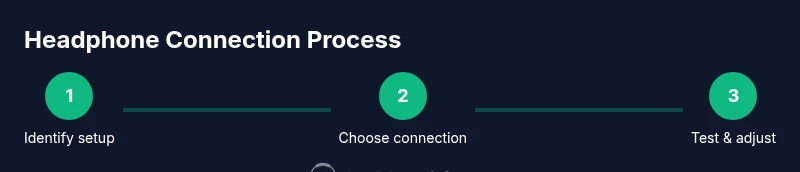
Determine whether you’ll use the 3.5mm wired jack, USB, or a wireless dongle. This choice will shape the exact steps you follow in the next sections and affect latency, mic quality, and setup complexity.
Tip: If you’re unsure, start with wired 3.5mm as it’s the simplest and most reliable on newer Xbox controllers. - 2
Connect a wired headset to the controller
Locate the 3.5mm TRRS port on the bottom of the controller and insert the headset plug firmly. Verify audio comes through both ears and the mic is active in the Xbox guide menu.
Tip: If you can’t hear sound, check that the plug is fully seated and try another headset to confirm the port is working. - 3
Configure audio output in Xbox settings
Go to Settings > General > Volume & audio output and select your headset as the output device. Adjust headset balance for game audio vs. chat to taste.
Tip: Set the mic monitoring or sidetone if your headset supports it so you can hear yourself speaking. - 4
Connect a USB headset or USB dongle
Plug the USB connector into a free USB-A port on the Xbox. Let the console recognize the device, then set it as default for chat or game audio in Settings if needed.
Tip: If the device isn’t detected, unplug and reinsert the USB connector or try a different USB port. - 5
Pair a wireless headset with dongle
Insert the wireless dongle into a USB port, power on the headset, and follow on-screen prompts to pair. Keep the dongle within line of sight for best stability.
Tip: Avoid physical obstructions between dongle and headset to minimize dropouts. - 6
Test, verify, and troubleshoot
Join a party or game to test both audio and mic. If issues persist, check firmware updates, re-pair the device, or try a different connection type.
Tip: Document any changes you make so you can revert if needed.
People Also Ask
What are the main ways to connect headphones to Xbox?
The three main methods are wired via the controller’s 3.5mm jack, USB headsets connected to the console, and wireless headsets using a dongle. Each method has its own setup steps and potential quirks.
You can connect wired headsets through the controller, USB headsets to the console, or wireless headsets with a dongle. Each path has its own setup steps.
Can I use a Bluetooth headset with Xbox Series X|S?
Direct Bluetooth audio input isn’t supported on Xbox consoles. Use a wired headset, USB headset, or an official wireless headset with its dongle for best results.
No, Bluetooth headsets aren’t supported for Xbox audio input. Use wired, USB, or an official wireless headset with a dongle.
Why isn’t my mic picking up voice in chat?
Check that the headset mic is not muted on the headset and in Settings. Ensure the correct input device is selected in Volume & audio output and test in a party.
Make sure the mic isn’t muted on the headset or in the Xbox settings, and test in a party to confirm it’s the active input.
Does the 3.5mm port carry both game audio and chat?
Yes, the common 3.5mm jack carries both game audio and chat. You can adjust the balance between game sound and chat in Settings.
Yes, you get both game audio and voice chat through the 3.5mm jack, with adjustable balance in settings.
What should I do if my headset works on PC but not on Xbox?
Check headset compatibility, ensure it’s selected in Xbox settings, and update any firmware. If needed, try USB or a different adapter dongle.
If it works on PC but not Xbox, check compatibility and firmware, then select the device in Xbox settings or try another connection type.
Are there latency differences between wired and wireless headsets?
Yes. Wired headsets generally have lower latency, while wireless setups can introduce slight delays depending on the dongle and interference.
Wired headsets usually have lower latency; wireless ones can have a tiny delay depending on the dongle and interference.
Watch Video
What to Remember
- Wired 3.5mm headsets are the simplest and most reliable on modern Xbox controllers
- USB headsets offer plug-and-play convenience with controller-based setup
- Wireless headsets use a dongle and can add portability but may introduce latency
- Always verify in Settings that the correct device is selected for output and input
- Regular firmware updates help maintain compatibility and audio quality