Fixing Beats headphones: A complete guide to repairs and maintenance
Learn how to diagnose, repair, and maintain Beats headphones. This comprehensive how-to covers common issues, DIY steps, safety tips, and when to seek professional service. Practical guidance for audio enthusiasts and budget-minded shoppers.


This guide shows you how to diagnose failures in Beats headphones, decide between DIY repair and professional service, and perform safe, practical fixes. It covers common issues, essential tools, a step-by-step repair workflow, and maintenance tips to extend the life of your headphones.
Common issues with Beats headphones
Beats headphones, like many premium wireless and wired models, can exhibit a range of symptoms depending on the model and usage pattern. Common issues include no sound or intermittent audio in one ear, crackling or static during playback, Bluetooth pairing drops, delayed or distorted audio, microphone not picking up voice, and rapid battery drain on wireless variants. Exterior wear at the hinge, frayed cables, loose connectors, or a swollen battery can also lead to degraded performance. In many cases, the root cause is a physical fault in the cable or connector, a loose internal wire, or a failing battery rather than a software problem. Distinguishing between software glitches and hardware faults is essential to avoid wasted effort. For audio enthusiasts, understanding symptom patterns helps you decide when a DIY fix is viable and when a service option is more sensible. Throughout this guide you’ll find practical steps and safety considerations to help you fix beats headphones efficiently.
Diagnosing hardware vs software problems
Before opening any headset, run through quick software checks. Update firmware if possible, reboot the connected device, and test with multiple audio sources. If the issue is only surfaced on one app or device, the problem might be software-related rather than a hardware fault. When wireless models show intermittent dropouts, test connectivity with another device and check for known firmware updates from the manufacturer. For wired variants, try a different cable or adapter to rule out a faulty cable. If symptoms persist across devices and cables, a hardware fault is likely. In such cases, you’ll benefit from a structured repair plan rather than random tinkering. Remember: a systematic approach saves time and protects other components.
Safety and preparation before you begin
Safety first. Power down any connected devices and disconnect all cables. Work on a non-conductive, static-dissipative mat and avoid touching exposed circuitry with bare hands. Use anti-static wrist straps if available. Keep tools organized and prevent short circuits by ensuring metal parts do not bridge contacts. If you suspect a swollen battery, stop immediately and consider professional service—puncturing a Li-ion cell is dangerous. Wear eye protection when using tools and work in a well-lit area to clearly see small connectors.
Diagnostic steps you can perform at home
Perform visual inspection of the exterior for cracks, loose hinges, or damaged joints. Gently flex cables at the joints to detect intermittent connections. For wireless models, test Bluetooth pairing with another device and check battery status indicators. Use a multimeter to check continuity on visible wires and connectors, especially around the jack/plug area. If you’re comfortable, carefully disconnect the earcup shell to inspect internal connections, but only after documenting the discharge of energy sources and static precautions. Always test after each intervention to isolate the successful fix from a new fault.
Planning your repair: scope and budget
Not every issue is worth repairing. Create a simple repair plan that estimates part costs (replacement cables, connectors, or batteries), tool needs, and your time. Compare the expected repair cost to the price of a replacement Beats headset or a certified service option. If the device is under warranty, contact the manufacturer or authorized service provider first. For out-of-warranty devices with minor faults (wires, cables, or connectors), a DIY repair often saves money and preserves the device’s build quality. If the fault involves the battery or a complex internal module, weigh safety concerns and potential device value before proceeding.
Step-by-step repair workflow overview
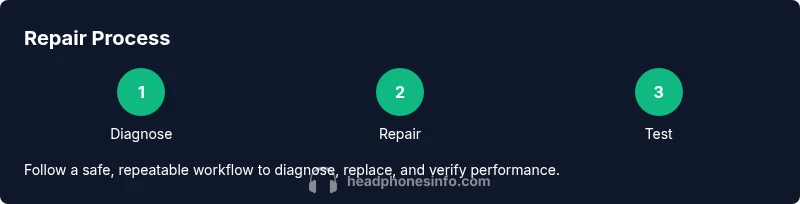
This section outlines a safe, repeatable sequence: power isolation, exterior inspection, internal access, diagnostic testing, component replacement or reflow soldering, reassembly, and functional verification. You’ll find a full step-by-step set of actions below in the dedicated STEP-BY-STEP block. The overview here emphasizes safety, documentation, and careful handling of delicate connectors and battery packs. Keeping a small notebook or photos of each stage helps with reassembly and future maintenance.
Replacing cables and jacks safely
Cables, connectors, and the 3.5 mm or USB-C/Lightning interfaces are common failure points. When replacing a fragile cable, ensure the new portion matches the original gauge and shielding. Use the correct type of connector and avoid over-tightening screws that could deform the housing. Desoldering and resoldering should be performed with a fine-tipped soldering iron, minimal heat application, and good ventilation. If you’re unsure about the correct cable specification, consult model-specific teardown guides and avoid introducing incompatible parts that could worsen the problem.
Battery and wireless module considerations
Battery-related failures are common in older wireless Beats models. Replacing a Li-ion battery requires careful handling, proper insulation, and avoidance of puncturing the cell. If the device uses a replaceable battery, sourcing a compatible cell from a reputable supplier is crucial. Wireless modules and antennas may also fail in some units; diagnosing them typically involves testing the radio path and verifying that the control circuitry communicates correctly with the host device. Because battery and RF components can pose safety risks, skip aggressive repair attempts if you’re not confident in proper Li-ion handling.
Cleaning, maintenance, and long-term care
After restoration, schedule routine maintenance to extend headphone life. Clean exterior surfaces with a microfiber cloth and a little isopropyl alcohol on sticky residues, avoiding moisture near speakers and batteries. Keep ports free of dust using a soft brush or compressed air at a safe distance. Lubricate hinge joints sparingly with manufacturer-approved lubricants if applicable, and re-seat detachable cables securely. Regular inspections for frayed cables and loose connectors help prevent future faults. Finally, store headphones in a protective case away from heat and humidity.
Troubleshooting common symptoms after repair
If new symptoms appear post-repair, re-check each step to confirm proper connections. A good practice is to re-test the device with a different audio source and cable. Re-seat connectors and verify there are no short circuits or loose grounds. If sound is still irregular, consider repeating solder joints with a cooler temperature and a smaller tip to avoid damaging pads. Document each workaround and assess whether the fault is intermittent or persistent. If the headset fails to meet standard operation after multiple attempts, professional service may be the most reliable option.
How to decide between repair vs replacement
Weigh the repair cost, device value, and your tolerance for risk. If the parts or labor required approach or exceed the cost of a new headset, replacement can be a smarter choice. Warranty coverage, resale value, and risk to other components are also critical factors. For highly valued or limited-edition Beats models, a repair may preserve functionality and resale potential better than a full replacement. When in doubt, consult a certified technician or the brand’s official service channels to obtain an informed estimate.
Tools & Materials
- Torx screwdriver set (T5 and T6)(Precision bits needed to remove screws on Beats enclosures)
- Spudger and non-conductive prying tools(Plastic tools to avoid shorting or marring housing)
- Fine-tipped soldering iron(Only if you plan to reflow or replace internal wires)
- Solder and flux(Use lead-free solder; flux helps secure joints)
- Multimeter (continuity/voltage)(Check wires, connectors, and battery circuit)
- Isopropyl alcohol (99%)(Clean contacts and remove residue safely)
- Replacement cables or connectors(Only if you’ve identified a damaged cable or port)
- Anti-static wrist strap(Optional but helpful to prevent static damage)
- Soft microfiber cloth(For exterior cleaning and dry wiping after cleaning)
Steps
Estimated time: 60-120 minutes
- 1
Power down and disconnect
Power off all connected devices and unplug any cables. Ground yourself and work on a non-conductive surface to prevent shorts. This step protects you and the device during disassembly.
Tip: Keep a teardown photo log to guide reassembly. - 2
Open the enclosure carefully
Loosen screws with the correct bit, then use a plastic tool to pry apart housing halves without stressing the shell. Watch for internal ribbon cables and note where they route to avoid pinching during reassembly.
Tip: Take a macro photo of every connector orientation before removing cables. - 3
Test continuity and inspect wires
With the device open, inspect visible wires for frays, kinks, or broken insulation. Use a multimeter to check continuity between the jack, driver leads, and battery connections. Record any divergent readings for later reference.
Tip: Wiggle test suspected connections gently while measuring continuity to reveal intermittent faults. - 4
Replace damaged components
If a visible wire is damaged or a connector is loose, replace or reseat it. When soldering, apply heat sparingly and avoid overheating plastic housings. Only use compatible parts designed for your Beats model.
Tip: Do not rush solder joints; cold joints can cause intermittent faults. - 5
Reassemble and secure
Carefully route cables and align housings before reassembly. Tighten screws evenly to avoid warping the shell, and ensure no new pinch points were created during routing.
Tip: Double-check that all connectors are fully seated before closing the case. - 6
Test functionality thoroughly
Connect to a known-good audio source, test playback, mic input, and wireless pairing if applicable. Run a noise test and check for distortion at multiple volume levels. Verify both sides deliver equal volume and balance.
Tip: Test with multiple audio tracks to confirm consistent performance. - 7
Document changes and monitor
Note every modification: part replaced, test results, and remaining symptoms. Monitor performance over the next few days and be prepared to revisit any step if new issues appear.
Tip: Keep a repair log to simplify future maintenance or resale.
People Also Ask
Can I fix Beats headphones at home, or should I send them to a service?
Many common faults can be repaired at home with careful disassembly, diagnostics, and component replacement. However, battery-related repairs or internal RF module issues may require professional service to avoid safety risks and ensure warranty integrity.
Many faults can be fixed at home, but if you encounter battery issues or radio module problems, consider professional service to stay safe and protect warranty.
What parts typically fail in Beats headphones?
Wires and connectors near the hinge, detachable cables, and batteries in wireless models are among the most common failures. Sound drivers and internal PCBs are less frequently the source of problems but can fail in older devices.
Wires, connectors, detachable cables, and batteries are the typical failure points you’ll encounter.
Will repairing Beats void the warranty?
Opening the unit or using non-official parts can void the warranty in some cases. Always check the manufacturer’s warranty terms and consider authorized repair services if the product is still under warranty.
Opening the device may affect your warranty; check terms and consider official repair if still covered.
How do I determine if the problem is battery-related?
If wireless operation fails consistently with a full charge, the battery is a likely culprit. Signs include swelling, rapid drain, and heat buildup. Use caution, as Li-ion batteries can be hazardous if damaged.
Look for rapid drain, swelling, or overheating as battery indicators; handle with care.
What tools are essential for DIY headphone repair?
You’ll need a precision screwdriver set, a non-conductive pry tool, a multimeter, isopropyl alcohol, and optional soldering gear for advanced fixes. Always use anti-static precautions.
Essential tools include small screwdrivers, plastic prying tools, and a multimeter; consider soldering gear for advanced work.
If I don’t feel confident, what’s a safe alternative?
Consult official support channels or a certified repair technician. They can diagnose and repair safely, preserving your device’s integrity and potential warranty.
If unsure, seek official support or a certified repair technician for a safe, guaranteed fix.
Watch Video
What to Remember
- Identify whether issue is hardware or software before opening.
- Document every step to make reassembly easier.
- Use the right tools and avoid overheating delicate joints.
- Weigh repair vs replacement when costs rise.
- Prioritize safety, especially with battery-related faults.