What to Do When Headphones Crackle: Troubleshooting Guide
Learn a fast, actionable plan to stop crackling headphones—from common causes to DIY fixes and safety tips. Diagnose, fix, and prevent crackling today with Headphones Info.


Crackling is usually caused by loose connections, interference, or damaged cables. Start with simple fixes: reseat the plug, inspect the cable for wear, and test with a different device or cable. If noise persists, move away from power sources and update firmware or drivers as needed. Some cases improve after cleaning the jack with a dry cloth and ensuring the device is set to the correct output channel.
Why headphones crackle
Headphone crackle is a common annoyance that can strike wired, wireless, and hybrid setups. In wired headphones, crackling typically stems from poor physical connections—the plug, jack, or a frayed cable can create intermittent contact. With Bluetooth or USB-C/DAC configurations, interference, codec mismatches, or faulty drivers may lead to crackling or popping sounds. Environmental factors such as dust, moisture, or proximity to power lines can worsen contact quality. Noticing whether crackling happens on one side, at certain volumes, or only with specific devices helps narrow the culprit. Because many fixes are quick and inexpensive, start with the simplest checks before moving to more involved tests. According to Headphones Info, diagnosing crackling early reduces wasted time and preserves your listening experience.
Quick checks you can do now
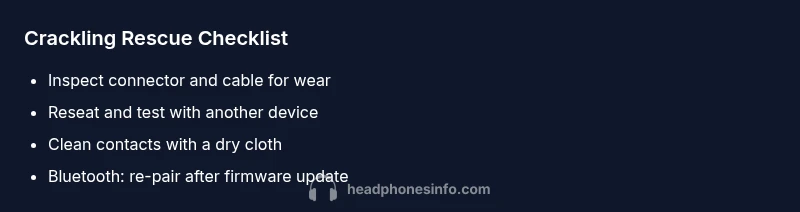
If you want immediate relief, run through a rapid test routine. First, unplug and re-seat the headphone plug firmly. Inspect both ends of the cable for wear, kinks, or exposed wires, and try a different cable if available. Test the headphones with another device, and if you’re on Bluetooth, re-pair the device. Clean the connector contacts with a dry microfiber cloth to remove dust. Avoid moisture near any port, and ensure your device volume is not set too high, which can exacerbate perceived crackling. If the crackling disappears on one device but not another, the fault is likely with the source or cable rather than the headphones themselves.
Common causes explained
Understanding the root causes helps you pick the right fix. A loose or dirty connector can produce crackles with little effort. Worn or damaged cables, adapters, or splitters create intermittent contact or impedance changes that manifest as noise. Interference from Bluetooth devices, nearby Wi-Fi routers, or other electronics can introduce crackling, especially if you’re close to the source. Grounding issues or a faulty DAC/amp can produce consistent crackles across multiple outputs. In wired setups, a poor-grade cable or a low-quality splitter often causes more pronounced crackling at higher volumes. Finally, software factors like outdated drivers or firmware can also introduce audio glitches, particularly on USB DACs or wireless adapters.
Safe DIY fixes you can try
Begin with non-destructive steps. Reseat every connection and try a new cable or port. Clean contacts gently with a dry microfiber cloth and inspect for visible damage. If you’re using a detachable cable, replace it with a known-good spare. For Bluetooth headphones, forget and re-pair the device, then check for firmware updates. Update your device’s audio drivers, OS, or headset firmware if available. Keep backups of recommended drivers and avoid third-party firmware unless you trust the source. If the crackling persists after these steps, the issue may be internal to the headphone or a sign of wear that warrants professional review.
When to seek professional help
If crackling continues after all basic checks and replacements, or if you notice buzzing, sizzling, or heat near the drivers, contact customer support or an authorized service center. Leaking moisture, water damage, or signs of corrosion require professional assessment. Warranty coverage often includes cable or driver defects, so check your policy before paying for repairs. Avoid attempting internal repairs yourself, which can void warranties or cause further damage. Consider seeking assistance if you rely on critical audio in a professional setting, or if you’ve exhausted reputable DIY fixes without improvement.
Prevention and maintenance tips
Preventing crackling starts with good habits. Store headsets in a protective case to avoid kinks and crushing of cables. Use separate carry-ons or organizers to reduce wear on connectors. Periodically inspect cables and ports for wear and dust, and replace worn parts promptly. Avoid pulling on cables; unplug by the plug, not the cable. Keep software and firmware up to date to minimize driver-related crackling. If you frequently travel, carry spare cables and a small cleaning kit to maintain contacts. Regular maintenance reduces the likelihood of crackling returning.
Steps
Estimated time: 30-45 minutes
- 1
Power cycle and reseat
Power down the source device and headphone system, unplug the cable (if detachable), and reinsert firmly. This simple step resolves many contact issues and reduces intermittent crackling.
Tip: Always handle connectors by the plug, not the cable. - 2
Inspect cables and connectors
Check for visible wear, kinks, or exposed wires on the headphone cable and at each connector. If you find damage, replace the cable or use a spare to test.
Tip: Look for bend radius marks near the plug and ports. - 3
Test with alternative cable or device
Swap in a known-good cable or test the headphones with a different device. If crackling persists across devices, the problem is more likely with the headphones.
Tip: Use a clean, dry cloth to wipe the jack and contacts. - 4
Bluetooth reset and firmware check
For wireless headphones, forget the device in Bluetooth settings, re-pair, and check for firmware updates. Firmware improvements can fix codec and stability issues.
Tip: Keep headphones within 1–2 meters of the source during pairing. - 5
Professional review or warranty check
If the issue remains, contact the manufacturer or a certified repair service. Use warranty if eligible to cover parts or replacement.
Tip: Have your purchase date and model number ready.
Diagnosis: Headphones crackle or pop when in use
Possible Causes
- highLoose connector or damaged cable
- mediumInterference or EMI from nearby devices
- lowWireless codec or Bluetooth issue
Fixes
- easyReseat and test with a different cable or port
- easyClean connectors and check for visible damage
- mediumUpdate drivers/firmware or reset Bluetooth pairing
- easyTry a different device to rule out source device
People Also Ask
What is the most common cause of crackling headphones?
The most common causes are a loose connection or a damaged cable. Testing with a different cable or port often confirms the source.
Crackling is most often due to a loose connection or damaged cable. Try reseating and testing with another cable.
Can software updates fix crackling?
Yes, outdated drivers or firmware can cause crackling, especially with USB DACs or wireless adapters. Update to the latest versions.
Yes, updating drivers or firmware can resolve software-related crackling.
Are cheap cables worse for crackling?
Often, yes. Low-quality cables have poorer connectors and shielding, increasing contact issues and interference.
Cheaper cables can be more prone to crackling due to poorer connectors and shielding.
When should I seek professional help?
If crackling persists after all DIY steps or if the product is under warranty, contact the manufacturer or an authorized service center.
If the issue remains after fixes or is covered by warranty, contact support.
Do wireless headphones crackle often?
Yes, especially with interference, low battery, or codec compatibility issues. Troubleshoot by re-pairing and checking firmware.
Wireless crackling happens with interference or codec issues; try re-pairing and updating firmware.
Is it safe to use isopropyl alcohol on jacks?
Only with extreme caution and never on drivers. Use a dry cloth and avoid liquid contact with internal components.
Avoid liquids near the internals; use a dry cloth for cleaning.
Watch Video
What to Remember
- Start with simple checks to save time
- Test across cables and devices to pinpoint the fault
- Update drivers and firmware when available
- Seek professional help if the issue persists after fixes