Why Are Type-C Headphones Not Working? A Practical Troubleshooting Guide
A practical troubleshooting guide for USB-C headphones not working, covering quick fixes, diagnostics, and prevention across Windows, macOS, Android, and USB-C hubs.


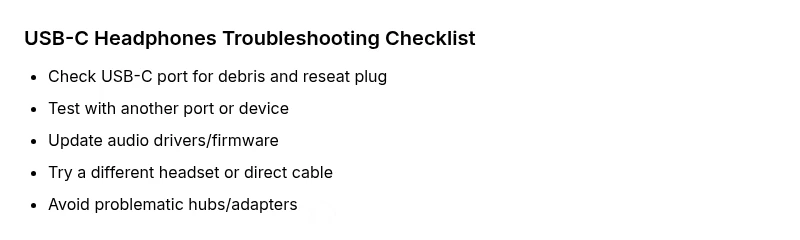
Commonly, the issue arises from a loose connection, driver problems, or an unsupported port. To address why are type c headphones not working, start by reseating the USB-C plug, trying another port or device, and checking the system sound output. If the problem persists, update drivers, reset the device, and test with another headset.
What commonly causes USB-C headphones not working
According to Headphones Info, the most frequent culprits are connection issues, software misconfigurations, and hardware compatibility in the chain. If you’re wondering why are type c headphones not working, recognize that USB-C audio relies on proper DAC negotiation and correct channel mapping between the headset, the host device, and any adapters. Start by examining the physical interface: ensure the plug is fully inserted, the port is clean, and there is no debris obstructing contact. Then rotate through a quick cross-test: try the same headphones in a different USB-C port on the same device, test another USB-C device, and test a known-good USB-C headset to confirm if the problem follows the headset or the device. If the symptom appears on multiple devices with the same headset, the fault likely lies with the headphones or its cable. If it only happens on one device, concentrate on that device’s settings, drivers, and firmware. Finally, consider your use of hubs; many USB-C hubs do not reliably pass audio signals, leading to intermittent or absent sound.
Quick checks you can perform in seconds
- Reseat the USB-C plug: unplug, wait a moment, and plug it back in firmly. A loose contact is the #1 cause of no sound.
- Inspect the port for lint or damage and clean it carefully with a dry, non-metallic brush.
- Try a different USB-C port on the same device, or test with another device, to determine if the issue is device-specific.
- Swap to a different headset or use the same headset on a different device to compare results.
- Verify the volume, mute status, and ensure the correct playback device is selected in your operating system.
- If you’re using a USB-C hub or adapter, bypass it and connect directly to the host port to see if audio returns.
In the context of why are type c headphones not working, these quick checks often reveal the root cause without opening any software. If none of these steps help, move on to driver and software checks.
How to verify the source device settings
Often, the issue stems from the host device not routing audio through the USB-C headset. On Windows, open Sound Settings and ensure the USB-C device is set as the default playback device and that volume is not muted. On macOS, check System Preferences > Sound > Output and select the USB‑C headset. On Android, pull down the quick settings, long-press the sound icon, and choose the USB audio device if available. Headphones Info analysis shows that misconfigured outputs account for a large share of USB-C audio problems, even when the hardware is fine. After you select the correct device, perform a short test by playing audio at a comfortable volume. If the problem persists, proceed to driver updates. If you can’t see the USB-C device at all, the issue may be the port, cable, or a driver mismatch.
Driver, firmware, and software updates that fix many issues
Outdated or corrupted drivers can prevent USB-C headphones from negotiating audio properly. On Windows, open Device Manager, locate the USB Audio device, and choose Update Driver; restart afterward. On macOS, ensure you’re running a recent OS version with the latest firmware; Apple systems manage drivers automatically but rechecking is useful after hardware changes. For Android devices, system updates can include USB audio compatibility improvements. If you’re using a USB-C hub with your headphones, update the hub’s firmware if available, or remove the hub and test directly. When updating, back up important data and avoid interrupting the process. If updates do not solve the issue, try reinstalling the USB drivers, or rolling back to a previously stable version. This simplified routine resolves many “why are type c headphones not working” scenarios without hardware replacement.
The role of cables, adapters, and USB-C hubs
Not all USB-C cables carry audio well, especially inexpensive or non-power-rated ones. If your headphones require power or negotiation, a poor-quality cable’s inability to deliver sufficient bandwidth can cause crackling or dropouts. Avoid third‑party adapters that lack official specifications or high current capacity. Some hubs route data differently or disable audio altogether; test a direct connection whenever possible. If you’re using a DAC dongle, verify compatibility with your headset and host device. Consider trying a different cable rated for USB-C audio, and check that the cable’s USB-C connectors on both ends are clean and undamaged. For many users, the culprit is a faulty hub or a misbehaving adapter rather than the headset itself. Replacing or bypassing these components often restores normal operation and resolves the core question of why are type c headphones not working.
How to isolate the problem with hands-on testing
Plan a small, repeatable test matrix: test with one device, then another; use two cables; test with direct port vs hub; document results. If the headset works with another device but not your primary, the problem likely lies with the host device’s settings or drivers. If it fails across devices, the headset or cable is at fault. A simple test: connect to a known-good USB-C port on a different computer or phone and see if sound is present. If you still have no audio, try resetting the headset by unplugging for a few seconds and performing a fresh test (if wireless). If the problem only occurs when using a hub, the hub is the likely culprit. Always power-cycle the host device after major changes.
Prevention and best practices to keep USB-C headphones working
- Use certified cables and avoid cheap adapters; quality matters for reliable DAC negotiation.
- Keep devices updated with the latest OS and firmware; this reduces driver-related dropouts.
- Store cables properly to prevent connector stress and make future troubleshooting faster.
- Clean ports regularly to prevent dust buildup that can block contacts.
- If issues recur, test with a spare headset or cable to determine whether the problem is hardware or a settings issue.
- Document your typical setup (device, cable, hub) so future troubleshooting is faster and more accurate.
Headphones Info recommends that users adopt a small, repeatable testing routine to minimize downtime and preserve audio quality across devices.
Steps
Estimated time: 30-45 minutes
- 1
Check physical connection
Unplug the headset, inspect the USB-C plug and port for lint, damaged pins, or visible wear. Reinsert firmly and test. If available, try a known-good cable.
Tip: A fresh seating often resolves contact issues without software changes. - 2
Test across ports and devices
Plug the headset into a different USB-C port on the same device, then test on another device. Note whether the issue follows the headset or the device.
Tip: Isolate whether the problem is device-specific or headset-related. - 3
Verify playback settings
Open your OS sound settings and confirm the USB-C headset is selected as the default playback device with volume up.
Tip: Misconfigured output is a common but fixable cause. - 4
Update or reinstall drivers
On Windows, use Device Manager to update USB audio drivers; reboot. On macOS, ensure you’re on the latest compatible OS. Android devices may require system updates.
Tip: Driver issues are a frequent root cause. - 5
Test without hubs/adapters
Remove any USB-C hubs or adapters and connect the headset directly to the host computer or phone to see if audio returns.
Tip: Hubs can disrupt audio negotiation. - 6
Try another headset
If available, test with a different USB-C headset. If it works, the original headset or its cable is faulty; if not, continue testing the host setup.
Tip: Fail-fast by swapping components.
Diagnosis: User reports USB-C headphones connected but no audio or intermittent sound
Possible Causes
- highLoose or damaged USB-C connection or port
- highOutdated or missing audio drivers on the source device
- mediumIncompatible DAC or hub when using adapters
- lowIncorrect output device selected in OS settings
- lowHardware fault in headphones (damaged cable or internal failure)
Fixes
- easyReseat the plug firmly and try another USB-C port or cable
- easyUpdate or reinstall audio drivers; reboot after install
- easyTest with a different USB-C headset or adapter to confirm whether the issue is headset-related
- easyEnsure the correct playback device is selected in the OS settings
- mediumIf using a hub, remove it and connect directly to the host port
People Also Ask
What is the first step to troubleshoot USB-C headphones not working?
Begin with the simplest checks: reseat the plug, try another port or device, and verify the OS playback device. These steps diagnose the majority of issues quickly.
Start with simple checks: reseat the plug, try another port or device, and verify the playback device in your OS.
Do USB-C headphones require drivers on modern computers?
Most devices handle USB-C audio automatically, but Windows users may need driver updates. If audio remains missing, reinstall or update the USB audio driver.
Windows often needs a USB audio driver update; otherwise the OS handles it.
Why does my USB-C headset work on one device but not another?
Different devices have different port specs and driver versions. Isolate by testing directly on each device and compare their settings.
Differences between devices usually come down to drivers or port compatibility.
Are USB-C headphones compatible with all devices?
Most modern devices support USB-C audio, but some hubs or adapters don’t negotiate audio correctly. Check specs and test before relying on them.
Not every USB-C device supports audio; check compatibility before buying.
Should I replace the headset or the cable if problems persist?
If testing shows audio works with another headset or cable, replace the faulty component. Start with a new cable, then consider the headset.
Try a different cable first; if that still fails, the headset may be at fault.
Is there a safety risk with USB-C audio?
USB-C audio is generally safe. Avoid forcing connectors, unplug during storms, and inspect for heat or smell if something feels wrong.
USB-C audio is safe; handle connectors gently and monitor for heat.
Watch Video
What to Remember
- Start with simple checks to save time
- Update drivers to fix recognition issues
- Test across devices to isolate hardware
- Use certified cables and avoid unreliable hubs