How to Pair Bose QC Ultra Headphones: A Complete Guide
Learn how to pair your Bose QC Ultra headphones with Android, iOS, Windows, or Mac devices. This comprehensive guide covers pairing modes, multipoint setup, troubleshooting, and best practices from Headphones Info for reliable wireless audio.


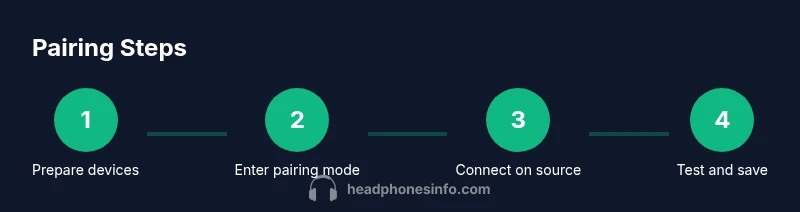
Pair Bose QC Ultra headphones with Bluetooth devices by entering pairing mode, enabling Bluetooth on the source device, selecting the Bose QC Ultra from the available devices, and confirming the connection. This works with Android, iOS, Windows, and macOS, with firmware updates if needed. If issues arise, toggle Bluetooth off/on and retry.
Quick Setup for Bose QC Ultra Pairing
According to Headphones Info, pairing Bose QC Ultra headphones with Bluetooth devices is straightforward when you have a charged headset, a Bluetooth-enabled source, and a nearby environment free of interference. In this section we set the stage for reliable connections by clarifying prerequisites, how to enter pairing mode, and what to expect during the first connection. With the QC Ultra’s multipoint capabilities, you can pair with multiple devices and switch between them without repeating the full setup, though the connection to each device will still require initial approval. The guidance here emphasizes consistency: keep devices within range, check for firmware updates, and verify Bluetooth compatibility. If you follow these steps, you’ll be ready to enjoy wireless audio quickly, whether you’re connecting to a phone, tablet, laptop, or desktop computer.
Entering Pairing Mode on the QC Ultra
Power on the headphones and locate the Bluetooth button on the right earcup. Press and hold the Bluetooth button until you hear a pairing prompt and see the LED indicator begin blinking in a distinct pattern. Release the button once pairing mode is active; the headset will remain discoverable for a limited time. On your source device, ensure Bluetooth is enabled and set to discoverable. The Bose QC Ultra should appear under available devices. This phase is the most crucial step to establish a link before any streaming or calls.
Pairing with Android and iOS Devices
On an iPhone or Android device, open Settings > Bluetooth, then turn Bluetooth on and scan for new devices. Tap the Bose QC Ultra from the list to pair; you may be prompted to confirm a pairing request or enter a passcode (usually not required). Once connected, you should see “Connected” and can start playback immediately. For best results, ensure the device OS and Bluetooth are up to date, and try pairing with one device first before attempting multipoint pairing.
Pairing with Windows and macOS Computers
Windows and macOS manage Bluetooth similarly but with different UI flows. On Windows, go to Settings > Bluetooth & devices, click Add device, and select Bluetooth; choose Bose QC Ultra when it appears. On macOS, open System Settings > Bluetooth and click Connect next to Bose QC Ultra. After pairing, test audio in your media player and system sound preferences to confirm correct output. If you encounter issues, restarting the Bluetooth service or rebooting the computer often resolves most conflicts.
Multipoint Pairing and Device Priorities
The QC Ultra supports multipoint pairing, allowing connections to two devices simultaneously. For smooth switching, pair both devices in advance, then select the preferred source for audio. Some apps or games may retake control of audio when active; manually reselect Bose QC Ultra as the audio output if needed. Remember that certain devices may limit simultaneous use or switch automatically when a higher-priority device starts playing.
Firmware Updates and Troubleshooting Basics
Firmware updates can improve pairing stability and compatibility. Check the Bose Music app or Bose support site for available updates, and install them when prompted. If pairing fails, try a simple reset: remove the headset from the source device’s Bluetooth list, turn Bluetooth off and back on, re-enter pairing mode, and repair. If problems persist, reset the headphones to factory settings and re-pair from scratch as a last resort.
Wired vs Wireless: When to Use Each Option
While Bluetooth is convenient, there are scenarios where wired use is beneficial—no battery drain, zero latency on some devices, and stable audio when Bluetooth interference is present. The QC Ultra supports a wired connection via USB-C to some devices; check your device’s compatibility and audio settings. For critical listening or gaming, a wired connection can provide more consistent performance, but Bluetooth remains excellent for everyday listening and travel.
Tools & Materials
- Fully charged Bose QC Ultra headphones(Charge to full to prevent interruptions during pairing)
- Bluetooth-enabled source device (phone, tablet, or computer)(Ensure Bluetooth is on and the device is within range during pairing)
- USB-C charging cable(Useful if the headphones run low during a long setup or testing session)
- Secondary device for multipoint testing(Optional for testing switching between devices)
Steps
Estimated time: 15-25 minutes
- 1
Prepare the headphones and source device
Ensure the QC Ultra are charged and powered on. Keep the source device within about 3-5 meters and have Bluetooth enabled so it can discover new devices. This prepares both sides for a smooth pairing flow and minimizes mid-connection dropouts.
Tip: Have both devices close and in a stable environment free from wireless interference. - 2
Enter pairing mode on the QC Ultra
Power on the headphones and press and hold the Bluetooth button until you hear the pairing cue and see the LED indicator pattern indicating discoverability. Release once the mode is active. This makes the headset visible to your source device.
Tip: If the LED pattern isn’t clear, repeat the step or consult the user manual for the exact indicator sequence. - 3
Enable Bluetooth on the source device
Open the Bluetooth settings on your phone, tablet, or computer and turn Bluetooth on. Ensure the device is scanning for new devices so the QC Ultra can appear in the list of available devices.
Tip: If you don’t see the headphones, toggle Bluetooth off and on or refresh the scan. - 4
Select Bose QC Ultra from the device list
In the list of available devices, tap or click on Bose QC Ultra to pair. If prompted, confirm pairing or enter a passcode (typically not required).
Tip: If multiple Bose devices appear, verify you choose the exact model (QC Ultra) to avoid cross-pairing. - 5
Complete pairing and confirm connection
Wait for the device to confirm a successful connection. You may hear a pairing complete message or see the status change to 'Connected'. Ensure audio output is set to the QC Ultra in sound settings.
Tip: Test a quick audio clip to confirm both playback and microphone controls work. - 6
Test audio and controls
Play music or a video to verify sound output and test volume and playback controls. Check microphone input if you plan to use calls or voice assistants.
Tip: If there’s an issue with sound, check the media playback device selection and ensure the headset is the default audio device. - 7
Add additional devices and switch between them
If you plan to use multipoint, pair a second device and practice switching playback between devices. Some apps may require you to reselect the QC Ultra as the audio output.
Tip: Use quick switching by pausing on one device and resuming on the other to migrate audio seamlessly. - 8
Troubleshoot if pairing fails
If pairing fails, forget the headset on the source device, reboot both devices, re-enter pairing mode, and attempt pairing again. If needed, perform a factory reset on the QC Ultra and re-pair from scratch.
Tip: Factory reset is a last resort; it wipes pairing history and settings, so re-pair all devices afterward.
People Also Ask
How do I enter pairing mode on the Bose QC Ultra?
To enter pairing mode, ensure the headphones are powered on, then press and hold the Bluetooth button until the LED indicates pairing visibility. Release when the device is discoverable. This allows your source device to detect the QC Ultra.
Enter pairing mode by holding the Bluetooth button until you see the headphones become discoverable. Then select Bose QC Ultra on your device to pair.
Why can't I see Bose QC Ultra on my phone's Bluetooth list?
Ensure the headphones are in pairing mode and nearby. Turn Bluetooth off and back on on the source device, or restart the source device to refresh the scan. If needed, forget old Bose devices from the list and retry.
Make sure pairing mode is active, then rescan. If it still doesn’t appear, toggle Bluetooth or restart the device and try again.
Can I pair Bose QC Ultra with multiple devices at the same time?
Yes, the QC Ultra supports multipoint pairing. Pair a second device and switch audio output as needed. Some apps may auto-switch, so you might need to manually select the headset as the audio output when playback changes.
Yes, you can pair two devices; just switch the audio output to Bose QC Ultra as needed.
Will firmware updates affect pairing?
Firmware updates can improve pairing stability and compatibility. It’s a good practice to install updates via the Bose Music app or official site before pairing with new devices.
Firmware updates can improve compatibility; keep the headset up to date before pairing.
Is there a difference in pairing with Android vs iOS?
The basic pairing process is the same across Android and iOS. Differences may appear in how quickly devices re-establish connections after being out of range or in how multipoint is managed between platforms.
Pairing steps are similar on Android and iOS; multipoint behavior may vary slightly by platform.
Watch Video
What to Remember
- Prepare devices and battery levels before pairing
- Enter pairing mode correctly on QC Ultra
- Pair with one device first, then add a second for multipoint
- Update firmware for best stability
- Test audio output and controls after pairing