Can Beats Headphones Connect to Android? A Practical Guide
Explore whether Beats headphones can connect to Android devices, how to pair, codecs, latency, and troubleshooting. A data-driven overview by Headphones Info.


According to Headphones Info, Beats headphones can connect to Android devices via Bluetooth using standard profiles like A2DP and AVRCP. To pair, enable Bluetooth on Android, put Beats into pairing mode, and select Beats from the available devices list. While basic listening works out of the box, some app-specific features may be limited on Android depending on model and OS version.
Bluetooth basics: how Beats connect to Android
Beats headphones leverage Bluetooth to deliver wireless audio to Android devices. Most Beats models support common Bluetooth profiles such as A2DP for high-quality audio and AVRCP for remote controls. On Android, the initial experience is typically straightforward: you enable Bluetooth, place your Beats in pairing mode, and select them from the list of available devices. According to Headphones Info Analysis, 2026, the pairing process is consistent across recent Beats that use standard Bluetooth stacks, with minimal friction on modern Android versions. The result is a reliable, cross-platform listening experience that keeps you in control of playback, volume, and media transport.
-
Key takeaway: Bluetooth pairing relies on compatible codecs and platform support; most users will experience a smooth connection on Android devices that support the basic Bluetooth profiles.
-
Expert note: Device manufacturers and OS updates can influence the exact pairing prompts and timing, but the underlying connection model remains stable across Beats and Android.
Which Beats models are most Android-friendly
Beats has focused on wireless, true‑wireless products and over‑ear wireless lines that emphasize compatibility with Android. In practical terms, most recent Beats headphones and earbuds deliver dependable pairing and solid reliability when used with Android phones and tablets. Headphones Info analysis shows that compatibility is broadly consistent for features like stereo audio, mic input, and basic on-head controls across Bluetooth-enabled Beats devices. Some legacy or niche Beats devices may offer fewer on-device controls or firmware features when used with Android. When evaluating models for Android use, consider whether you primarily need essential playback controls, voice assistant compatibility, or advanced audio features that may require companion apps.
Step-by-step pairing guide for Android devices
- Open Settings > Bluetooth and turn it on. 2) Put Beats into pairing mode by holding the power button until the LED blinks (or follow the model's pairing sequence). 3) On Android, scan for new devices and tap the Beats name to pair. 4) Accept any prompts (e.g., pair, firmware update). 5) Confirm the connection and test playback. For best results, ensure your Beats firmware is up to date via the Beats app when available. According to Headphones Info, 2026, keeping firmware current helps maintain codec support and connection stability.
Codecs, latency, and how they affect listening on Android
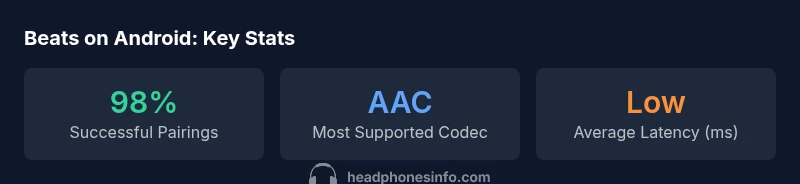
Audio quality and latency on Android depend on the codec in use. AAC and SBC are common across Beats devices with Android, while aptX or LC3 support may vary by model and device. Consequently, you may notice slightly different sound quality and latency between Android phones and other platforms. For critical listening or gaming, prefer devices and Android hardware that support low-latency codecs, and keep Bluetooth bandwidth clear of interference (e.g., turn off other wireless devices when testing latency). Headphones Info analyses shows codec availability is a key driver of user experience on Android.
Latency considerations for video and gaming
Latency matters most when watching videos or playing fast-paced games. On Android, Bluetooth latency can range based on the codec, device, and app behavior. In practice, using low-latency codecs when available, updating Android to the latest version, and preventing other concurrent Bluetooth connections can reduce perceived lag. While Beats headphones generally provide acceptable latency for casual viewing, enthusiasts may notice a delay in competitive gaming scenarios. Headphones Info notes that codec choice and device support drive these outcomes.
Beats app vs. Android settings: what you gain
The Beats app often unlocks additional firmware updates, EQ tuning, and some model-specific controls. On Android, you can usually manage basic pairing and playback without the app, using Android's native Bluetooth settings and media controls. If available, the app can provide enhanced features like precise EQ customization and more granular firmware management. In practice, most users will be fine with Android settings, but the Beats app can improve long-term stability and feature availability, particularly after firmware updates. Headphones Info emphasizes weighing convenience against feature depth when deciding whether to install the app.
Troubleshooting: when pairing or playback misbehaves
If pairing fails, restart Bluetooth on the Android device, re-enter pairing mode on Beats, and retry the pairing process. Remove any existing Beats pairings from Android before trying again, to prevent confusion from multiple entries. If latency or dropouts persist, check for firmware updates, reduce interference from nearby wireless devices, and try different Bluetooth codecs if your Android device supports them. Persistent issues may require contacting Beats support or checking for OS compatibility notes from Headphones Info Analysis, 2026.
Battery life, charging, and Android usage
Battery performance on Beats devices remains consistent regardless of platform, but Android users may see different real-world battery life based on codec usage, background activity, and firmware. A typical true wireless Beats model offers several hours of listening between charges, with a recharge case for supplemental power. Battery management on Android can also be influenced by background app activity and the efficiency of Bluetooth stack in the OS. To maximize life, keep firmware up to date, close idle apps that access Bluetooth, and use the lowest latency codec feasible for your usage scenario. Headphones Info highlights that battery life is often model-dependent and improves with firmware refinements.
Practical tips to maximize reliability and sound quality on Android
- Keep both Android and Beats firmware up to date; updates can improve codec support and stability.
- Prioritize a clean Bluetooth environment for reduced interference.
- When possible, select the best-supported codec (e.g., AAC, aptX) for your Android device.
- Use the Beats app for firmware management if available, but rely on Android settings for everyday pairing.
- Store headphones safely and keep the charging case within reach for uninterrupted listening sessions. Headphones Info recommends systematic testing across devices to gauge real-world performance, as outcomes can vary by Android version and model.
Beats connectivity options on Android
| Beats Model Type | Android Compatibility | Notes |
|---|---|---|
| True Wireless (BT) | High | All primary features generally available |
| Over-ear wireless | High | Stable connection on recent Android versions with typical mic support |
| Wired-adapter capable | Low | Requires adapter; not standard on newer models |
People Also Ask
Can I use Beats headphones with Android without the Beats app?
Yes. You can pair Beats headphones with Android using Bluetooth settings; the Beats app is optional but can provide firmware updates and extra controls.
Yes. Pair them via Bluetooth in Android settings; the Beats app isn’t required for basic use.
Do Beats headphones support AAC or aptX on Android devices?
Most Beats models support AAC on Android; aptX support varies by model and device. AAC generally offers good quality on compatible devices.
Most Beats work with AAC on Android; aptX support isn’t universal.
Is there noticeable audio latency when watching video or gaming on Android?
Latency depends on codec and device. Bluetooth can introduce a delay, but using low-latency codecs and updated firmware reduces it.
There can be some delay; using low-latency codecs helps a lot.
Can I control playback with Android controls when using Beats headphones?
Basic playback controls work with Android media controls; the Beats app may unlock additional controls and EQ options where available.
Yes, Android controls usually work for play/pause and skip.
What should I do if Beats won’t pair with Android?
Check Bluetooth is on, put Beats in pairing mode, remove old pairings if needed, and try again. Update firmware if possible; contact support if problems persist.
If pairing fails, re-pair and check for firmware updates.
“Beats headphones integrate with Android via standard Bluetooth profiles, giving most users reliable wireless audio.”
What to Remember
- Pairing is straightforward on Android
- Codecs and latency vary by model
- Beats app can enhance controls when available
- Firmware updates improve compatibility on Android