How to Connect Beats Headphones: Quick Setup for All Devices
Learn how to connect Beats headphones to iPhone, Android, and PC. This step-by-step guide covers Bluetooth pairing, wired connections, troubleshooting, and tips to get the best audio.


Why connecting Beats headphones matters and what you gain with proper setup
Connecting Beats headphones correctly unlocks stable audio, reliable device switching, and longer battery life. Whether you plan to watch videos on a laptop, take calls on a smartphone, or game on a PC, a clean pairing flow reduces dropouts and latency. The Headphones Info team emphasizes that following official pairing steps consistently yields the best results across Beats Studio Buds, Powerbeats Pro, and Solo Pro models. In this block we’ll explore the core benefits you can expect after you pair your devices, and how to maximize performance through firmware checks and device-specific settings.
When you pair once and save the device as a trusted connection, future pairings are faster and less error prone. The outcome is a smoother audio experience with fewer interruptions, and the ability to switch between devices without repeating the entire setup process. If you’re preparing for a long listening session, a quick verify that both volume and accessibility features are configured properly will prevent surprises mid-use.
Compatibility across Beats models and what this means for you
Beats headphones come in several flavors, and each supports a mix of wireless and wired connections. Studio Buds and Powerbeats Pro excel in wireless versatility, while some models offer a wired 3.5 mm or USB-C option for compatibility when Bluetooth is not ideal. The core idea remains the same: ensure your device recognizes the headset, confirm the correct output, and adjust any device specific settings for an optimal listening experience. This section helps you map model differences to practical usage in daily life, so you can choose the best connection method for each scenario.
Wired vs wireless: choosing the right option for your activity
Wireless Bluetooth is the default for most Beats headphones, offering convenience and freedom from cables. However, wired connections still have a place when latency matters, battery life is critical, or Bluetooth performance is unstable in your environment. If your Beats model supports a 3.5 mm input or a USB-C wired option, you can bypass wireless pairing and enjoy direct audio with minimal delay. Consider your activity—gaming, video watching, or conference calls—and pick the method that delivers the most consistent results.
Preparing your devices: charge, firmware, and settings before pairing
Before attempting to pair, ensure the headphones are charged and ready. Update the headphones firmware if an update is available, as newer firmware often improves connectivity and latency. On the source device, enable Bluetooth, disable airplane mode, and bring the two devices within close proximity. If you previously paired Beats with other devices, consider removing those old connections to reduce confusion during pairing and improve discovery time.
A clean start helps prevent mismatches in device profiles and ensures you receive the correct audio routing signals once connected.
Step-by-step Bluetooth pairing flow: a clear, repeatable process
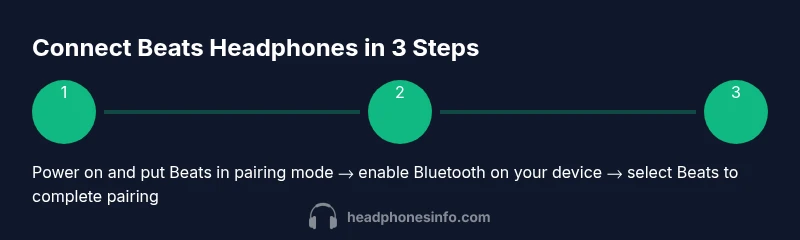
- Power on Beats and enable pairing mode. 2) Open Bluetooth settings on your source device and ensure Bluetooth is turned on. 3) Scan for new devices and select Beats headphones from the list. 4) Confirm any on screen prompts to pair. 5) Verify connection status and test audio playback. 6) Set Beats as the default audio output if needed. 7) If you’re using a laptop or PC, check the output device in the sound settings. 8) For multiple devices, repeat the pairing process as needed. 9) If you don’t hear sound, retry or restart both devices. 10) Always keep the headphones within a few meters of the source while pairing.
tip1 — Prepare both devices in the same room to avoid interference.
Troubleshooting common pairing issues and quick fixes
If Beats don’t appear in the Bluetooth list, ensure the headphones are in pairing mode and charged. Move closer to the source device, turn Bluetooth off and on again, and remove any stale connections before retrying. A simple restart of the source device can also help resolve temporary software hiccups. If problems persist, reset the headphones according to your model’s instructions and attempt to pair again.
Be mindful of interference from Wi‑Fi networks and other Bluetooth devices in crowded spaces, which can cause dropouts or slower connection times. In most cases, a fresh pairing session resolves the issue quickly.