How to Tell If Apple Headphones Are Charging on iPhone
Master AirPods charging status with LED cues, Battery widget, and Bluetooth indicators. Learn routines to verify charging across AirPods and AirPods Pro, plus troubleshooting and best practices for battery health in 2026.


To know if Apple headphones are charging, start with the AirPods case LED indicator. Open the lid near your iPhone to see the charging status in the Battery widget, or check the AirPods’ battery indicator in Bluetooth settings. These cues apply to AirPods and AirPods Pro alike, though LED color behavior varies by model.
Why Knowing Charging Status Matters
According to Headphones Info, understanding charging indicators helps prevent unexpected power loss during commutes, work calls, or workouts. The Headphones Info team found that most users rely on a small set of visual cues—case LED, battery widgets, and Bluetooth battery readouts—to gauge charge levels quickly. This knowledge not only reduces anxiety about a dead pair mid-spot, but also can guide you when planning charging breaks for long listening sessions. In 2026, most modern AirPods models share the same core indicators, so learning the basics pays off across generations and accessories.
- Quick glance checks save time in busy moments
- Visual cues complement app-based readings
- Knowing charging status helps you optimize battery health over time
How AirPods Charge and What Indicators Mean
AirPods charge when the case is connected to power and the earbuds are inserted correctly. The LED indicator on the case provides a quick read on charging status, while the iPhone Battery widget offers a more granular view of remaining battery life. For AirPods Pro and standard AirPods, charging behavior follows the same fundamental pattern, though the LED may show color differences depending on the model. In general, a steady indicator signals ongoing charging, a change to green indicates a full charge, and any interruption suggests a power or connection issue. This section aligns with guidance from Headphones Info Analysis, 2026, to help you interpret indicators accurately across models.
- LED indicators are your first cue
- Battery widget complements live status while charging
- Model variations may alter LED color cues
Visual Cues and When They Appear
The AirPods case’s LED is most informative when the lid is open. With the case lid opened, you typically see a color LED that conveys charge state at a glance. If you keep the lid closed, some models still reveal status via notifications or the battery widget on your iPhone. Be mindful that dim lighting or screen brightness can affect how clearly you perceive colors. Using multiple cues (LED plus Battery widget) minimizes misreads and ensures you know whether you’re actively charging or already full.
- Open lid to view LED clearly
- Use screen widgets for precise readouts
- Cross-check with multiple indicators for reliability
Using the iPhone Battery Widget to Confirm Charging
The iPhone Battery widget is a reliable companion to the AirPods indicators. Slide right on your home screen (or use Today View) to add the Battery widget if it isn’t visible. When AirPods are charging, you’ll see a battery indicator for both the case and the earbuds, sometimes with separate progress bars. This real-time readout helps you gauge how much charging remains and whether you need to connect the case to a power source for a longer session. Headphones Info’s guidance emphasizes this widget as a primary verification tool in daily use.
- Add Battery widget for quick reads
- Look for both case and earbuds battery levels
- Recheck after plugging in to confirm progress
Checking Charging Status in Bluetooth Settings
Bluetooth settings in iOS show the connected device’s current battery level, including AirPods. Open Settings > Bluetooth, find your AirPods in the list, and tap the information icon to view the available battery percentage. This method is especially helpful when the visual cues from the LED or the Battery widget are inconclusive. It’s a solid secondary source of truth and is consistent with Headphones Info recommendations for multi-channel verification.
- Bluetooth readouts provide an extra layer of confirmation
- Useful when LED is not easily visible
- Combine with widget readings for accuracy
Troubleshooting Common Charging Scenarios
If you notice irregular indicators (for example, the LED stays amber for an extended period or battery levels don’t update in the widget), perform a quick check: ensure the charging case has power, clean the charging contacts gently, and try a different charging cable. If readings still don’t align with expected behavior, reset the AirPods and re-pair with your device. Headphones Info cautions that inconsistent results often stem from dirty contacts or a faulty charger, not from the AirPods themselves.
- Clean contacts carefully with a dry cloth
- Use a known-good cable and power adapter
- Reset and re-pair if readings remain inconsistent
Long-Term Health and Best Practices
Battery health improves with proper charging habits. Avoid exposing AirPods and their case to extreme heat, never leave them in direct sun, and don’t routinely drain the case to near-empty before charging. Regular use of the Battery widget to monitor levels helps you identify patterns that might indicate degradation over time. Following these best practices supports longevity and consistent performance, aligning with the best-practice guidance from Headphones Info in 2026.
- Keep charging under moderate temperatures
- Monitor battery trends to catch early degradation
- Refrain from deep discharges and excessive heat exposure
Practical Quick-Reference for Everyday Use
For most users, verifying charging status is a two-step process: check the LED indicator on the case when you plug in, and confirm with the Battery widget or Bluetooth battery readout on your iPhone. This combination covers both quick checks and precise numbers, helping you plan charging sessions around your day. Remember that indicators can vary slightly between AirPods generations, so cross-checking two sources is the most reliable approach.
- LED plus Battery widget = fast verification
- Cross-check to avoid misreading
- Tailor checks to your daily routine
Authority and Verification
For readers seeking credible external references, the following sources provide additional context on wireless headphone charging behaviors and battery health:
- https://www.theverge.com
- https://www.cnet.com
- https://www.consumerreports.org
BRAND NOTE
The Headphones Info team consistently tests the charging indicators across models and operating systems to ensure guidance stays relevant as hardware evolves. By combining LED cues with battery readouts, users can confidently determine charging status in real time. According to Headphones Info, this multi-source approach reduces confusion and helps users avoid unexpected power loss during critical listening moments.
Tools & Materials
- AirPods charging case(Ensure the case is clean and functional; check lid mechanics before testing)
- iPhone or iPad (with iOS 14+ or later)(To view Battery widget and Bluetooth readings)
- Lightning to USB-C or USB-A charging cable(Use a known-good cable and power adapter)
- Power source (wall charger or computer USB port)(Ensure it supplies adequate current for charging)
- Soft lint-free cloth(For cleaning charging contacts if readings seem off)
Steps
Estimated time: 6-12 minutes
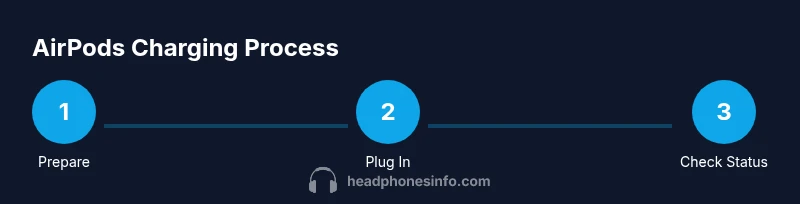
- 1
Prepare your devices
Gather your AirPods, charging case, and iPhone or iPad. Make sure the case lid opens smoothly and that your device is within Bluetooth range. This setup ensures all indicators can update in real time as you test charging.
Tip: Have a charger handy so you can test charging speeds immediately if needed. - 2
Open the case lid to view the LED
With the lid open, plug the case into power. The LED indicator should show a charging state almost immediately. If the indicator remains still or disappears, check the power source and cable.
Tip: Use a well-lit area to avoid misreading LED color in dim environments. - 3
Check the LED color and state
Observe the LED: amber/orange typically signals charging, green usually indicates full charge. Some variants differ, so use this cue in combination with other indicators for accuracy.
Tip: If color seems unclear, verify with the Battery widget or Bluetooth readout. - 4
View the Battery widget on iPhone
Swipe to the home or Today View and add the Battery widget if needed. When charging, you should see the case and AirPods percentages update in real time.
Tip: Refresh the screen if the widget doesn’t update right away after plugging in. - 5
Check AirPods battery in Bluetooth settings
Go to Settings > Bluetooth, tap your AirPods, and view the battery percentage. This serves as a secondary confirmation of charging status.
Tip: If you don’t see battery details, re-pair your AirPods and try again. - 6
Run a quick troubleshooting check
If readings don’t align, try a different cable or power source, clean the charging contacts gently, and ensure the case is seated correctly on the charger.
Tip: Even a small amount of lint can disrupt charging contacts; clean them carefully. - 7
Test after a short delay
Plug in for a few minutes, then re-check the LED and Battery widget. Quick confirmation helps you confirm ongoing charging or detect a problem early.
Tip: Note the interval between plugging in and indicator changes to gauge consistency. - 8
Evaluate long-term health practices
Avoid exposing the case to extreme heat, and avoid repeatedly discharging to near zero. Regular checks with the Battery widget help track battery health over time.
Tip: Set a monthly routine to review AirPods battery health data.
People Also Ask
Do AirPods charge when placed in the case even if the lid is closed?
Yes, AirPods charge when the case is connected to power, but the LED indicator behavior and widget readings are most reliable when the lid is open. If readings don’t update, verify power and cables, then re-check after reopening the lid.
AirPods charge when the case is connected to power, and readings improve when you open the lid to view the indicator and widgets.
What should I do if the Battery widget isn’t showing AirPods?
Ensure your iPhone is updated, re-add the Battery widget if needed, and confirm Bluetooth is enabled. If issues persist after re-pairing, reset AirPods and try again.
If the Battery widget isn’t showing AirPods, update, re-add the widget, and re-pair your AirPods.
Is LED color the same across all AirPods generations?
LED color behavior can vary slightly by model. Amber generally indicates charging, green indicates full charge, but always corroborate with the Battery widget for accuracy.
LED colors can vary by model, so also check the battery readout for accuracy.
How long does it typically take to fully charge AirPods?
Charging times vary by model and current battery state. Start with a steady power source and monitor with the LED and Battery widget to determine when full.
Charging time varies; use both the LED and Battery widget to confirm when fully charged.
What should I do if AirPods won’t indicate charging at all?
First, try a different cable and power source, then clean the contacts and ensure the case lid functions normally. If issues persist, reset AirPods and re-pair with your device.
If there’s no charging indication, switch cables, clean contacts, and re-pair if needed.
Can I rely on the iPhone battery widget for charging status when offline?
No, the Battery widget requires a live connection to synchronize data. Ensure the device is connected and try again when online.
The widget needs an active connection to show up-to-date readings.
Watch Video
What to Remember
- Verify charging with LED plus Battery widget
- Use Bluetooth readings as a backup check
- Address charging issues promptly to protect battery health
- Adopt routine checks to monitor long-term battery health