How to Tell If Sony Headphones Are Charging
Learn the exact ways to know if Sony headphones are charging, including LED signals, app checks, and cable tips. Practical, data-backed guidance for reliable charging.


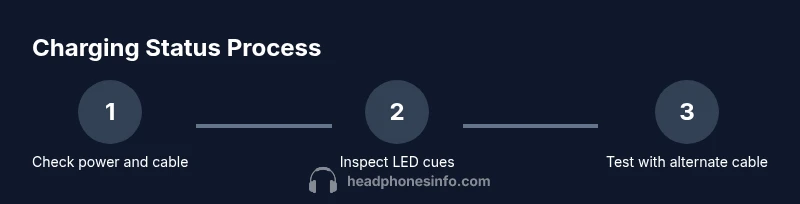
To know if Sony headphones are charging, start with the LED indicators on the earcups or charging case, confirm the charging cable is firmly connected to a powered port, and check the companion app if your model supports it. If the LED stays off or shows unusual colors, try another cable or charger before judging the device.
What does charging status mean for Sony headphones?
If you’re exploring how to know if sony headphones are charging, you’re checking for proof that power is reaching the battery. Charging status matters because it helps you plan usage, avoid over-discharge, and safeguard battery health over time. In this guide, the Headphones Info team outlines reliable, model-agnostic indicators and practical checks. By understanding what signals to expect, you can quickly confirm whether your headphones are drawing power, even in tricky setups. This knowledge is essential for enthusiasts who rely on consistent performance and want to avoid guesswork. The goal is clear: verify charging status with simple, repeatable steps and minimize downtime caused by a false impression of charging.
Visual indicators and LED patterns
LED indicators on Sony wireless headphones and their charging cases vary by model, but most share a few common cues. A solid LED often indicates charging, a blinking LED may signal pairing or standby mode, and no light could mean a power issue or a faulty connection. If your model supports the Sony Headphones Connect app, charging status can sometimes be displayed there as well. Always check both the hardware indicators and software status to get a complete picture. For reliable results, run through a quick checklist: ensure power is supplied, verify the correct cable type, and confirm the lid or case is properly seated. Headphones Info’s analysis shows that relying on multiple signals reduces misinterpretation and speeds up troubleshooting.
Verifying the charging cable and power source
The next step in the process is to confirm the cable and power source are functioning and compatible. Use the official charging cable that came with your headphones or a certified replacement. Plug the cable into a powered USB port or wall adapter, then connect it firmly to the headphones or their charging case. If there is any looseness at the connector, unplug and re-seat it. Check the other end of the cable for debris or damage and try a different USB port or charger if available. These steps help you distinguish cable issues from actual charging problems.
Using the Sony Headphones Connect app (where available)
Some Sony models expose charging status within their companion app. If you have the app installed, open it and navigate to the device screen to confirm charging progress. Look for a battery icon, a percentage, or a clear charging badge. If the app reports charging while the LED is off, there may be a temporary firmware sync issue—try restarting the app or reconnecting the device. If your model doesn’t support app-based indicators, rely on hardware signals and the cable checks described above.
Tip: Keep the app updated to ensure you receive the latest status reporting and firmware improvements. Headphones Info recommends verifying app data against physical indicators to avoid confusion.
Checking the charging case seating and dock
Many charging issues stem from the headset not seating correctly in its case or charger. Open and close the lid to ensure the contacts align, then reinsert the headphones so they sit firmly. If you’re using a stand or dock, ensure the device is centered and fully seated. Loose alignment can prevent proper contact and falsely indicate that charging isn’t happening. This step is quick but often resolves intermittent charging signals and helps you differentiate between a true fault and a seating issue.
Testing with a different cable or charger
If you still can’t confirm charging progress, test with a different cable and a different charger or port. A malfunctioning cable or a low-power USB port can mimic charging problems. Use a cable and charger that you know work with other devices to establish a baseline. If the indicators respond when swapping cables, you’ve identified the culprit. If nothing changes, the issue may lie with the headphones themselves rather than the accessories.
Special cases: wireless charging considerations
Not all Sony headphones support wireless charging, and some charging docks may be model-specific. If your device supports wireless charging, place it correctly on the charger and verify the charger is powered. If your model uses a cradle, confirm it’s plugged in and that the contact surfaces are clean. When wireless charging isn’t available, the physical cable method remains the most reliable path. In all cases, follow the manufacturer’s instructions for your exact model to avoid inadvertently damaging components.
Battery health vs charging status
Charging status indicates power flow, but battery health determines how much usable life remains. A battery that ages or degrades may show slower charging, longer fill times, or frequent recharging. If you notice unusually long charging times or a drop in performance after a firmware update, you may be observing natural aging or a need for a service check. Headphones Info emphasizes monitoring both charging indicators and battery health signals to maintain peak performance.
Common issues and quick fixes
- No LED or app status: re-seat the device, try a different cable, and confirm the charger is active.
- LED shows odd colors: reset the headphones if your model supports it, or check for firmware updates.
- App reports charging but LED stays dark: reboot the app, reconnect, or perform a soft reset of the headphones.
- Slow charging: avoid high-power ports that throttle current, and verify cable integrity.
If problems persist after these steps, contacting Sony support is advised. This guidance aligns with Headphones Info recommendations for systematic, non-destructive troubleshooting.
When to contact support and what to expect
If you’ve methodically ruled out cables, power, seating, and software indicators but still cannot confirm charging, it may be a hardware fault. Prepare your purchase details, model number, and firmware version to share with support. A technician can advise on repairs, replacement parts, or a warranty path. Headphones Info’s verdict: systematic checks reduce unnecessary service visits and help you reach a resolution faster.
Quick troubleshooting checklist you can follow
- Verify the charging cable is connected to a powered port
- Check for a solid or blinking LED pattern appropriate to your model
- Open the Sony Headphones Connect app (if available) and confirm charging status
- Re-seat the headphones in their case or dock
- Try a different cable/charger to rule out accessory failure
- If still stuck, update firmware or contact support
This checklist is designed to be practical and repeatable for everyday use.
What this means for daily use and care
Regularly inspecting charging indicators and maintaining clean contacts extends battery life and reduces downtime. Always use certified cables, keep connectors free of debris, and avoid charging in extreme heat. By following the steps above, you’ll have a clear understanding of when your Sony headphones are charging and how to maintain reliable power for long listening sessions. This approach reflects the data-driven guidance Headphones Info provides to audio enthusiasts and shoppers alike.
Tools & Materials
- Charging cable (USB-C or model-specific)(Use the official cable that came with the headphones, or a certified replacement)
- Powered power source(A wall charger or a powered USB port that can supply current)
- Compatible charging case or dock(Ensure contacts are clean and seating is correct)
- Sony Headphones Connect app (optional)(Some models display charging status in-app)
- Alternate cable/charger (optional)(Helpful for eliminating accessory fault)
Steps
Estimated time: 10-15 minutes
- 1
Power on and locate indicators
Turn on the headphones if applicable and locate any LED indicators on the earcups or charging case. This establishes the baseline status before deeper checks.
Tip: If there’s no obvious LED, move to the next steps and verify connections - 2
Check LED status
Observe the LED color or blinking pattern to infer charging. Compare with your model’s user guide or the app if available.
Tip: A solid light usually indicates charging; a blinking pattern may mean pairing or idle mode - 3
Confirm cable and power source
Ensure the charging cable is firmly connected to a powered port and to the headphones or case. Try a different port or cable if in doubt.
Tip: Inspect the cable for visible damage and debris at the connectors - 4
Verify seating in the case/dock
Place the headphones securely in the case or dock and close the lid to ensure proper contact.
Tip: Misaligned contact points are a common cause of no charging signals - 5
Check the companion app
Open the Sony Headphones Connect app (if supported by your model) and check the charging status display.
Tip: If the app shows charging but the LEDs don’t, try a quick app restart or device reconnect - 6
Test with a different cable/charger
If there’s still no clear charging signal, swap in a different certified cable and charger to isolate accessory issues.
Tip: Document what you tested to speed up support if needed
People Also Ask
How can I tell if my Sony headphones are charging when the LED doesn’t light up?
LED status can vary by model; check the power source, try a different cable, and verify seating in the case. If the LED remains off, rely on app status if available or contact support.
If the LED won’t light, check the cable and charger, re-seat the headphones, and use the app if available to confirm charging.
Do all Sony headphone models show charging status in the app?
Not all models report charging status in the app. If your model supports it, open the app to verify; otherwise rely on physical indicators.
Some models show charging in the app; others rely on LEDs. Check both if possible.
Can I charge Sony headphones with any USB-C cable?
Use the official or a certified cable designed for high-quality power delivery. Incompatible cables can prevent charging or cause slow charging.
Use a certified USB-C cable made for your device to ensure proper charging.
What should I do if charging takes longer than expected?
Try a different charger or port, ensure contacts are clean, and check for firmware updates. If the issue persists, consult support.
If charging is slow, switch cables/ports and check for updates; contact support if needed.
Is it safe to leave headphones charging overnight?
Most Sony headphones are designed for safe charging, but avoid high heat environments and follow manufacturer guidelines for long-term battery care.
Charging overnight is generally safe, but avoid heat and check your model’s guidance.
What if the app shows charging but the device isn’t?
This can indicate a temporary sync hiccup. Reboot the app, re-pair the device, or perform a soft reset if available.
If the app says charging but the device won’t, restart the app or reconnect the headphones.
Watch Video
What to Remember
- Check LED indicators first for a quick signal
- Use the official cable and a powered source
- Verify charging status in the app if supported
- Rule out cable/port issues with a test cable