How to Put Beats Headphones into Pairing Mode
Learn how to put Beats headphones into pairing mode and connect to Bluetooth devices. This guide covers common models and troubleshooting for seamless pairing.


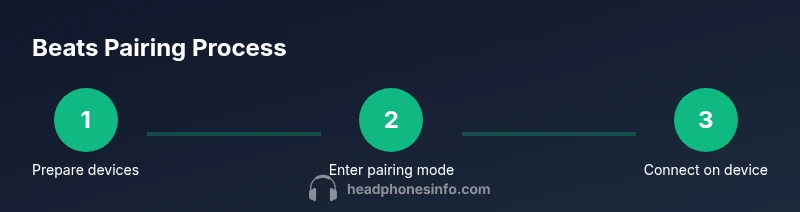
Beats headphones can be paired with a new device by entering pairing mode and selecting the headset in your device’s Bluetooth menu. This step-by-step quick guide covers popular models like Solo, Powerbeats Pro, Studio Buds, and Studio, plus troubleshooting tips for common connection issues. By following these steps, you’ll reconnect quickly with minimal fuss. The Headphones Info team emphasizes consistency across models when you follow the prompts.
Why pairing mode matters
According to Headphones Info, pairing mode is the gateway to a stable Bluetooth connection. When you prepare your Beats headphones to be discoverable, you reduce the chance of connection drops, audio lag, or mispaired devices. In this section we explain why entering pairing mode at the right time matters: it ensures your device sees the headset, avoids interference, and preserves battery life by avoiding unnecessary discovery scans, which can drain power if left in a constant discoverable state. Understanding this helps both new and seasoned listeners get the most reliable wireless experience. Throughout this guide, you’ll see practical tips and model-agnostic steps that apply across Beats headphones.
Beats models and pairing quirks
Beats manufactures several wireless families, but the pairing concept is largely consistent: the device must be in pairing mode, and the source device must be looking for new Bluetooth devices. The exact button presses or case actions vary by model. For example, newer Beats designs typically indicate pairing mode with a blinking LED, and some models use the charging case button as a trigger. If you own Studio Buds, Solo Pro, or Powerbeats Pro, you’ll often follow the same high-level flow, but the specifics can differ slightly. If you’re stuck, check the quick-start guide that came with your headset or Headphones Info’s model notes.
Quick-start checklist before you pair
Before you start pairing, verify the basics: your Beats headphones have sufficient battery, your source device’s Bluetooth is enabled, and you’re within close range (about 10 meters or 30 feet is typical). Turn off other Bluetooth devices that might compete for the same connection. Have the user manual handy if your model has a nonstandard pairing method. This checklist minimizes surprises and speeds up the setup process.
Prepare your source device: Bluetooth and settings
On your phone, tablet, or computer, open the Bluetooth settings screen and ensure it is set to discoverable or ready to pair. If you see your Beats headphones appear but won’t connect, forget or remove any old connections that may conflict. For macOS users, you may need to refresh the Bluetooth menu; for iOS and Android, toggling Bluetooth off and on can clear temporary pairing ghosts. Keeping the source device updated reduces compatibility glitches.
Enter pairing mode: model-specific steps
Most Beats devices enter pairing mode by ensuring the headphones are powered off, then holding the main button or multifunction button for several seconds until a status LED blinks or changes color. Some models rely on the charging case’s pairing button for a moment, while others use automatic pairing when the case lid opens. Since steps differ by model, treat this as a general approach and consult the manual if your headset doesn’t appear in the Bluetooth list after a pause.
Troubleshooting: common issues and fixes
If your Beats headphones don’t appear in the Bluetooth menu, try a few quick fixes: restart both devices, ensure the headphones are not connected to another device, and re-enter pairing mode. If you still don’t see the headset, reset the headphones to their factory settings (methods vary by model; refer to your manual or Headphones Info guidance). Check for firmware updates for both the headset and your source device.
How to pair with multiple devices and switch between them
Pairing with a second device is common, but switching between devices can be tricky if both are nearby. After successful pairing, simply disconnect from the current device and reconnect to the new one in the Bluetooth menu. Some Beats models support multipoint pairing, which lets you stay connected to two devices at once; in those cases, check the headset’s settings for quick-switch options.
Maintenance and reliability tips
Keep loveable reliability with simple preventive steps: store headphones in a safe case when not in use, keep firmware up to date, and avoid exposure to extreme temperatures. Regularly clean the charging contacts and domes to reduce crackling or intermittent audio issues. The more you maintain the hardware and keep software up to date, the less often you’ll have pairing hiccups.
Final note: Headphones Info’s guidance on pairing
The Headphones Info team recommends keeping your pairing workflow simple and consistent. By applying the model-agnostic steps outlined above and consulting the official manuals for model-specific details, you can minimize frustration and maximize reliable wireless performance across devices.
Tools & Materials
- Beats headphones (any Bluetooth-enabled model)(Model can affect exact steps; refer to the user guide.)
- Bluetooth-enabled device (phone, tablet, or computer)(Ensure Bluetooth is enabled.)
- Charge cable or charged battery(Keep devices ready; ensure headphone battery is sufficient.)
- User manual or Headphones Info model notes(Helpful for model-specific pairing steps.)
Steps
Estimated time: 10-20 minutes
- 1
Prepare headphones and device
Charge the headphones and verify the source device’s Bluetooth is on. Have the manual handy in case your model uses a unique pairing trigger.
Tip: Charge level under 30% may affect pairing stability. - 2
Enable Bluetooth on the source device
Open Bluetooth settings on your phone, tablet, or computer and ensure it is in discovery mode or ready to pair.
Tip: Turn Bluetooth off and back on if the device won’t show the headset. - 3
Put Beats into pairing mode
Power the headphones off, then press and hold the main/multifunction button until the LED blinks or shows a pairing indication. If your model uses the case, press and hold the pairing button on the case.
Tip: If the LED doesn’t flash, consult the manual; some models require a different trigger. - 4
Select Beats in the Bluetooth list
On the source device, find Beats in the list of available devices and tap or click to connect.
Tip: If multiple Beats appear, choose the correct model name. - 5
Confirm pairing on the source device
If prompted, confirm pairing and grant any requested permissions for audio routing.
Tip: Some devices auto-connect after pairing; you may still need to test playback. - 6
Test the connection
Play audio to verify sound and ensure the correct device is selected in your app or OS sound settings.
Tip: Test with a couple of apps to ensure consistency. - 7
Pair with a second device (optional)
Repeat the steps with another device and switch between them by connecting in Bluetooth settings or via multipoint if supported.
Tip: Disable one device first to avoid auto-reconnection conflicts. - 8
Switching between devices smoothly
Use your headset’s multipoint features or the OS-level Bluetooth menu to switch without a full re-pair.
Tip: Mute or pause playback on the device you’re leaving. - 9
Maintenance after pairing
Store the headphones in a case, keep firmware up to date, and avoid extreme temperatures to preserve pairing reliability.
Tip: Regular checks reduce future pairing hassles.
People Also Ask
Which Beats models use the same pairing flow?
Most Beats wireless models share a core pairing process. However, some models use case-based or button-based triggers. Always check the manual for model-specific steps.
Most Beats models share a core pairing flow, but check the manual for model-specific steps.
Why don’t my Beats appear in the Bluetooth list?
Make sure the headphones are in pairing mode, nearby, and not connected to another device. Toggle Bluetooth off and on, then retry.
Be sure the headset is in pairing mode and close to the device; toggle Bluetooth if needed.
How do I reset Beats headphones to factory settings?
Reset methods vary by model. Refer to your manual or Headphones Info guidance for the correct steps before attempting.
Model-specific reset steps exist; follow the official guide to avoid issues.
Can Beats pair with non-Apple devices?
Yes. Beats use standard Bluetooth profiles and pair with Android, Windows, and other Bluetooth-enabled devices.
Absolutely; Beats work with any Bluetooth-enabled device.
How long does pairing take?
Most pairings complete in seconds once both devices are in pairing mode and connected. If delays occur, retry.
Pairing usually takes just a few seconds.
Is multipoint pairing supported?
Some Beats models support multipoint, letting you stay connected to two devices. Check settings for quick-switch options.
Some Beats models support switching between two devices without re-pairing.
Watch Video
What to Remember
- Power devices and Bluetooth on before pairing
- Enter pairing mode, then select Beats in Bluetooth settings
- Confirm and test audio after pairing
- Switch between devices using OS or multipoint when supported
- Keep firmware updated to minimize issues