What to Do If Your Headphones Are Not Connecting
Struggling with headphones that won't connect? This Headphones Info guide walks you through fast checks, Bluetooth and wired fixes, and when to seek help. Learn step-by-step to restore solid connectivity quickly.


Quick Answer: The most common reason headphones won’t connect is a pairing or driver issue. Start with the simplest fixes: toggle Bluetooth off and on, forget and re-pair the device, and ensure headphones are in pairing mode. If you’re wired, check the jack, cable, and adapter. If problems persist, update firmware or reset the headphones.
Quick checks for immediate issues
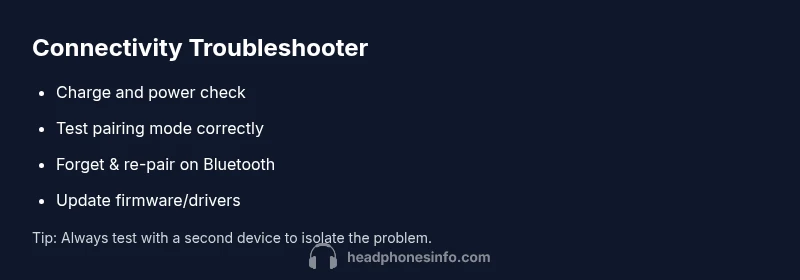
If you’re asking what to do if your headphones are not connecting, begin with a lightweight triage. Power matters: confirm the headphones are charged or connected to a power source if rechargeable. Move closer to the source device to rule out distance-related drops. Check the device you’re trying to pair with—ensure Bluetooth is enabled, airplane mode is off, and there isn’t a conflicting active connection. Try pairing with a second device to determine whether the issue is with the headphones or the source. If a new pairing prompt appears, decline any old connections and retry the pairing process. In many cases, a quick reset of the headphones or a fresh pairing will clear stale Bluetooth profiles, resolving the problem. Headphones Info notes that these elementary steps fix a surprising number of cases and buy you time to test more involved solutions.
Bluetooth vs wired: basics you must check
Bluetooth and wired connections fail for different reasons. For Bluetooth, verify the source shows the headphone in its paired devices list and that it’s selected as the active output. Disable and re-enable Bluetooth, then choose “Forget this device” and re-pair from scratch. For wired headphones, inspect the plug, cable, and adapter for damage, test with a different cable or adapter, and try a different port if possible. If the problem persists, continue to firmware and reset options. The Headphones Info team emphasizes software mismatches and stale drivers as frequent culprits in Bluetooth failures, while worn jacks or frayed cables are common wired issues.
Software fixes: firmware, drivers, and resets that solve most problems
Software faults account for the majority of connectivity issues. Start by checking for and applying any available headphone firmware updates from the manufacturer’s app or website. Next, update the Bluetooth drivers on the source device (PC, Mac, iOS, Android). After updates, perform a full reset of both devices per the manufacturer’s instructions. If you can’t locate a firmware update, a factory reset on the headphones can clear stubborn Bluetooth profiles. Note that resets erase saved pairings, so you’ll need to re-pair afterward. If the issue remains, test with another device to determine whether the fault is device-specific. Headphones Info analysis shows most problems clear up with fresh software environments and proper pairing sequences.
When hardware faults or age-related wear require action
Hardware problems are less common but can derail connectivity. Inspect the headset’s charging port, cable, and connector for visible wear or damage. For wireless models, check battery health; a swollen or poorly charging battery can impact performance. If you hear static, crackling, or intermittent sound after connecting, try another cable or adapter to rule out a faulty accessory. If software fixes fail, contact support or pursue warranty options. In some cases, the Bluetooth radio in the source device is the culprit, not the headphones themselves, so retesting with a known-good device is helpful. The goal is to confirm a hardware fault before replacing gear.
Prevention tips to keep connections solid
To minimize future disconnects, keep firmware up to date, reduce wireless interference, and manage paired devices efficiently. Create a simple pairing routine: charge, reset, pair with one primary device, then re-pair other devices as needed. Store headphones in a protective case and avoid rough handling that can loosen jacks or cables. If you switch devices frequently, consider multipoint pairing support to reduce the number of pairing steps. Regular checks and a disciplined pairing workflow save time and frustration when you need a fast fix.
Steps
Estimated time: 15-30 minutes
- 1
Check power and proximity
Ensure headphones are charged and within a short range of the source device. Turn them on and confirm any LED indicators show normal operation. This step confirms the basics before deeper troubleshooting.
Tip: A near-field try often reveals if the issue is distance-based. - 2
Verify Bluetooth on the source device
Open the Bluetooth settings, toggle Bluetooth off and back on, and look for the headphones in the available devices. If they appear, select them and attempt to connect. If they don’t show up, enabling Airplane mode briefly can reset radios.
Tip: Always choose 'Forget this device' before re-pairing to avoid stale profiles. - 3
Put headphones in pairing mode
Follow the manufacturer’s instructions to enter pairing mode (often a button hold). Confirm the device is discoverable and appears on the source device’s list. If pairing is unsuccessful, proceed to the next steps.
Tip: Do not attempt to pair while another device is actively connected. - 4
Forget and re-pair on the source device
On the source device, select the headphones and choose Forget/Unpair. Then pair again from scratch as if new. This clears conflicting profiles and usually fixes stubborn connections.
Tip: Reboot the source device if pairing still fails. - 5
Test with a second device (and cable check)
Attempt to pair the headphones with another phone or computer. If it pairs there but not on one device, the issue is device-specific. For wired models, try a different cable or adapter and port.
Tip: Carry a spare cable for quick testing on the road. - 6
Update firmware or reset
If available, update the headphones’ firmware via the manufacturer app or site. If still failing, perform a factory reset per official guidance, then re-pair. Only perform resets as a last software step.
Tip: Resetting can erase saved pairings; have them ready to re-establish.
Diagnosis: Headphones won't connect or pair with a device
Possible Causes
- highHeadphones not in pairing mode
- highOutdated Bluetooth drivers on source device
- mediumInterference or too many paired devices nearby
- lowHardware fault in headphones or cable
- lowFaulty USB-C/3.5mm adapter or jack
Fixes
- easyPut headphones into pairing mode and ensure they are discoverable
- easyToggle Bluetooth off/on, forget the device, and re-pair
- easyUpdate Bluetooth drivers on the source device and update headphone firmware
- easyReset headphones to factory settings and re-pair
- easyTry a different source device or different cable/adapter
- hardIf issues persist, contact support for hardware diagnosis
People Also Ask
Why won’t my headphones pair with my phone?
Most pairing issues stem from the headphones not being in pairing mode or from outdated Bluetooth on the phone. Forget the device and re-pair, and ensure both devices are discoverable. If it still fails, check for firmware updates.
Pairing usually fails due to pairing mode or outdated Bluetooth. Forget and re-pair, and check for updates.
Why can't my computer see my Bluetooth headphones?
Ensure Bluetooth is enabled on the computer, the device is in pairing mode, and drivers are up to date. If the headphones still don’t appear, try another PC or MAC to isolate the issue.
Make sure Bluetooth is on and drivers are current; test on another computer to isolate.
Do wired headphones require drivers to connect?
Typically no drivers are required for standard 3.5mm or USB-C wired headphones. If they don’t work, try a different port or cable and verify the output device in system settings.
Usually no drivers are needed, but try a different port or cable.
What should I do if resetting didn’t fix it?
If a reset doesn’t resolve the issue, check for firmware updates and test with another device to rule out device-specific problems. If nothing works, contact manufacturer support for diagnosis.
Try updates and another device; if still stuck, contact support.
How can I prevent this from happening again?
Keep firmware up to date, minimize interference, and manage paired devices. Use multipoint pairing when available and perform periodic checks to catch issues early.
Keep firmware updated and limit interference; use multipoint pairing when possible.
Watch Video
What to Remember
- Check power, pairing mode, and proximity first
- Software fixes resolve most Bluetooth issues
- Reset or firmware update resolves stubborn problems
- Hardware faults require professional help