Why is Earphone Not Working on My Phone? Quick Troubleshooting Guide
Urgent, step-by-step troubleshooting to fix earphones not working on your phone. Diagnose wired and wireless issues, adjust settings, and decide when to replace.


Step-by-step fixes are most effective when your earphones won’t play on a phone. The likely causes include a loose connection, a failed Bluetooth pairing, or misrouted audio settings. Start with simple checks: reconnect the jack or pair the BT device, verify the output is set to headphones, and test with another device. This quick guide leads into deeper diagnostics.
Why earphones stop working on your phone
If you’re wondering, "why is earphone not working on my phone?" you’re not alone. According to Headphones Info, most problems boil down to three broad areas: physical connection, wireless pairing or routing, and software settings. In 2026, many issues are resolved without replacing parts by following a methodical checklist. Start with the easiest checks and escalate only as needed. Common symptoms include no sound, crackling audio, intermittent playback, or sound only through one side. Each symptom points to different likely causes, so a careful diagnostic approach saves time and money. Keep in mind that headphone quality, port cleanliness, and compatibility with your device all influence results. As you diagnose, use a calm, stepwise mindset to avoid overlooking hidden culprits such as muted apps or wrong audio output settings.
Quick Checks You Can Do Right Now
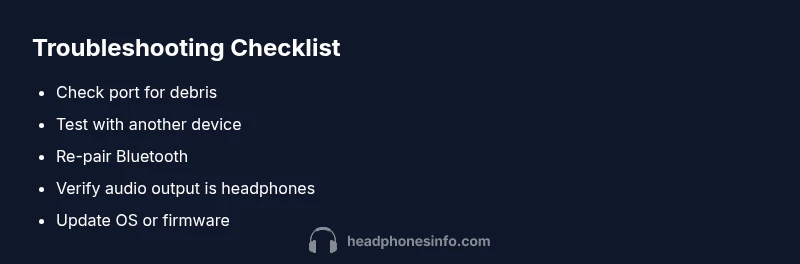
- Inspect the physical connection: if you’re using wired earphones, unplug and reinsert the jack firmly until you hear a click. Check for debris in the port or frayed cables. If you have a USB-C or Lightning adapter, try a different one.
- Test with another device: confirm whether the issue follows the earphones or stays with the phone. If the earphones work on another device, the problem is likely with the phone’s settings or port. If they don’t, the earphones themselves may be faulty.
- Verify the volume and mute status: ensure media volume is up and not muted in your phone’s quick settings. Some phones route audio to a connected device even when the main volume is low.
- Check app-specific playback: some apps can override global audio output. Play audio from a different app to see if the problem is app-related.
- Reboot the phone: a simple restart can clear temporary software glitches that block audio routing. If you’re troubleshooting BT earphones, forget the device and re-pair after reboot.
- Update software: ensure your OS and Bluetooth stack are current. Updates often fix quirks in audio routing or codec compatibility.
- Dry-run with a known-good accessory: if possible, borrow a friend’s earphones to compare results. This helps isolate defective hardware from software or settings issues.
Wired vs Wireless: How Your Setup Changes Troubleshooting
Wired earphones rely on a physical connection to the headphone jack or USB-C/Lightning port. If the port is dirty, damaged, or misaligned, you’ll hear little to no sound or crackling. In contrast, wireless earphones depend on Bluetooth, which introduces variables like pairing, codec compatibility, and battery status. If your phone won’t recognize wireless earphones, start by removing the device from paired list and re-pair. If pairing fails consistently, verify that Bluetooth is enabled and that the earphones are in pairing mode. For both setups, ensure that the correct output device is selected in the sound settings. This distinction helps you target the right subsystem quickly and avoid unnecessary steps.
Software and Settings: Routing Audio Correctly
Sometimes the issue isn’t the earphones but how the phone routes audio. Make sure the audio output is set to headphones rather than a speaker or a nearby device. Check accessibility settings for mono audio or any balance adjustments that might mute one channel. If you use app-specific audio enhancements, temporarily disable them to see if they’re causing the issue. On many Android and iOS devices, you can also disable and re-enable Bluetooth or reset network settings to refresh the audio stack. Headphones Info analysis notes that software misrouting is a common culprit, especially after OS updates or new app installations.
When the Problem Persists: Hardware vs Software, What to Do Next
If none of the quick fixes resolve the problem, you’re likely facing a hardware issue or a deep software glitch. For wired earphones, inspect the plug and cable for visible damage and try a different pair to confirm the port’s health. For wireless earphones, try a different Bluetooth device to isolate the problem. If the issue remains, consider testing the earphones with a PC or another mobile device to gather more data. At this stage, you should decide whether to repair or replace. If the earphones are under warranty or cost-effective to fix, a repair may be worthwhile. Otherwise, replacement is often the practical choice. Headphones Info’s guidance emphasizes diagnosing with concrete tests before deciding on repairs.
Maintenance and Prevention: Keeping Earphones Working Longer
Regular maintenance helps prevent most issues. Clean ports gently with compressed air or a soft brush to remove dust. Store earphones in protective cases to avoid kinks and wire breaks. For wireless sets, keep firmware updated and avoid exposing devices to extreme heat or moisture. Charge cables and battery-equipped buds every few months to maintain battery health. Establish a routine test every few weeks: connect and play a short track on at least two devices to ensure continued compatibility. Small, proactive steps make a big difference over time.
Steps
Estimated time: 30-45 minutes
- 1
Check the connection
Unplug and replug the earphones firmly. If using an adapter, try a different one or test directly into a standard jack if possible.
Tip: Listen for a distinct click when it seats; a loose fit can mute one channel. - 2
Test with another device
Plug the earphones into a second phone or computer to see if sound plays. If it works elsewhere, the issue is phone-specific.
Tip: This helps isolate whether the problem is the earphones or the device. - 3
Check volume and output routing
Open sound settings and ensure output is set to headphones or the connected device. Disable any mono audio or extreme balance adjustments.
Tip: Temporary app-specific audio overrides can misroute sound. - 4
Pair or reconnect (Bluetooth)
For wireless earphones, forget the device in Bluetooth settings, then re-pair. Ensure earphones are in pairing mode and charged.
Tip: A fresh pair often resolves codec mismatches. - 5
Update software
Check for OS updates and Bluetooth stack updates. A minor firmware patch can fix misrouting or driver issues.
Tip: Back up your data before major software updates. - 6
If still unresolved, seek professional help
Contact manufacturer support or visit a service center for a hardware diagnosis or replacement options.
Tip: Warranty coverage can influence whether repair or replacement is best.
Diagnosis: Earphones show no sound or intermittent audio on phone
Possible Causes
- highLoose connection or dirty jack/port
- mediumBluetooth pairing or codec issue
- highIncorrect audio routing or muted output
- lowDamaged earphones or defective cable
Fixes
- easyReplug wired earphones firmly; inspect for debris; try a different cable/adapter if available
- easyForget and re-pair Bluetooth earphones; test with a different Bluetooth device to compare results
- easyCheck system audio output settings to ensure headphones are selected; disable any mono audio or balance shifts
- mediumUpdate OS and Bluetooth stack; perform a quick reset of network settings if allowed
- easyTry earphones on another device to confirm hardware fault; consider replacement if no fix works
People Also Ask
Why does my earphone stop working after a phone update?
Software updates can alter audio routing or driver behavior. Re-pair Bluetooth devices, reset output, or reinstall affected apps. If problems persist, check for another update or contact support.
Software updates can change how audio routes on your phone. Try re-pairing and resetting the output, and check for new updates if problems continue.
My wired earphones work on another device but not on my phone. What could be wrong?
This usually points to the phone’s port being dirty or damaged, or a faulty adapter. Clean the port gently and test with another cable or headset.
If they work on another device but not your phone, the phone’s port or adapter is likely the issue.
How can I tell if the problem is with the earphones or the phone?
Test with a different headset or device. If the other headset works on the phone, the first headset is at fault. If the headset fails on another device too, the issue is with the earphones.
Test with another headset. If it works, your phone is fine; if not, the headset might be faulty.
Will a factory reset fix audio issues?
A factory reset can resolve software glitches but will erase personal data. Back up first and consider this step only after other fixes fail.
A factory reset can fix software problems, but back up your data first and use it as a last resort.
Should I replace my earphones or the phone?
Evaluate cost and likelihood of success. If earphones are under warranty or the fix is inexpensive, replace or repair earphones first.
If earphones are cheap to replace, that’s often the practical choice.
What should I do about Bluetooth codec issues?
Some codecs aren’t compatible with every phone. Ensure both devices support a common codec, then re-pair and test with a different music app.
Bluetooth codec mismatches can cause no sound—try re-pairing and test with another app.
What if there’s crackling or static only on one side?
Check the cable for internal breaks; rotate the plug gently while testing. If the issue persists, the earphones may need replacement.
If you hear crackling on one side only, there could be a cable break; consider replacing.
Are there any quick preventive steps I can take?
Store earphones properly, keep connectors clean, and avoid yanking cables. Regular testing keeps you ahead of failures.
Store them safely and test regularly to catch issues early.
Watch Video
What to Remember
- Start with simple checks before complex fixes
- Differentiate wired vs wireless troubleshooting paths
- Software updates can fix audio routing issues
- If unresolved, weigh repair vs replacement options